
PowerPoint user
You create or receive presentations that rely on features in the installed version of PowerPoint. Check which operating system and licence suit the way you work; Microsoft Support compares features across platforms.


Start with your presentation software. Windows and macOS are suitable options if you need features from the installed version of PowerPoint; a Chromebook may suit you if you use the web version and it meets your needs. Then compare the screen space and connections with your monitor or projector, and check the software licence, power supply and keyboard layout for the specific model.
You create or receive presentations that rely on features in the installed version of PowerPoint. Check which operating system and licence suit the way you work; Microsoft Support compares features across platforms.
You edit slides alongside notes or source material and want to know whether your laptop screen and existing second display suit the way you work. Microsoft Support recommends checking whether your device supports multiple displays.
You mainly create presentations in a browser and are weighing up whether Google Slides or PowerPoint for the web will do the job, including when you want to work offline. Google Help explains how to work offline once you have set up access in advance.
First, choose the software you need. Then check the screen, external connections and which licences and accessories you already have. Microsoft Support explains the differences between PowerPoint platforms, while Google Help explains how to use Google Slides offline.
A good fit if: you need the installed version of PowerPoint or an existing Windows work environment.
Bear in mind: a Windows laptop does not automatically include the PowerPoint licence you want; a larger screen also takes up more desk space.
A good fit if: you want to use macOS and the presentation software for Mac suits the way you work.
Bear in mind: check which PowerPoint features are available on each platform and whether you need a suitable cable or adapter to connect an HDMI display.
A good fit if: you mainly work in a browser and the available web features cover your presentation needs.
Bear in mind: Microsoft Support says the Windows and Mac desktop versions of Office cannot be installed on a Chromebook. You also need to set up offline access to Google Slides in advance.
| What to consider | What should you check? | Who is this most important for? |
|---|---|---|
| Presentation software | Make a note of the features and file formats you need. Compare them with the software version you have chosen and check the licence terms. | If I rely on specific PowerPoint features, I want to keep using them. Around 36% of consumers see software compatibility as their main concern. |
| On-screen workspace | Compare the screen size and resolution of the exact model, and consider whether you will mainly work on the laptop or on an existing external display. | When I view slides alongside notes or source material, I want enough room in my workspace. Around 29% of consumers give screen space top priority. |
| Second screen | Check the laptop’s video output, the input on your monitor or projector, and support for multiple displays. | If I want to show slides on a projector while viewing my own notes, my setup needs to support this. Around 21% of consumers prioritise having the option to use a second screen. |
| What’s included? | Check the software licence, charger, keyboard layout and connections for the specific model. | I want to know in advance which essentials I already have and what else will suit the way I work. Around 14% of consumers see extra costs as their main concern. |
The web version and installed versions do not have the same features. Microsoft Support also says the Windows and Mac desktop versions of Office cannot be installed on a Chromebook.
Before you buy, check that the features you need are available in the version you plan to use.
To view speaker notes on your laptop and slides on a second screen, both the laptop and its connection need to support the setup you want.
Compare the video output on the exact laptop model with the input on your monitor or projector, and check that Presenter View works.
A suitable charger or presentation software is not always included. For example, Dell states that a charger is not included with the configurations reviewed; the Microsoft Store says PowerPoint for home use is limited to non-commercial use.
Before you decide, check what comes in the box and whether the licence suits how you use your presentations.
The ThinkPad E14 Gen 7 is an example of a compact Windows laptop for working with slides.
The ProBook 4 G1i is an example of a Windows laptop with a larger screen for desk-based use.
The MacBook Air with M5 runs macOS; the 15-inch model reviewed has a larger built-in screen.
The Dell Pro 14 PC14250 is a business-configured 14-inch Windows laptop.
These Joybuy products are Windows laptops with screen sizes and connections you can compare for working with slides at home. Check that the software, ports and included accessories suit your setup for the specific model.
 No image available
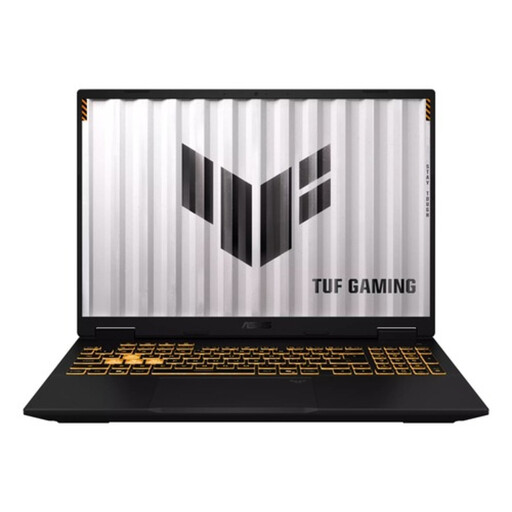
The 16-inch model may suit you if you want to view slides on a larger built-in screen.
16-inch WUXGA screen, HDMI, Windows 11 Home, 16 GB RAM and 1 TB SSD.
No image available
This model has a 16-inch screen for working with slides at a desk.
16-inch WUXGA screen, Windows 11 Home, 16 GB of memory and 1 TB SSD.
 No image available
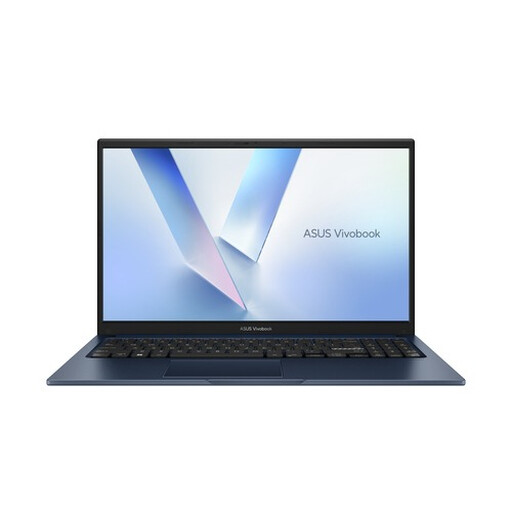
The 15.6-inch model may suit you if you want to work on the laptop screen.
15.6-inch anti-glare Full HD screen, Windows 11 Home, 8 GB RAM and 256 GB SSD.
 No image available
The 16-inch model lists HDMI 2.1 for a possible connection to an external display; check that it is compatible with your monitor or projector.
16-inch 240 Hz QHD+ OLED screen, 16 GB DDR5, Windows 11 Home and 1 TB SSD.
 No image available
The listed connections may matter if you want to show slides on an external display; check the connections on your screen.
16-inch WUXGA screen, HDMI 2.1, USB-C with DisplayPort, Windows 11 Pro, 16 GB DDR5 and 512 GB SSD.
Yes, if the web version of your presentation software has the features you need. Microsoft Support says the Windows and Mac desktop versions of Office cannot be installed on a Chromebook, so compare the features you need with those available in the web version.
Use a supported PowerPoint setup with Presenter View and an extended desktop. Microsoft Support recommends checking whether your device supports multiple displays; also make sure the connections on your laptop and screen are compatible.
Yes. Google Help explains that you can work offline once you have set up access in advance and made the necessary files available offline. Test this with your own account and files before relying on offline access.
ACM ConsuWijzer says the cooling-off period for an online consumer purchase ends 14 days after delivery; exceptions may apply. Your statutory guarantee is separate from the seller’s guarantee and depends on what you could reasonably expect from the product.
If you are an employee, the Dutch government says your employer is responsible for providing a suitable and safe home-working environment, tailored to your tasks and the equipment you need. This does not specify a standard laptop configuration and does not automatically apply to every private buyer.