Start by considering the display configuration and where you’ll be working: a stated brightness level doesn’t guarantee that reflections from a window will disappear. Then choose a laptop that suits your presentation software and the screens you’ll present on, and check which ports and charger are included. Positioning yourself favourably in relation to the window can also help reduce reflections and glare.
Who is this relevant to?
Creating presentations beside a bright window
You want to be able to see text, images and controls clearly when daylight falls on your screen. As well as checking the display specifications, consider where you’ll work and whether you can use blinds or curtains. Arboportaal advises setting up a screen-based workstation so that your line of sight is parallel to the window.
Presenters with an established software workflow
You create slides that you also use on other devices or screens. So check that the features, fonts and connections suit your presentation software and workflow.
Mobile presentation creators
You move between workspaces and weigh up screen space against portability and the practicalities of charging on the go.
What should you look for when choosing?
First assess the display and your workspace setup. Then check your presentation workflow, external connections and any accessories you’ll need to arrange separately.
The percentages below show how consumers looking for a laptop to create presentations beside a bright window are divided by their main buying concern.
| What to consider |
What should you check? |
Who is this important to? |
| Visibility in daylight |
Check the display configuration of the exact model and see whether you can position the laptop parallel to the window or use blinds or curtains. |
When I create slides beside a bright window, I want to be able to see text and details clearly. Consumers who prioritise readability in daylight make up around 42% of this group. |
| Presentation workflow and presenting |
Check the features in your presentation software and version, any custom fonts, and how the presentation screen connects. |
When my slides need to work across different devices, I want to know in advance whether the features and fonts will match. Consumers who prioritise workflow and connecting to a presentation screen make up around 25% of this group. |
| Moving between workspaces |
Compare screen size and overall dimensions, and check the charging options for the exact configuration. |
When I move between workspaces often, I weigh up a practical screen against portability and charging. Consumers who prioritise mobility and convenient charging make up around 17% of this group. |
| Total cost and aftercare |
Check what’s in the box, whether you’ll need a separate charger or presentation adapter, and who the seller is. |
When I want to keep extra costs down, I want to know what else I’ll need and who to contact if I need help. Consumers who prioritise the total purchase cost and aftercare make up around 16% of this group. |
Common buying mistakes
-
Choosing based on screen brightness alone
A figure in nits on its own doesn’t tell you how much the screen will reflect light in your workspace. So a brighter screen won’t necessarily prevent problems caused by daylight.
Check the display configuration of the exact model and consider your viewing direction and window coverings. Arboportaal advises positioning your line of sight parallel to the window.
-
Assuming a laptop always comes with a charger
For the Dell Pro 14 Plus configuration reviewed, Dell states that a charger is not included.
Before buying, check what’s in the box and which charging method the configuration you’ve chosen supports.
If a compatible mains adapter isn’t included, you’ll need to arrange one separately.
-
Assuming a model range has one fixed display specification
A product range may include several display configurations. Lenovo states that some ThinkPad configurations are available only on selected models and not in every region.
Compare the full model number and display specifications of the configuration you’re actually considering.
Brands to consider
Apple
The MacBook Air with M5 chip is worth comparing if macOS suits your presentation workflow and portability matters to you.
- For the 13-inch configuration, Apple specifies a 13.6-inch display, 500 nits of brightness and two Thunderbolt 4 ports.
- That brightness specification doesn’t measure reflections beside your window. Also check whether you’ll need an adapter to connect to the presentation screen.
- Microsoft documents differences between PowerPoint platforms, so check that the features you use are supported before switching platforms.
Dell
The Pro 14 Plus PB14250 is a Windows option to consider if you’re looking for a business laptop with a 14-inch screen.
- For the configuration reviewed, Dell lists a 14-inch IPS display without touchscreen, 16 GB of memory and a 512 GB SSD.
- Dell says that a charger isn’t included with this configuration. The display specifications alone don’t tell you how the screen performs in strong daylight by a window.
Lenovo
The ThinkPad T14 Gen 6 range is worth comparing if you want to look at display configurations and ports for each model.
- Lenovo lists HDMI and Thunderbolt 4 among the ports available across the range.
- Lenovo says that some configurations are available only on selected models and may not be sold in every region. So check the display variant and ports on the specific configuration.
HP
EliteBook may be worth considering if business support or a privacy screen on a particular configuration is important to you.
- HP lists Sure View and on-site support for one EliteBook 8 G2i configuration.
- A privacy screen isn’t the same as proven reduced reflections in daylight by a window. Don’t assume that every EliteBook has the same display features.
Joybuy product picks
These laptop picks are suited to creating presentations and offer a range of screen sizes and configurations. Check that the display specifications, software and ports on each model suit your workspace.
 No image available
HP OmniBook 3 16-by0058ndx
The specified anti-glare display and HDMI connection are useful if you create slides and present on an external screen; an anti-glare finish doesn’t eliminate reflections.
16-inch IPS display, 16:10, 300 nits, 2K, HDMI 2.1 and Windows 11 Home. AMD Ryzen 5 7520U, 8 GB of memory and 512 GB SSD.
A charger isn’t included with this configuration, so you’ll need to arrange a suitable mains adapter separately.
View at Joybuy
 No image available
ASUS Vivobook S16 S3607QA-SH109W
This configuration is worth comparing if you want to create slides on a 16-inch screen and use a Windows workflow.
16-inch WUXGA OLED display with anti-glare finish, Snapdragon X processor, 16 GB LPDDR5X, 512 GB SSD and Windows 11 Home.
View at Joybuy
 No image available
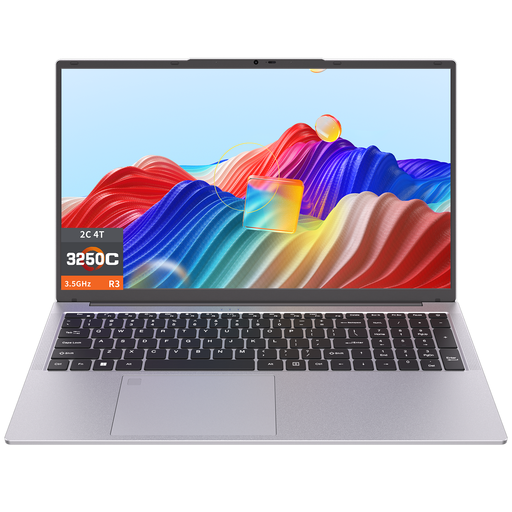
Auusda T173A
The 17.3-inch screen may suit you if you’re mainly looking for a larger built-in display to create or view slides.
17.3-inch screen, 3250C processor, 8 GB DDR4 memory and 512 GB SSD.
View at Joybuy
 No image available
HP OmniBook Ultra Next Gen AI 16-bk0002nd
This configuration is worth considering if you want to edit slides on a large touchscreen and use Windows 11 Pro.
16-inch 3K OLED touchscreen, 120 Hz, 64 GB of memory, 2 TB SSD and Windows 11 Pro. The stated peak brightness is up to 500 nits HDR.
The product description lists a 99Wh battery and a 140W USB-C adapter in the box.
View at Joybuy
 No image available
HP OmniBook Ultra Next Gen AI 16-bk0001nd
This configuration is worth considering if you want to edit slides on a large touchscreen and use Windows 11 Pro.
16-inch 3K OLED touchscreen, 120 Hz, 32 GB of memory, 1 TB SSD and Windows 11 Pro. The stated peak brightness is up to 500 nits HDR.
The product description lists a 99Wh battery and a 140W USB-C adapter in the box.
View at Joybuy
Frequently asked questions
Does a higher nits figure always help prevent reflections from a window?
No. A stated brightness level doesn’t tell you on its own how much reflection you’ll experience in your setup. Check the display configuration and try to position your line of sight parallel to the window; Arboportaal also advises using blinds or curtains if glare is a problem.
Can I edit the same PowerPoint presentation on Mac and Windows?
PowerPoint is available on both platforms, but Microsoft documents differences in features between versions and platforms. Check which features your slides use. Embedding custom fonts may help, but not every font can be embedded.
What should I check before connecting a laptop to an external screen?
Compare the input on the presentation screen with the ports on the exact laptop configuration. Apple specifies two Thunderbolt 4 ports for the MacBook Air reviewed; Lenovo lists HDMI among the ports on the ThinkPad T14 Gen 6. Check whether you’ll need a suitable adapter.
Does a laptop always come with a charger?
Check each configuration. Dell states that a charger isn’t included with the Pro 14 Plus configuration reviewed. Also check which charging method the laptop supports before arranging a suitable adapter.
Do I need a separate keyboard or screen for extended laptop use?
For employees who work with a screen for more than 2 hours a day, Arboportaal describes a workstation rule stating that the screen and keyboard must not be attached to each other. It must be possible to use a separate keyboard or screen. This is a conditional workstation rule, not a general requirement for everyone buying a laptop for personal use.


