What should you look for when buying?
First, test your software and file links using a small sample catalogue. Then work out how much local storage and screen space you need, and how often you’ll take your laptop with you.
| What to consider |
What to look for when buying |
Who should prioritise this? |
| File links |
Test a copy to see whether links still work after files have been moved and restored. The Cultural Heritage Agency of the Netherlands recommends making regular digital backups; Microsoft describes relative paths for certain links between Excel workbooks. |
If I link photos and documents to object records, I want those links to keep working after files are moved or restored. Around 33% of consumers give keeping these file links intact their top priority. |
| Storage for photos |
Count your existing files and estimate how quickly they’ll grow. The Consumers’ Association recommends 512 GB or more for people who often use large photo or video files; this isn’t a minimum for every collection. |
I store lots of object photos locally and want room to grow, without mistaking my laptop’s storage for a separate backup. Around 27% of consumers prioritise local storage for photos and documentation. |
| Screen space |
Compare screen sizes and configurations. Consider whether you want to view catalogue fields, photos and documentation side by side. An external monitor may change what you need for a permanent workspace. |
When I compare descriptions, photos and source information at the same time, built-in screen space matters to me. Around 20% of consumers put screen space at the top of their list when buying. |
| Working on site |
Check the size, ports and access to your catalogue and source files when you’re away from your usual network. Assess battery life against the stated test conditions; it’s not a guarantee of how long it will last while cataloguing. |
If I enter information beside objects, I want to be able to use my laptop and the files I need away from my usual workspace. Around 20% of consumers prioritise working in different locations. |
Laptop picks at Joybuy
This selection includes compact models for entering information in different locations, as well as larger screens for a permanent cataloguing workspace. For each model, check that it works with your cataloguing software and that the configuration you choose suits your files and accessories.
 No image available
HP OmniBook 5 Flip 14-fp0075nd C5VM5EA#ABH
The compact 14-inch Flip model may suit you if you enter information in different locations.
The charger isn’t included and must be purchased separately.
View at Joybuy
 No image available
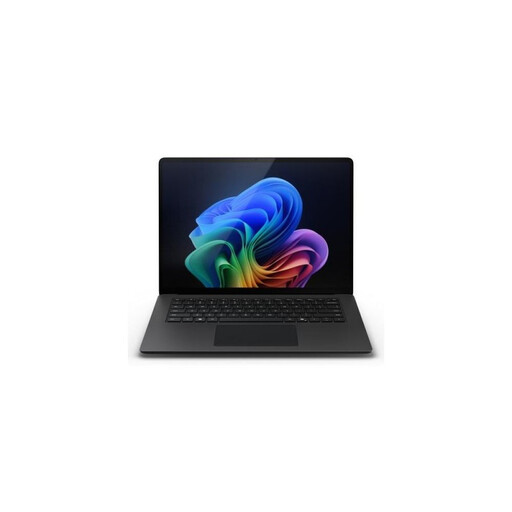
Microsoft Surface Laptop 7 13.8-inch Snapdragon X Elite 16 GB 512 GB SSD
The 13.8-inch model is a compact option for taking your catalogue work between different workspaces.
This configuration lists a Snapdragon X Elite processor, 16 GB of memory and a 512 GB SSD.
View at Joybuy
 No image available
ASUS Zenbook A16 16-inch WUXGA 16 GB 512 GB SSD W11H
The 16-inch screen may suit catalogue work at a permanent workspace, where screen space matters more than a compact design.
The product name lists a WUXGA screen, 16 GB of memory, a 512 GB SSD and W11H.
View at Joybuy
 No image available
MSI Prestige 16 AI+ C3MG-236NL Copilot+ PC
The 16-inch model is an option if you want to view catalogue fields and images on a larger built-in screen.
The product name lists an Intel Core Ultra X7 358H, 32 GB LPDDR5x, a 1 TB SSD and a 16-inch 2.8K OLED screen with 120 Hz.
The charger must be purchased separately.
View at Joybuy
 No image available
Apple MacBook Air 15-inch M5 16 GB 512 GB, Starlight, QWERTY keyboard
This larger model may suit catalogue work where you compare photos and descriptions on the same screen; choose it only if your cataloguing software supports macOS.
This configuration lists an M5 chip, 16 GB of memory and a 512 GB SSD. The power adaptor isn’t included; the product description specifies a USB-C adaptor of at least 35 W.
View at Joybuy
Frequently asked questions
Do I need to buy specialist collection management software straight away?
Not necessarily. The Cultural Heritage Agency of the Netherlands suggests that a well-organised spreadsheet can be a good starting point, and notes that specialist software can involve costs. Take the size of your collection and how you use the data into account, then check that your laptop is compatible with the software you choose.
How can I stop links to source files from becoming unusable?
Keep your catalogue and source files together in a consistent structure, and test links on a copy after moving or restoring files. Microsoft describes relative paths for certain links between Excel workbooks; don’t assume without testing that every link to a photo or document works in the same way. Also, back up your records and source files regularly.
Do I always need 512 GB of storage?
No. The Consumers’ Association links storage choices to the number and type of files, and recommends 512 GB or more for people who often use large files such as photos or videos. Consider the size of your own collection, how much you expect it to grow, and any external or online storage you use.
What does the laptop warranty cover in the Netherlands?
When you buy as a consumer, you’re entitled to a product that meets reasonable expectations. The Government of the Netherlands states that there is no fixed statutory warranty period in the Netherlands. A manufacturer’s warranty or extended warranty is in addition to your statutory rights; assess its cover separately.
Does the GDPR apply to my collection records and photos?
That depends on the information and how you use it. According to the Dutch Data Protection Authority, identifiable people in photos are personal data; processing carried out solely for personal or household purposes is outside the scope of the GDPR. If you use personal data in other ways, you’ll need to check which rules apply. Recording pottery objects does not in itself mean that every collector has the same GDPR obligations.


