
Creating multiple poster versions
Do you regularly change the text and layout, and want to be able to find an older version? Check whether your design software offers version history and whether that feature is included with your account.


Start with your design software and file sizes: simple layouts don’t automatically call for the same laptop as extensive photo editing. Then compare screen space, memory, storage and portability. Check separately whether your software can manage or export the versions and print files you need.
Do you regularly change the text and layout, and want to be able to find an older version? Check whether your design software offers version history and whether that feature is included with your account.
If you’re editing images as well as working on the layout, compare your chosen software’s requirements with the available memory and storage. Also check the screen on the exact laptop configuration you’re considering.
If you take your laptop to meetings with local residents, for example, weigh up a more compact size against the workspace you need on the built-in screen.
Choose your software and workflow first, then match the laptop to your files and workspace. A laptop can’t make up for features missing from a software account, such as version history or a particular export option.
The percentages below relate to consumers choosing a laptop for this neighbourhood poster project; each row focuses on one main buying concern.
| Consideration | What to look for when buying | Who is this important for? |
|---|---|---|
| Saving and finding versions | Check whether your software and account offer version history. If not, agree on a clear way to save and identify separate versions. | If I make regular changes, I want to be able to restore an earlier poster edit without losing an approved version. Around 30% of consumers say version management is their main buying concern. |
| Editing photos and creating a print file | For Photoshop 27.x, Adobe lists 8 GB RAM as the minimum and 16 GB or more as the recommendation. Also ask the printer what file format they need, and check that your software can export it. | Anyone editing photos and preparing a poster for print should compare both software requirements and export options. Around 30% of consumers prioritise this combination. |
| Portability versus workspace | Compare the screen size with the space you need for your design panels. Also check that the laptop is compatible with your external monitor. | If I work on the poster in different locations, I want a size I can carry without sacrificing too much workspace. For around 20% of consumers, portability is the main buying concern. |
| Matching the cost to a simple layout | Choose a configuration that suits your software and the work you do; check software features separately from the laptop specifications. | For a simple layout, I don’t want to pay for hardware or software features I don’t need for my workflow. Around 20% of consumers put finding the right overall cost first. |
Version history depends on your design software, how you save files and, sometimes, your account type.
Check the feature in the programme you plan to use and, if needed, set up a consistent system for clearly naming files.
Apple Netherlands lists a 13.6-inch M5 MacBook Air configuration with 16 GB memory, a 512 GB SSD and a P3 display. It may be worth considering if you’re looking for macOS and a compact built-in screen.
For the Yoga Slim 7 Gen 11, item number 83QSCTO1WWNL1, Lenovo lists 16 GB memory, a 512 GB SSD and a 14-inch OLED screen.
The Dell 14 DC14250 is configurable. On the Dell page shown, a Core 5 processor and 16 GB memory option are among the selected specifications.
ASUS’s creator range includes ProArt models with OLED screens and a Vivobook 16X. These ranges can give you a starting point for comparing screens and models.
These Joybuy laptops are suited to local design work. Compare screen size, memory and storage with the software and files you use.
 No image available
Compare the stated screen, memory and storage configuration with the requirements of your design software.
16-inch WUXGA OLED screen; Snapdragon X processor; 16 GB LPDDR5X; 512 GB SSD; Windows 11 Home.
 No image available
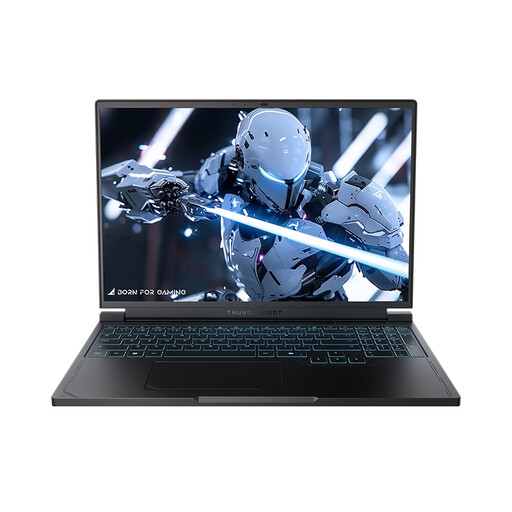
Compare the 16-inch screen and stated storage with the space you need for your poster files.
16-inch QHD+ 240Hz screen; AMD Ryzen 7 7745HX; 16 GB DDR5; 1 TB SSD; NVIDIA GeForce RTX 5060.
 No image available
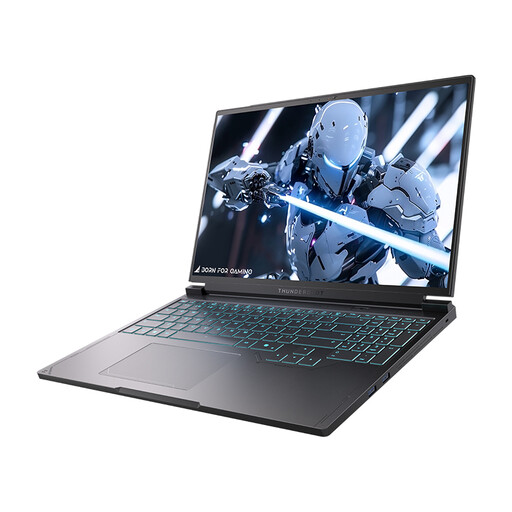
Check that this configuration suits your design software and the number of project files you plan to store locally.
16-inch QHD+ 240Hz screen; Intel Core i7-13650HX; 16 GB DDR5; 1 TB SSD; NVIDIA GeForce RTX 5060.
 No image available
The 15-inch configuration is worth comparing if you’re weighing up screen space against how easy the laptop is to carry.
M5 chip; 16 GB memory; 512 GB storage. The product description lists a 15.3-inch Liquid Retina display.
 No image available
Check that this configuration and macOS are compatible with the software you plan to use for the poster.
M5 Pro chip; 24 GB memory; 1 TB storage. The product description lists support for Adobe Creative Cloud on macOS.
No, it depends on the software you use. Adobe lists 8 GB RAM as the minimum for Photoshop 27.x and recommends 16 GB or more; these figures don’t automatically apply to simple web-based design.
That depends on the service and how you save your files. Canva says free users don’t have access to Version History; Illustrator offers version history for cloud documents. Save clearly labelled separate copies if you don’t want to rely on this kind of feature.
First, ask the printer which file format and settings they need. Then check your software’s export options: Canva lists a CMYK PDF as an extra option for certain subscriptions, while Adobe describes PDF export for Illustrator.
Choose your storage based on the files and software you use. Consumentenbond recommends 512 GB or more if you often work with large files such as photos and videos; also compare the available space with the size of your own project files.