On a small desk, a compact laptop can leave room for your input devices, while a larger built-in screen gives you more space for your canvas and tools. So choose based on the space available on your desk, as well as the screen, software requirements and ports of the specific configuration. If you work for long stretches, also consider whether you can set up your screen and keyboard separately.
Who should consider this?
Designer with limited desk space
You want to edit posters while keeping room for a mouse and other essentials. Balance the laptop’s dimensions against the screen space you need and a working posture that suits your setup. Arboportaal also offers guidance on setting up your screen and keyboard separately for prolonged computer work.
Print poster designer
You assess details and colours, but a colourful screen alone won’t predict how a print will look. Adobe notes that screen calibration and resolution can affect how artwork appears. Make sure you also agree colour management and file requirements with your printer.
Designer of large, layered posters
You might combine image editing and vector work, for example. Check the requirements of the software versions you use and compare them with the memory and storage of the exact laptop configuration. For Photoshop 27.x, Adobe recommends 16 GB or more of memory.
What should you look for when buying?
Start with the dimensions of your workspace and the files you create. Then check that the screen, software and ports suit the way you work.
| What to consider |
What should you check? |
Who should pay particular attention? |
| Desk space and posture |
Measure the usable width and depth of your desk. Check the laptop’s dimensions and see whether there’s room for a mouse, keyboard or external screen. |
If I want to use my laptop and input devices on the same small desk, the whole setup needs to fit. Around 31% of consumers put having suitable desk space first. |
| Screen for colour and detail |
Check the resolution and stated colour gamut of the exact configuration. Ask your printer which colour settings and files they need. |
When I’m assessing colours and fine details, I want to know what the screen can display and what I need to agree separately for print. Around 25% of consumers prioritise screen quality. |
| Memory and storage |
Compare the configuration with the requirements of your software and files. For Photoshop 27.x, Adobe lists 8 GB RAM as the minimum and 16 GB or more as recommended; storage requirements also vary by version. |
For large or layered files, I want to check that the memory and storage are suitable for my software and workflow. Around 25% of consumers put this check first. |
| Total cost of your workspace |
Check what’s included with the configuration and which accessories you actually need. Compare any additional warranty cover with your statutory rights. |
If I need essentials or software as well as a laptop, I want to understand the cost of the whole setup. Around 19% of consumers consider the total cost the deciding factor. |
Common buying mistakes
-
Assuming every model in a laptop range has the same specifications
Screen resolution, touch control and memory can vary between configurations. So a specification for the range doesn’t automatically tell you what features a particular model has.
Before buying, check the full model number and the screen and memory configuration of the model you’re looking at.
-
Measuring only the laptop and forgetting the rest of your workspace
A compact model won’t necessarily leave enough room for a mouse, separate keyboard or external screen. The position of your screen and keyboard can also matter if you work for long periods.
Measure your desk and sketch out which devices you want to use at the same time. Arboportaal outlines requirements for employees who work at a screen for more than two hours a day, including being able to use the screen and keyboard separately.
-
Assuming a wide colour gamut guarantees accurate print colours
A stated colour gamut is a screen specification; it doesn’t guarantee that a print will look the same.
Agree colour management and file requirements for your poster with your printer.
-
Thinking an extended warranty replaces your statutory rights
According to the Dutch government, if there’s a problem with a product, the seller is your point of contact for a solution. Paid-for additional cover doesn’t automatically replace your statutory rights.
Read what the additional cover includes and compare it with your existing statutory rights.
Brands to compare
Apple
The 13.6-inch MacBook Air with M5 is a compact macOS option. For the base configuration, Apple lists 16 GB of memory, a 512 GB SSD, a resolution of 2560 × 1664 pixels and wide P3 colour support.
- The stated screen and storage specifications give you concrete features to compare with your design needs.
- Apple lists two Thunderbolt 4 ports and no built-in HDMI port. Check which ports your screen and peripherals need; the specifications aren’t an independent measurement of print colour.
ASUS
The Zenbook 14 OLED UX3405 range includes compact Windows configurations with different screen and memory options. ASUS lists Thunderbolt 4 and HDMI among the range’s features.
- The ports may be useful if you want to use a separate workspace setup.
- The UX3405CA-QL535W configuration reviewed is listed with a WUXGA screen. Don’t assume that another configuration’s 3K specification applies; check the full model number.
Dell
The XPS 13 9345 is a compact Windows configuration with a Snapdragon processor. Dell’s Dutch configurator lists a configuration with 16 GB of memory, among others.
- The configurator makes it clear that the specifications depend on the configuration you choose.
- Before buying, check that your specific design software and any plug-ins work with the ARM64 configuration.
HP
HP’s Dutch online shop lists 14-inch OmniBook Ultra configurations, including the 14-kd0692nd with 32 GB RAM, a 2 TB SSD and a 3K touchscreen.
- The configuration listed gives you specific memory, storage and screen resolution details.
- These are product specifications, not performance test results. Check that the configuration is currently available before basing your choice on it.
Joybuy products for poster design
This selection focuses on laptops with built-in screens for designing posters on a small desk. Specifications for connecting an external screen are also listed for some configurations.
 No image available
HP OmniBook 5 Flip 14-fp0075nd C5VM5EA#ABH
A 14-inch configuration with a built-in screen; check that the stated screen resolution suits your canvas and workflow.
OLED touchscreen, 16:10 aspect ratio and 1920 × 1200 pixels. The configuration lists 16 GB of memory, HDMI and USB-C with DisplayPort. No charger is included, so you’ll need to buy a suitable USB-C charger separately.
View at Joybuy
 No image available
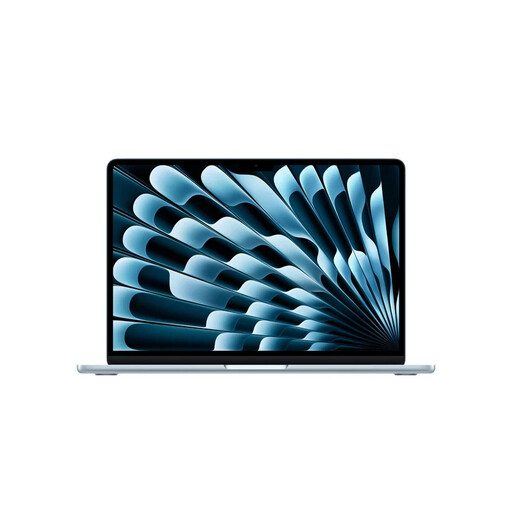
Apple MacBook Air 13-inch M5, 16 GB, 512 GB, Sky Blue, QWERTY
A compact macOS option if you want to save desk space and work on the built-in screen.
The 13.6-inch screen has a resolution of 2560 × 1664 pixels and wide P3 colour support. The configuration lists 16 GB of memory and 512 GB of storage. It has two Thunderbolt 4 ports and no built-in HDMI port.
View at Joybuy
 No image available
Apple MacBook Pro 14-inch M5 Pro, 24 GB, 1 TB, Space Black, QWERTY
The stated memory and storage configuration may be worth considering if you work with larger poster files; compare it with the requirements of your own software.
14.2-inch XDR screen with 3024 × 1964 pixels, 24 GB of memory and 1 TB of storage. The listed ports include three Thunderbolt 4 ports and HDMI.
View at Joybuy
 No image available
ASUS Zenbook A14 UX3407QA-QD479W, Snapdragon X, 16 GB, 512 GB, Iceland Gray
A 14-inch configuration to compare if you’re looking for a built-in OLED screen and ports for connecting a separate workspace setup.
WUXGA OLED screen with a 16:10 aspect ratio and stated 100% DCI-P3 colour coverage; this alone doesn’t guarantee the final print result. The configuration lists 16 GB of memory, a 512 GB SSD, HDMI and USB-C with DisplayPort. No charger is included; a suitable 65 W USB-C Power Delivery charger is required.
View at Joybuy
 No image available
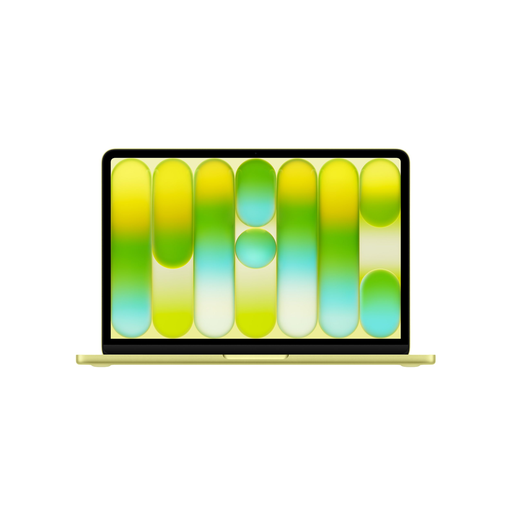
Apple MacBook Neo 13-inch A18 Pro, 8 GB, 512 GB, Citrus, QWERTY
The 13-inch size could suit you if saving desk space is important; check that the memory configuration is right for your software and files.
The configuration lists 8 GB of memory and a 512 GB SSD. For Photoshop 27.x, Adobe lists 8 GB as the minimum and 16 GB or more as recommended. No power adapter is included; a USB-C Power Delivery adapter of at least 20 W is required.
View at Joybuy
Frequently asked questions
Is 16 GB RAM essential for designing posters in Photoshop?
No, not as a general requirement. For Photoshop 27.x, Adobe lists 8 GB RAM as the minimum and 16 GB or more as recommended. Also check the requirements of your other programmes and the software versions you use.
How can I set up a laptop for longer design sessions at a small desk?
First, check whether a separate keyboard, other input devices or an external screen will actually fit. Arboportaal advises limiting laptop use without accessories as much as possible. For employees who work at a screen for more than two hours a day, it outlines requirements for being able to use the screen and keyboard separately; these rules for employees don’t necessarily apply to all personal use.
Does a screen with a wide colour gamut automatically give an accurate print proof?
No. A stated colour gamut describes a screen feature, not the colours of the finished print. Set up colour management and document settings to match your printer’s file requirements.
What are my rights when I buy a laptop online in the Netherlands?
For eligible distance sales to consumers, you’ll often have a 14-day cooling-off period; the Dutch government notes that conditions and exceptions may apply. You’re also entitled to a product that conforms to the agreement, and if there’s a problem, the seller is your point of contact for a solution. An extended warranty doesn’t replace this statutory right.


