Choose based on your files and workspace. Large image files call for plenty of memory and SSD storage, while a larger built-in screen can be a real plus if you work without an external monitor. For print, screen specifications alone aren’t enough: calibration, lighting and coordination with your printer all matter. A dedicated graphics card isn’t essential for every poster-design workflow.
Who is this guide for?
Print poster designer
You review poster images and colours for print and want to know how to use your screen, calibration and lighting together. Adobe explains how these factors, along with paper and colour management, contribute to predictable print results.
Designer working with large image files
You combine poster layouts with photo editing or keep lots of files open; in that case, memory and available SSD storage are important considerations. Adobe recommends 16 GB or more of memory for Photoshop and 16 GB for InDesign.
Creative with a dedicated home workspace
You’re weighing up the extra screen space of a larger laptop against a compact laptop connected to an external monitor. Check the ports on the exact configuration you’re considering.
What should you look for when buying?
More screen space built in
Choose this if: you usually work directly on your laptop at home and want to see your poster and tool panels side by side.
Bear in mind: a larger screen is no substitute for colour calibration. Also check the ports and any peripherals you’ll need.
Compact laptop with an external monitor
Choose this if: you move your laptop around regularly or already use an external monitor at home.
Bear in mind: a 14-inch screen gives you less physical workspace. Factor the monitor connection and any adapter into your setup.
Higher-powered creator configuration
Choose this if: you also work on demanding image, video or 3D projects, as well as posters.
Bear in mind: a dedicated GPU isn’t a general requirement for poster design. Match any extra capacity to the tasks you actually do.
| What to consider |
What should you check? |
Who is this important for? |
| Assessing colour for print |
Check the screen specifications for the exact configuration, and plan for calibration, consistent lighting and colour-management discussions with your printer. |
If I’m checking posters for print, I want to manage the screen, calibration and lighting together; around 33% of consumers put reliable colour for print first. |
| Memory and storage |
Check the installed RAM, available SSD storage and the requirements of the software versions you use. |
If you work with large images, several apps or lots of open files, you’ll need enough space for your workflow; around 27% of consumers give memory and storage top priority. |
| Screen and workspace |
Compare the screen size and resolution of the exact configuration with the connections required by your external monitor. |
If I want to arrange my poster, tool panels and reference images clearly, I weigh up the built-in screen against an external monitor; around 27% of consumers put workspace first. |
| Software and complete setup |
Check the operating system, current app requirements and any peripherals you’ll need before buying. |
If you want a suitable laptop without paying for components you don’t need, check your apps and home setup first; around 13% of consumers put cost and software compatibility at the top of their list. |
Common buying mistakes
-
Assuming a wide colour gamut guarantees a good print proof
A screen specification alone won’t predict how colours will look on paper. Adobe also highlights monitor calibration, ambient light and paper.
Choose your screen carefully, but make colour management and arrangements with your printer part of your workflow too.
-
Assuming every configuration in a laptop range is the same
Screen, memory and storage can vary between configurations in the same product range.
Compare the full model number and the specifications of the configuration you want to buy.
-
Automatically choosing a powerful dedicated GPU
The configuration you need depends on the apps and tasks you use; a powerful creator laptop isn’t automatically necessary for poster design.
First, work out which software you use and whether you also take on demanding video or 3D projects.
Brands to consider
Apple
MacBook Air configurations for those who want macOS and are weighing up built-in screen space against portability.
- Apple lists a 15.3-inch Liquid Retina display for the MacBook Air; the configurations mentioned start with 16 GB of unified memory.
- Check storage, ports and software compatibility for each configuration. A screen specification doesn’t prove print accuracy.
ASUS
The Zenbook 14 OLED offers a compact Windows option, including for use with an external home-workspace monitor.
- The Dutch UX3405 configuration shown lists 32 GB of memory, 1 TB of storage and a 14-inch WUXGA OLED screen.
- These specifications don’t automatically apply to other UX3405 configurations. If you work without an external monitor, consider carefully whether the smaller built-in screen will suit you.
Lenovo
The Yoga Pro 9i Gen 10 is for those who take on more demanding creative tasks as well as poster design.
- Lenovo lists a 16-inch configuration with 64 GB of memory and a dedicated RTX 5070.
- These are manufacturer specifications, not an independent performance test or proof that this configuration is needed for everyday poster design.
HP
The OmniBook X Flip is a Windows alternative for those also looking for a convertible screen.
- The Dutch HP store lists configurations with different screens, memory and storage.
- Check the full model number: an OLED screen listed for one configuration doesn’t apply to the whole range.
Dell
XPS is another option to consider when comparing compact Windows laptops in different sizes.
- Dell offers the XPS 13, 14 and 16 in different sizes.
- Check screen and GPU options for each configuration; the product range name alone won’t tell you whether a laptop suits your poster-design workflow.
Laptops on Joybuy
This Joybuy selection includes laptops in a range of screen sizes and configurations for designing posters at home, from more built-in workspace to extra capacity for creative tasks.
 No image available
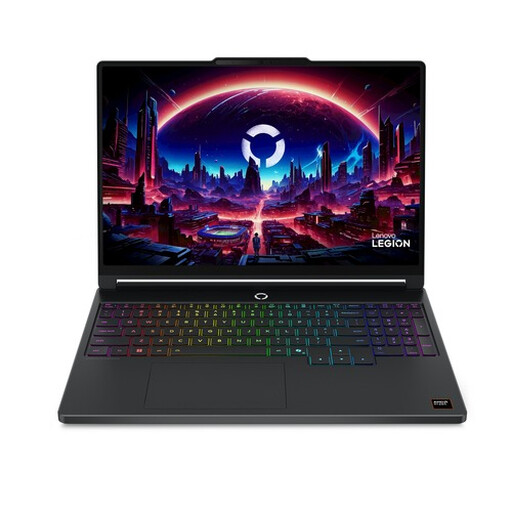
Lenovo Legion 5 15AHP11, 16 GB, 512 GB SSD, RTX 5060
Worth considering if you combine poster design with other creative tasks and want to work on a built-in screen.
15.3-inch WQXGA OLED, 165 Hz, AMD Ryzen 7 250, 16 GB DDR5, 512 GB SSD and GeForce RTX 5060. The product name specifies a Belgian AZERTY keyboard; check that the layout suits you.
Calibration, ambient light and paper all remain important for predictable print colours.
View at Joybuy
 No image available
MSI Prestige 16 AI+ C3MG-236NL Copilot+ PC
Worth considering if you want to work on posters on a larger built-in screen and also use several files.
Intel Core Ultra X7 358H, 32 GB LPDDR5x, 1 TB SSD and a 16-inch 2.8K OLED screen with 120 Hz.
A screen specification alone doesn’t guarantee print accuracy; remember to factor in calibration, lighting and paper.
View at Joybuy
 No image available
Apple MacBook Pro 14-inch M5 Pro, 24 GB, 1 TB
Worth considering if you want to work with poster files and several applications in a macOS setup.
The product name lists 24 GB of memory, 1 TB of storage and a QWERTY keyboard. Check that macOS and the keyboard layout suit your software and working style.
For print, consider colour management and your workspace as well as your screen choice.
View at Joybuy
 No image available
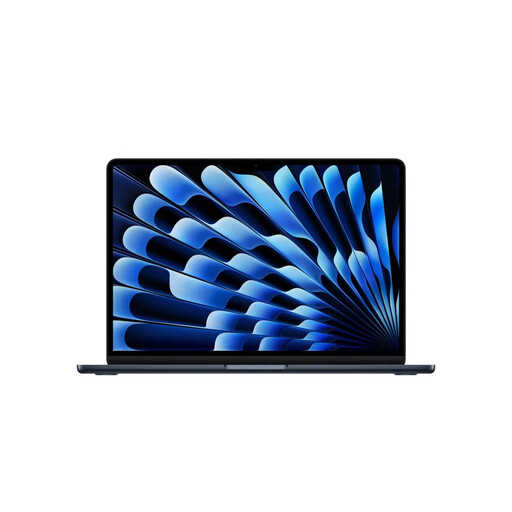
Apple MacBook Air 15-inch M5, 16 GB, 512 GB
Worth considering if you want to design posters on a larger built-in screen and the listed memory and storage configuration suits your files.
The product name lists 16 GB of memory, 512 GB of storage and a QWERTY keyboard. The power adapter isn’t included; according to the product information, a USB-C adapter of 35 W or higher is required.
Also check that macOS works with your design software and peripherals.
View at Joybuy
 No image available
ASUS ROG Zephyrus G16 GU605CM-QR026W, 16 GB, 1 TB
Worth considering if you combine poster design with other creative applications and want a 16-inch built-in screen.
The product name lists an Intel Core Ultra 9 285H, GeForce RTX 5060, 16 GB of memory and a 1 TB SSD. According to the product information, the power adapter must be bought separately.
Match the extra graphics power to the apps and tasks you actually use.
View at Joybuy
Frequently asked questions
Is 16 GB of RAM essential for designing posters?
No, 16 GB isn’t a general requirement for poster design. Adobe lists a minimum of 8 GB for Photoshop 27.x and recommends 16 GB or more; also check the requirements for your other apps and the size of your files.
How should I set up my screen when I’m having posters printed?
Calibrate your monitor and work in lighting that’s as consistent as possible. Adobe explains that calibration, ambient light and paper all affect how predictable the results are from screen to print.
Do I need to buy an extended warranty to get a legal guarantee?
No. In the Netherlands, consumer purchases are covered by a legal guarantee in addition to any seller or manufacturer’s warranty. What you could reasonably expect from the product is what matters; there isn’t one fixed warranty period for every laptop.
Can I return a laptop bought online?
For an ordinary online consumer purchase, you generally have 14 days from delivery to change your mind without giving a reason. Check the terms for trying out and returning the product carefully; ACM ConsuWijzer also lists exceptions to the right of withdrawal.


