For the occasional portrait retouch, a laptop that meets your editing software’s requirements is a more sensible starting point than automatically opting for a powerful creator setup. Pay particular attention to the display and its profile. If you regularly work with large scans, lots of layers or other demanding projects, more memory, storage and built-in screen space become more important.
Who is this advice for?
Occasional portrait retoucher
You want to restore one or a few scanned family portraits and are looking for a laptop that runs your chosen software smoothly, without automatically opting for a professional-grade setup. Adobe describes working with adjustments on a separate layer in Photoshop, for example, while the Consumers’ Association (Consumentenbond) suggests benchmarks such as 16 GB of RAM for creative use.
Colour-critical editor
You assess skin tones or faded colours carefully and want to know how accurately the display shows the image. Adobe points out that an inaccurate display profile can lead to unnecessary adjustments.
Creator at a shared desk
You clear the workspace after use and are weighing up more built-in screen space against a more compact laptop and possibly a separate monitor. Coolblue discusses screen size as a consideration for anyone who mainly works at home without an external monitor.
What should you look for?
| What to consider |
What to look for |
Who is this important for? |
| Colour and detail |
Assess the display on the exact model; for colour-critical work, check whether it can be calibrated and profiled. Adobe warns that an inaccurate profile can lead to unnecessary adjustments. |
If I want to assess faded colours or small areas of damage accurately, I need to know what the display is really showing me. Around 36% of consumers put display quality first. |
| Software and performance |
Compare your editing software’s current requirements with the operating system, memory, processor and available storage. Adobe lists system requirements for each version of Photoshop. |
If I mainly want my chosen software to work with my files, I need to match the configuration to that workflow rather than upgrading without a reason. Around 29% of consumers prioritise software performance. |
| Desk space |
Compare the laptop’s dimensions with your workspace and check which ports you need for a possible external monitor. |
If I need to make room for someone else after retouching, I want a setup that’s easy to clear away. Around 21% of consumers put clearing the workspace first. |
| Storing scans |
Choose SSD capacity to suit the number and size of your files, and consider how you’ll keep the original separate from the edited version. Adobe describes making adjustments on a separate layer in Photoshop. |
If I want to keep both the scan and the edited portrait, I need enough space and a clear way to keep the two files separate. Around 14% of consumers prioritise storage and keeping their files. |
Common pitfalls
-
Assuming a wide colour gamut means accurate colours
A display specification alone doesn’t tell you whether the colours are reliable enough for colour-critical work. According to Adobe, an inaccurate profile can lead to adjustments the image doesn’t need.
Check the display and its profile on the exact model. Also consider whether calibration and profiling fit your workflow.
An unreliable display can mean spending extra time checking colours and adjusting the screen.
-
Choosing the most powerful configuration for a single portrait
The right configuration depends on your software and the size and complexity of your files. Occasional retouching isn’t the same as regularly working with large files and lots of applications open at once.
Check the system requirements for your own software first, and only upgrade if your planned projects call for it.
-
Taking a product title as the full model identification
On the MacBook Pro page described by Joybuy Netherlands, the title says M5 Pro, while the product description says M5. The name alone therefore doesn’t clearly identify the configuration.
Before buying, compare the full model code and configuration in the product description with the manufacturer’s specifications.
Brands to compare
Apple
The MacBook Pro is an option if you’re looking for macOS and a built-in display for creative work.
- Apple Netherlands lists M5, M5 Pro and M5 Max configurations. Compare the chip and memory configuration of the full model.
- A Pro chip isn’t automatically necessary for the occasional portrait retouch. Also check that your chosen software works with the configuration.
Lenovo
The Yoga Pro 9i Gen 10 Aura Edition is a larger Windows laptop option for anyone looking for more built-in screen space.
- For configuration 83L0007AMH, Lenovo Netherlands lists a 16-inch OLED display, 32 GB of soldered RAM, a 1 TB SSD and an RTX 5060.
- Lenovo lists this configuration as having a glossy display. Consider whether reflections could be distracting at a shared desk; specifications aren’t an independent performance test.
HP
The OmniBook Ultra Flip offers a 14-inch 2-in-1 option for anyone looking for a more compact Windows setup with a touchscreen.
- For the 14-fh0605nd, HP Netherlands lists 16 GB of RAM, a 512 GB SSD and a 14-inch 3K OLED touchscreen.
- A 14-inch display offers less built-in workspace than a 16-inch model. A touchscreen alone doesn’t guarantee better retouching results.
ASUS
The ProArt P16 H7606 series is a Windows option for anyone who also does more demanding creative work alongside portrait retouching.
- ASUS Netherlands lists a range of processors, GPUs and OLED displays across the H7606 configurations.
- Compare the display, memory and full model code for each configuration. Manufacturer display specifications aren’t an independent colour measurement, and the most powerful configuration isn’t automatically necessary for restoring one old portrait.
Joybuy laptops for creative tasks
This selection features laptops with built-in screen space for retouching at a desk. Check that each configuration suits your software and the way you use your shared workspace.
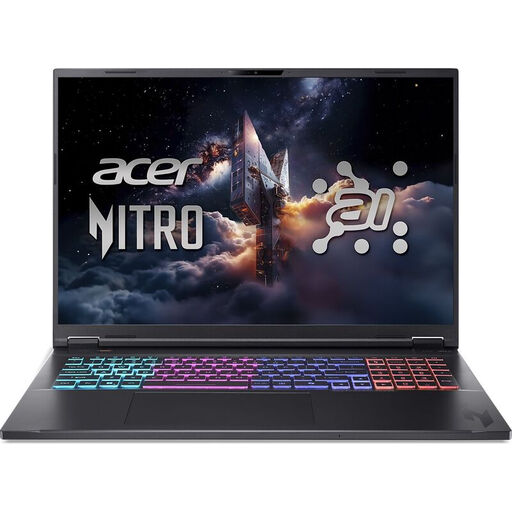 Image unavailable
Acer Nitro 18 AI AN18-61-R25V
The built-in 18-inch display gives you room to view the photo and editing panels together.
18-inch WQXGA IPS display with anti-glare coating; AMD Ryzen AI 7 350; GeForce RTX 5060 with 8 GB GDDR7; 16 GB DDR5; 1 TB SSD; Windows 11 Home.
View at Joybuy
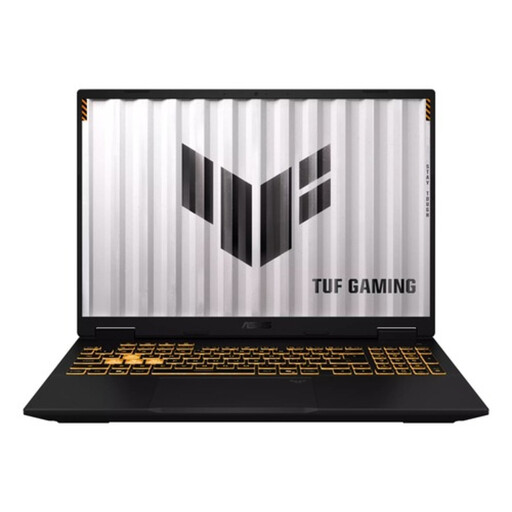 Image unavailable
ASUS TUF Gaming 16 FX610JM-TU005W
The built-in 16-inch display could suit desk-based retouching without the need to set up a separate monitor.
16-inch WUXGA IPS display with anti-glare coating; Intel Core i7-14650HX; RTX 5060; 16 GB RAM; 1 TB SSD; Windows 11 Home.
View at Joybuy
 Image unavailable
MSI Stealth 16 AI+ B3WF-011NL
This configuration has a built-in 16-inch display for viewing the photo and tools while retouching.
16-inch QHD+ OLED display; Intel Core Ultra 9 386H; GeForce RTX 5060; 32 GB DDR5; 1 TB SSD; Windows 11 Home.
View at Joybuy
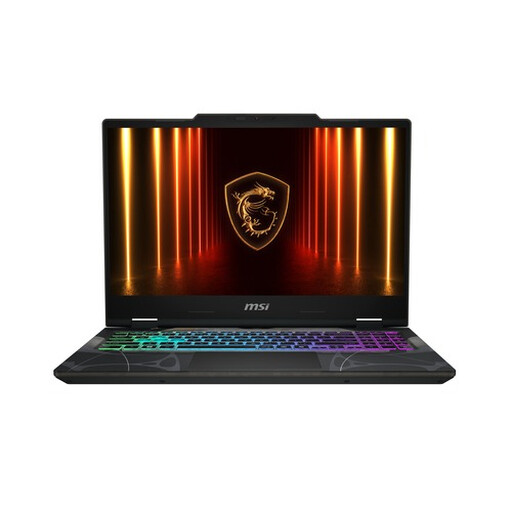 Image unavailable
MSI Cyborg 15 B13WEKG-1223NL
The built-in 15.6-inch display gives you room to retouch without having to set up a separate monitor.
15.6-inch FHD IPS-level display; Intel Core i5-13420H; GeForce RTX 5050 with 8 GB; 16 GB DDR5; 512 GB SSD; Windows 11 Home.
View at Joybuy
 Image unavailable
MSI Prestige 16 AI+ C3MG-236NL
The 16-inch display gives you built-in space to view the photo and tools while retouching.
16-inch 2.8K OLED display; Intel Core Ultra X7 358H; Intel Arc Graphics; 32 GB LPDDR5x; 1 TB SSD; Windows 11 Home.
View at Joybuy
Frequently asked questions
Do I need a dedicated graphics card for one old portrait?
Not just for that one retouch. Check the requirements of your own software first: Adobe lists specific GPU requirements for Photoshop 27.x, but that doesn’t make a powerful dedicated graphics card a general requirement for occasional portrait work.
How can I avoid overwriting the original scan?
Keep the scan as your original and make adjustments on a separate layer in Photoshop. Adobe describes this as a way to leave the original image untouched; keep the source file separately too.
What can I do if the colours on my laptop screen don’t look as expected?
For colour-critical work, check the calibration and profile of the screen you actually use for editing. Adobe warns that an inaccurate profile can lead to unnecessary colour adjustments; a display specification alone won’t solve this.
What are my rights when buying a laptop online in the Netherlands?
For a typical online consumer purchase, you’ll generally have a legal cooling-off period of up to 14 days after delivery, with exceptions for certain purchases. The seller must also put right, free of charge, any product that doesn’t work as you could reasonably expect under normal use. ACM ConsuWijzer explains these consumer rights; they aren’t technical requirements for the laptop.


