What should you look for in a laptop for portrait retouching?
First, choose a laptop to suit your software and files. Then consider the screen, your budget and how often you’ll be carrying it around. For Photoshop version 27.x and later, Adobe lists 8 GB RAM as the minimum and recommends 16 GB or more. On Windows, Adobe lists 10 GB of available disk space as the minimum and recommends 100 GB. These figures refer to available space, not the SSD’s total capacity.
| What to consider |
What to look for |
Who should pay extra attention? |
| Assessing colour and detail |
Compare the screen on the exact configuration. For print work, also consider monitor profiling and keeping the lighting as consistent as possible. |
If I want to print a portrait, I need to assess its colours and tones reliably. Around 36% of consumers say colour assessment is their top priority. |
| Memory and storage space |
Check your software requirements, installed RAM and available SSD space. Also find out whether the memory can be upgraded. |
If you work with large files or lots of layers, you’ll want enough working space for your edits. Around 29% of consumers put this first. |
| Total purchase cost |
Compare the exact configurations and factor in any adapters or other accessories you need. Match any extra performance to your own workload. |
As a student, I want to spend an appropriate amount without paying for performance I don’t need. Around 21% of consumers prioritise affordability over extra performance or maximum portability. |
| Portability and connections |
Compare the screen size and ports on the exact configuration with the peripherals you use. |
If you move between your room and lectures, you’ll want a laptop you can carry around and connect to the equipment at each workspace. Around 14% of consumers give this combination top priority. |
Joybuy laptops for studying and portrait retouching
These laptops are worth comparing for portrait retouching alongside your studies. For each configuration, check the listed screen features, memory, storage and ports required for your workflow. A stated screen type or colour gamut doesn’t, on its own, prove colour accuracy.
 No image available
ASUS Vivobook S16 S3607QA-SH109W
A 16-inch configuration to compare if you’re studying as well as retouching and would like a larger built-in screen; OLED alone says nothing about colour accuracy.
16-inch WUXGA OLED screen, Snapdragon X processor, 16 GB LPDDR5X, 512 GB SSD and Windows 11 Home.
Joybuy
 No image available
Auusda T161N
Compare this configuration with your retouching software’s requirements and how much storage you need for your files.
i3 1000NG4 processor, 16 GB DDR4 memory, 1 TB SSD and fingerprint unlocking.
Joybuy
 No image available
Auusda T156A
Check whether the listed memory and storage configuration suits your files and the software you use.
16 GB DDR4 memory, 512 GB SSD and 3050E processor.
Joybuy
 No image available
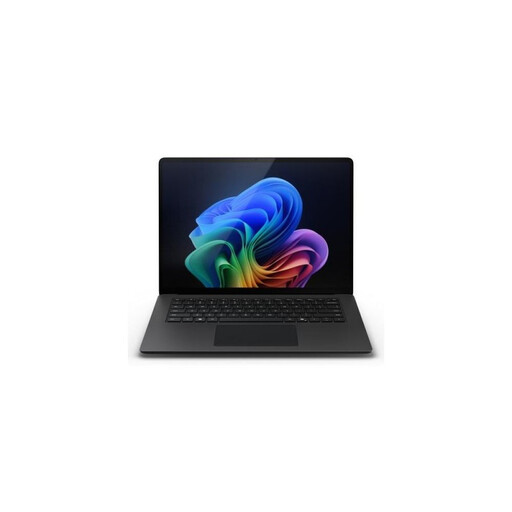
Microsoft Surface Laptop 7, 13.8-inch
The smaller screen is worth considering if you want a laptop that’s easy to carry around; also check that the ports suit your peripherals.
Snapdragon X Elite, 16 GB RAM and 512 GB SSD.
Joybuy
 No image available
ASUS Zenbook A16, 16-inch
A 16-inch configuration to compare if screen space matters for your work; check that it has the ports you need for your own peripherals.
WUXGA screen, 16 GB memory and 512 GB SSD.
Joybuy
Frequently asked questions
Is 8 GB RAM enough for portrait retouching in Photoshop?
Adobe lists 8 GB as the minimum for Photoshop 27.x and later, but recommends 16 GB or more. Choose according to your software and workload: meeting the minimum doesn’t guarantee smooth performance with large files or lots of layers.
How can I set up my student room to assess the colour of a printed portrait?
Use a suitable monitor profile and keep the lighting as consistent as possible. Adobe recommends turning off automatic brightness adjustment when preparing prints on a laptop screen; a wide stated colour gamut doesn’t replace these steps.
How can I make sure retouching doesn’t overwrite the original portrait file?
Keep the original file separate. Photoshop offers output options for Neural Filters, such as a new layer, a Smart Filter or a new document. This lets you adjust your edits without replacing the original in the same way.
Do I need an extra warranty package for a laptop?
No, not to have statutory rights to a product that works as it should. The Dutch government says there’s no fixed statutory warranty period in the Netherlands, so check exactly what extra service or cover a paid package offers.
Do I have a cooling-off period when buying a laptop online in the Netherlands?
For an online distance purchase from a business, the Dutch government says you generally have a 14-day cooling-off period. The rules differ, for example, when buying online from a private individual, so check who the seller is and which terms apply.


