
Retoucher with a small desk
You edit a scanned portrait on your laptop and want to leave room for, say, a mouse, reference photo or scanner. So compare the overall dimensions, ports and usable screen space of the exact model.


For a single portrait with light corrections, a compact laptop with enough usable screen space is usually a more practical choice than a larger creator laptop. For large scans or lots of layers, RAM and free SSD space matter more. For colour-critical printing, managing colour from screen to output is more important than relying on a stated colour gamut alone, as Adobe explains. Measure your available space and check the ports and configuration of the exact model before choosing.
You edit a scanned portrait on your laptop and want to leave room for, say, a mouse, reference photo or scanner. So compare the overall dimensions, ports and usable screen space of the exact model.
You want to assess skin tones and contrast before making a new print. Adobe explains that the image on one screen may look different on another screen or on a printer, so also consider screen profiling and colour management for your output.
You work with large files or layers and want to be able to adjust your edits later. Compare the memory and available SSD space; Adobe also explains how non-destructive editing lets you revisit your corrections.
Start with the space on your desk and how you retouch; then consider colour management, memory, storage and the ports your workspace needs.
| What to consider | What to look for | Who should prioritise this? |
|---|---|---|
| Workspace and ports | Measure the space available and compare the overall dimensions of the exact laptop. Check that it has ports for your scanner, mouse and storage. | If I need to fit my laptop alongside my scanner and input devices on a cramped desk, I want to know whether the whole setup will fit. Around 36% of consumers rank desk space as their top buying priority. |
| Assessing colour and contrast | Check the screen information for the exact model and work out how you can profile the screen and print workflow. Adobe explains colour management and the use of profiles for printing. | For a family portrait I want to print, I want to assess skin tones and contrast carefully. Around 29% of consumers prioritise colour assessment. |
| Large scans and layers | Compare RAM and free SSD space with the requirements of your software and files. For Photoshop 27.x, Adobe recommends 16 GB or more of memory; other software may have different requirements. | If you work with large scans or multiple layers, you’ll want enough memory and working space for those files. Around 21% of consumers prioritise large editing files. |
| Keeping the original and final version | Check that there’s enough SSD space and suitable ports for your storage method. Keep the original scan separate from editable files and exported copies. | If I want to be able to revisit my corrections later, I don’t want to overwrite my original scan. Around 14% of consumers make keeping files their top priority. |
A screen specification alone won’t tell you whether the colours on paper will match what you see on screen. Adobe explains that screens and printers can display colours differently.
If printing is your end goal, consider colour management across your entire workflow and find out how you can profile your screen and output.
Profiling and test prints can take extra time and materials.
With configurable models, your choices can affect the final specifications. So a screen or memory specification for one configuration won’t necessarily apply to the entire model range.
Check the full model code and the selected components of the configuration you want to order.
Your scanner, storage and other peripherals may need more ports than the laptop has. For the HP OmniBook Ultra 14 configuration mentioned, the recommended USB-C charger is sold separately.
Make a list of your peripherals in advance and check the ports and included charger for the exact configuration.
Depending on your setup, you may need an adapter, hub or separate charger.
The 13-inch MacBook Air M5 is a compact macOS option to compare for a small workspace.
The Dutch HP OmniBook Ultra 14-kd0674nd configuration is worth comparing if you’re looking for more memory for editing.
The XPS 13 9350 is a compact Windows model range to compare.
The Zenbook 14 OLED is a compact range focused on the screen, while the ProArt P16 H7607BA is a larger creator model.
Lenovo Netherlands’ photo editing guide can help you compare Windows configurations by screen, memory and storage.
These Joybuy laptops are worth comparing for portrait retouching in a compact workspace. For each configuration, check the screen space, ports, memory and storage that suit the way you work.
 No image available
A compact Windows configuration to compare if you’re looking for a laptop for a small workspace and work with scans or layers.
13.3-inch IPS screen; AMD Ryzen AI 5; 16 GB RAM; 512 GB SSD.
Dimensions: 29.73 × 21.12 cm. Weight: 1.46 kg.
Listed ports include USB-C, USB-A and HDMI.
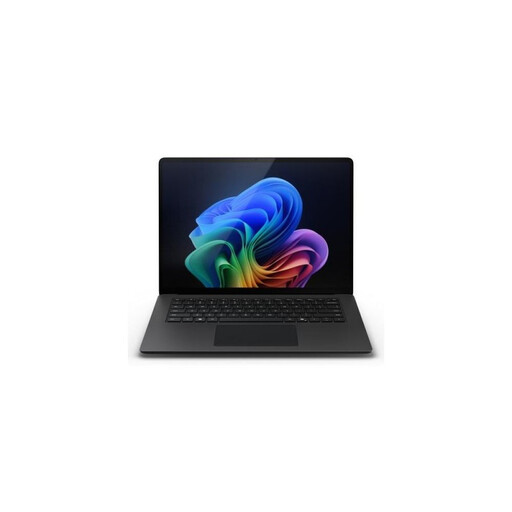 No image available
A compact Windows configuration to compare if you work with scans or layers and the stated specification suits your software.
13.8-inch PixelSense touchscreen with a resolution of 2304 × 1536; 16 GB memory; 512 GB SSD.
Listed connectivity includes USB4. Weight: 1.34 kg.
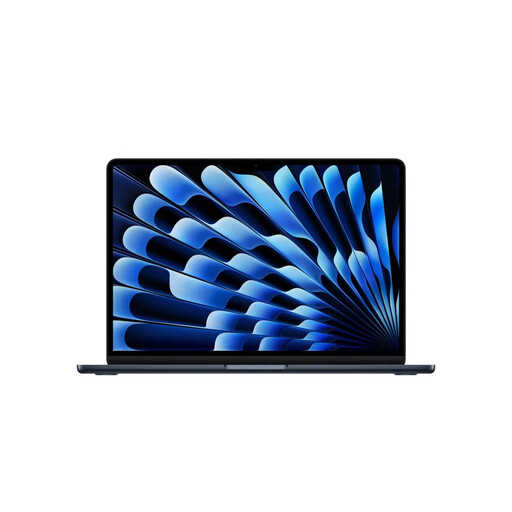 No image available
A compact macOS configuration to compare if you work with larger scans or layers in a small workspace.
13.6-inch Liquid Retina screen; 24 GB memory; 1 TB SSD.
Listed ports include two Thunderbolt 4 ports.
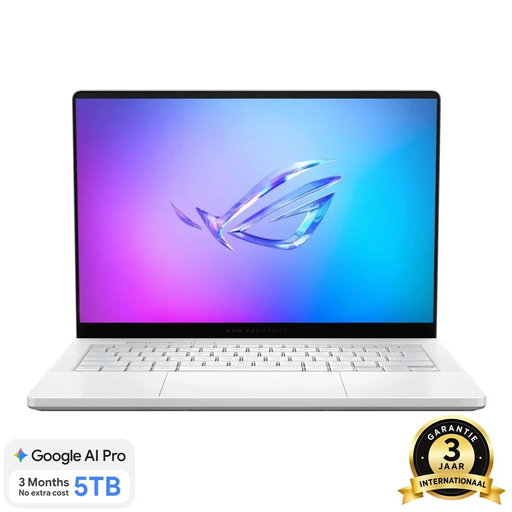 No image available
This 14-inch Windows configuration is worth comparing if its size and listed specification suit your workspace and software.
14-inch OLED screen with a resolution of 2880 × 1800 and a stated colour gamut of 100% DCI-P3; 16 GB RAM; 1 TB SSD.
The memory is soldered and cannot be upgraded by the user.
 No image available
A compact Windows configuration to compare if you’re looking for a 14-inch screen and the listed specification for retouching work.
14-inch OLED screen with a resolution of 1920 × 1200 and a stated colour gamut of 100% DCI-P3; 16 GB RAM; 512 GB SSD.
The memory is soldered and cannot be upgraded. A compatible 65 W USB-C Power Delivery charger is required and isn’t included.
Not just because you’re retouching a portrait. Check the requirements of your own software and the features you use; for Photoshop 27.x, Adobe distinguishes between minimum and recommended GPU specifications.
Keep the original separate and, where possible, use edits you can adjust later, such as adjustment layers. Adobe also describes the Save a Copy feature, which lets you save an exported version while leaving the open original unchanged.
A screen and printer can display colours differently. For colour-critical work, use suitable colour management and profiles for your workflow; a specification such as P3 or OLED doesn’t in itself guarantee that the screen and print will match.
For online consumer purchases, you generally have a statutory 14-day cooling-off period after delivery. ACM ConsuWijzer explains the exceptions and conditions for trying and returning a product; also check the retailer’s applicable terms.
No. ACM ConsuWijzer explains that the statutory warranty depends on what you could reasonably expect from the product. A stated manufacturer’s warranty period doesn’t replace this statutory right.