
Colour-focused portrait retoucher
Assesses skin tones and finishing on a laptop or desk monitor. Screen specifications you can verify and profiling are important; Adobe explains how to calibrate and profile a monitor in Photoshop.


When choosing a laptop for portrait retouching at a shared desk, don’t base your decision on the screen type alone. First, decide whether you’ll assess skin tones on the laptop screen or the connected monitor, then profile that screen. Next, choose memory and storage to suit your software and files, and check that the exact laptop configuration is compatible with the monitor you already have. You don’t automatically need a larger creator laptop.
Assesses skin tones and finishing on a laptop or desk monitor. Screen specifications you can verify and profiling are important; Adobe explains how to calibrate and profile a monitor in Photoshop.
Works with lots of pixels or layers and weighs up memory, storage, software and laptop size. Adobe explains how Photoshop uses memory for active image data.
Regularly connects a monitor, then clears the desk again. Ports, storage and separate backups are all part of this setup; Adobe makes clear that a Lightroom Classic catalogue backup includes only the catalogue file.
Choose this when: you regularly clear the desk or retouch in other places too. Apple lists a P3 display, 16 GB of base memory and Thunderbolt 4 among the specifications for the MacBook Air 13-inch M5.
Bear in mind: a smaller screen leaves less room for photos and tool panels. A stated colour gamut is no substitute for profiling.
Choose this when: the monitor at the shared desk is your main screen. Check that the exact laptop configuration works with the cable or dock available.
Bear in mind: you’ll also need to set up and profile the external monitor if you assess colours on it. A good laptop screen won’t do that for you.
Choose this when: you often work with large files and several edits at once. Adobe recommends at least 8 GB of RAM for Photoshop 27.x and suggests 16 GB or more; ASUS lists a range of configurations in the ProArt P16 H7606 series.
Bear in mind: a larger model takes up more space and may cost more. A series specification doesn’t show what performance your own files require.
| Consideration | What should you check? | Who is this important for? |
|---|---|---|
| Colour assessment | Check the screen on the exact configuration and decide whether you’ll work on the built-in or external display. Profile the screen you use to finish portraits; Adobe explains this step for Photoshop monitors. | If I assess skin tones on the built-in or external display, I want to be able to check which screen variant I’m getting and profile that screen. Around 36% of consumers prioritise reliable colour assessment. |
| Memory and storage | Compare RAM and SSD capacity with your software and files. Adobe lists 8 GB of RAM as the minimum for Photoshop 27.x and recommends 16 GB or more (9 September 2026); this isn’t a requirement for every user. | When working with large portrait files, I want enough memory and free SSD space for my software and active edits. Around 29% of consumers prioritise performance with large files. |
| Ports | Note the monitor’s inputs and check the video output and available ports on the exact laptop configuration. | When I set up and clear my shared workspace each time, I want to be able to connect the monitor and other devices. Around 21% of consumers prioritise desk connectivity. |
| Files and privacy | Plan where your photos, catalogue and exports will be stored, and how you’ll back them up separately. Adobe says a Lightroom Classic catalogue backup includes only the catalogue file. As the Dutch Data Protection Authority explains, identifiable portraits may be personal data. | When editing portraits at a shared workspace, I want to manage files and backups carefully and consider who has access. Around 14% of consumers prioritise file management. |
A screen specification doesn’t tell you how the display you use at a shared workspace is set up.
First decide which screen you’ll use to finish your portraits, then profile it.
Allow time and, if necessary, resources to profile every screen you use to assess colour.
According to Adobe, the built-in catalogue backup includes only the catalogue file, not your photos and exports automatically.
Make a separate backup plan for your catalogue, original photos and exports.
You’ll also need to allow for storage space for separate backups.
The screen, memory, ports and included accessories can vary by configuration. For example, HP states that the charger for the OmniBook 5 Flip 14-fp0605ndx is sold separately.
Before buying, compare the full model number, screen variant, memory, ports and included accessories.
The MacBook Air 13-inch M5 is a compact macOS option with a built-in P3 display and support for an external monitor.
The Zenbook 14 OLED UX3405 series comes in compact screen variants. The ProArt P16 H7606 series is a separate, larger creator range.
The Yoga Pro 9i Gen 10 Aura Edition is a 16-inch option for anyone looking for more screen space at their desk.
The OmniBook 5 Flip 14-fp0605ndx is a compact 2-in-1 option with a convertible screen.
The XPS 14 DA14260 is a configurable Windows option if you want a compact laptop for use with an external desk monitor.
This selection features larger laptops with specifications that may suit large photo files and a desk setup with an external screen. Check each configuration to make sure its specifications and connections suit the way you work.
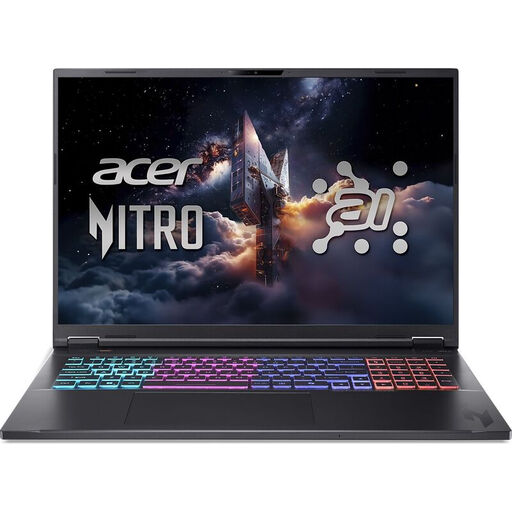 No image available
Could suit you if you work with larger photo files and want to connect the laptop to an external monitor.
18-inch WQXGA IPS screen, AMD Ryzen AI 7 350, GeForce RTX 5060 8GB GDDR7, 16GB DDR5, 1 TB SSD, HDMI and Windows 11 Home.
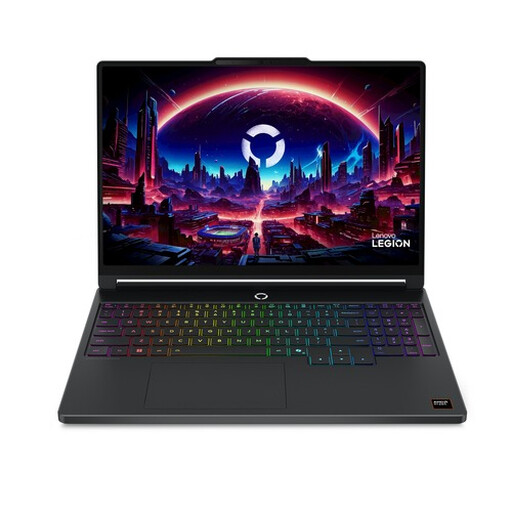 No image available
Could suit you if you work on the laptop screen and want to consider memory and storage for large photo files.
15.3-inch WQXGA OLED screen, 100% DCI-P3, 165 Hz, AMD Ryzen 7 250, GeForce RTX 5060, 16GB DDR5, 512 GB SSD and USB4 ports.
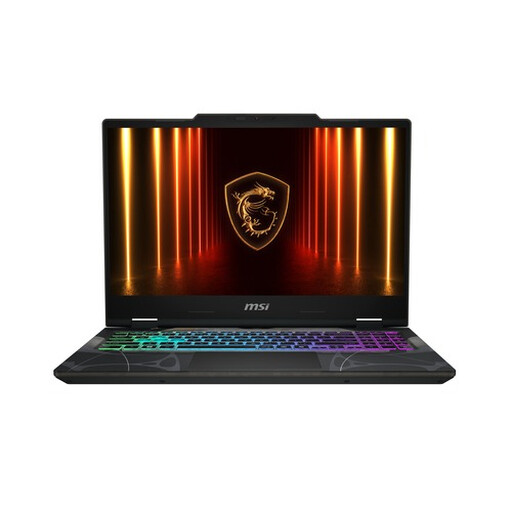
 No image available
Could suit you if you want to compare a 16-inch screen, a generous memory configuration and connections for a desk setup.
16-inch QHD+ OLED screen, 240 Hz, Intel Core Ultra 9 386H, GeForce RTX 5060, 32GB DDR5, 1 TB SSD and Thunderbolt 4.
 No image available
Could suit you if you want to connect a 15.6-inch laptop to an external monitor using HDMI or USB-C with DisplayPort.
FHD screen, Intel Core 9 270H, GeForce RTX 5060 8GB, 16GB DDR5, 512 GB SSD, HDMI, USB-C with DisplayPort and Windows 11 Home.
No image available
Could suit you if you’re looking for a 15.6-inch laptop with external-display connections for a shared desk.
FHD IPS-level screen, Intel Core i5-13420H, GeForce RTX 5050 8GB, 16GB DDR5, 512 GB SSD, HDMI, USB-C with DisplayPort and Windows 11 Home.
No. Focus on the exact screen configuration you’ll be working on and profile that display. Apple specifies an IPS screen with P3 colour support for the MacBook Air 13-inch M5; ASUS offers OLED configurations. The panel type alone doesn’t tell you whether the colour reproduction suits the way you work.
First check how the available monitor connects to your chosen laptop. Then profile the screen you’ll use to assess the final colour. If you switch between the laptop and desk screens, remember to account for both.
Not with that backup alone. Adobe states that Lightroom Classic’s built-in catalogue backup saves only the catalogue file, so make separate backups of your photos and exports too.
The seller can’t simply refer you to the manufacturer if a product is faulty, according to the Dutch government. The remedy you’re entitled to depends on the circumstances.
Buying a laptop doesn’t answer that question. The Dutch Data Protection Authority considers identifiable people in photos to be personal data. Which privacy rules apply depends, among other things, on who processes the images and why. So think about who else can access the portraits before you store or share them.