
Browser-based designer at a shared desk
You mainly design in Figma and want a laptop that fits the desk and screen space available. The Figma Help Center describes Figma as software that is primarily browser-based.


If you mainly work in Figma and a browser, start by considering a screen that suits your shared workspace and the connections you use. You don’t automatically need a more powerful graphics laptop for this. If you also edit images locally in Photoshop, memory becomes more important: Adobe recommends 16 GB or more for Photoshop, but this isn’t a general requirement for homepage design. Check the specific configuration, included power supply and product information before choosing a laptop.
You mainly design in Figma and want a laptop that fits the desk and screen space available. The Figma Help Center describes Figma as software that is primarily browser-based.
As well as working on your homepage, you use Photoshop and want to choose memory and storage to suit this additional software. Adobe recommends 16 GB of memory or more for Photoshop.
You regularly connect an existing screen or peripheral and want to check in advance which ports, cables or adapters will work.
Start with the screen space and connections available at your shared workspace. Then consider which software you use locally and which configuration will suit it. The Dutch government explains that electrical devices placed on the EU market must meet the applicable safety requirements and carry the required CE marking; a listing in a Dutch online shop does not, on its own, prove this.
| What to consider | What to look for | Who should pay particular attention? |
|---|---|---|
| Screen for design work | Check the screen size, resolution and finish of the exact configuration. A stated colour gamut isn’t an independent measurement of colour accuracy. | If you want to assess your homepage and design panels on your laptop screen at a shared desk, visible workspace matters a great deal; around 31% of consumers prioritise the screen. |
| Memory and software | Compare the laptop configuration with the requirements of your software. Adobe recommends 16 GB of memory or more for Photoshop; this isn’t a general requirement for using Figma in a browser. | If you use Photoshop as well as working in a browser, you’ll want to choose memory to suit that software; around 25% of consumers give their software workflow top priority. |
| Connections at your workspace | Make a note of the inputs on your existing screen and peripherals, then compare them with the video output and ports on the exact laptop configuration. | If you regularly connect your laptop to a shared screen or peripheral, you’ll want to know whether it can connect directly or needs an adapter; around 25% of consumers prioritise connections. |
| Configuration and extras | Check what’s included, who the seller is and what terms apply to your purchase. Only compare memory and storage across clearly specified configurations. | If you want to keep track of the total cost and after-sales support, check the power supply, any adapters and the seller’s details too; around 19% of consumers consider this their main purchasing concern. |
ASUS lists different screen and memory configurations in the Zenbook 14 OLED UX3405 range. The series name alone doesn’t tell you which specifications a particular model has.
Compare the full model number and check the screen, memory and storage configuration before ordering.
Connections vary between laptop configurations. The Apple configuration we looked at also doesn’t include a mains adapter.
Make a note of the connections on your screen and peripherals, then check which cables, adapters and power supply you’ll need for each configuration.
You may need to buy a compatible adapter, cable or power supply separately; check this if you don’t already have one.
An advertised manufacturer’s warranty doesn’t automatically replace your statutory rights against the seller. ACM ConsuWijzer distinguishes between this type of warranty and your statutory rights.
Keep your purchase and seller details, and contact the seller about your statutory rights if something goes wrong.
For anyone looking for macOS and a compact design workspace. Apple Netherlands lists 16 GB of memory, 512 GB of storage and two Thunderbolt 4 ports for the 13-inch MacBook Air M5 configuration we looked at.
The Zenbook 14 OLED UX3405 is a Windows option to consider if you’re looking for an OLED screen and built-in HDMI. ASUS Netherlands lists 32 GB of built-in memory and two Thunderbolt 4 ports for one configuration we looked at.
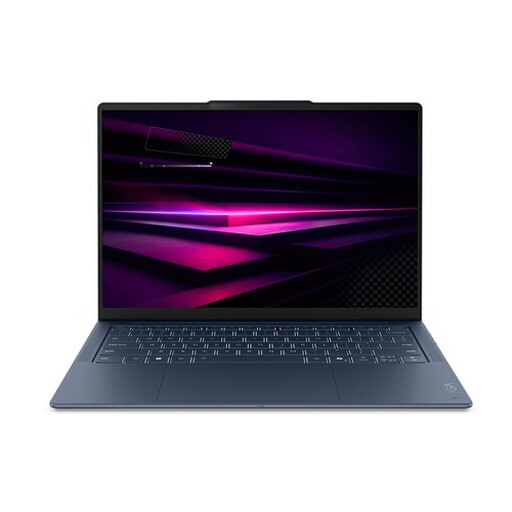
The Yoga Slim 7 Gen 10 is a compact Windows option. Lenovo Netherlands lists a 14-inch OLED screen, 16 GB of soldered memory and an EU power adapter for a specific configuration.
The Dell 14 Plus is a configurable Windows laptop to compare against your screen and workspace requirements.
These Joybuy laptops are worth comparing for browser-based design at a shared desk. There are options for connecting to an external screen, as well as for anyone who also edits images locally. Check which power supply and product information apply to each configuration.
 No image available
An option to compare if you’re looking for a 14-inch OLED touchscreen and connections for an external screen.
14-inch OLED touchscreen; 16 GB memory; 512 GB SSD; HDMI and USB-C with DisplayPort. The product description says no charger is included; charging requires a compatible USB-C charger of at least 45 W.
 No image available
A configuration to consider if you manage creative files locally as well as designing in a browser, and the connections listed suit your workspace.
14.2-inch XDR display; 24 GB memory; 1 TB storage; HDMI and Thunderbolt 4 ports.
 No image available
An option to compare if you’re looking for a 14-inch OLED screen, 16 GB of memory and a connection for a compatible external screen.
WUXGA OLED screen; 16 GB memory; 512 GB storage; HDMI and two USB4 ports with DisplayPort output. The product description lists a weight of around 0.98 kg. No power adapter is included; a compatible 65 W USB-C Power Delivery charger is required.
 No image available
A compact option to compare if you need an OLED screen and several USB4 connections for compatible peripherals.
14-inch WUXGA OLED screen; 16 GB memory; 512 GB SSD; Snapdragon X2P-42-100; three USB4 ports with DisplayPort. The product description lists a weight of 1.17 kg.
 No image available
A larger-screen option to compare if the extra workspace is worth the space the laptop takes up at a shared desk.
15.3-inch Liquid Retina display; 16 GB memory; 512 GB storage; two Thunderbolt 4 ports. The product description says no mains adapter is included; charging requires a 35 W USB-C adapter or higher.
No. The Figma Help Center describes Figma as primarily browser-based and says it supports full desktop operating systems and ChromeOS. Also check that your browser is supported and WebGL is enabled.
No, it isn’t a general requirement for this task. For Photoshop version 27.x and later, Adobe lists 8 GB as the minimum and 16 GB or more as the recommendation. That recommendation applies to Photoshop, not automatically to browser-based design.
First, compare the screen’s input with the video output on the exact laptop configuration. The ASUS Zenbook 14 OLED configuration we looked at lists HDMI and Thunderbolt 4; the MacBook Air M5 lists Thunderbolt 4 with DisplayPort support. Check which cable or adapter your screen needs.
That depends on the configuration and the equipment you already have. Apple says the 13-inch MacBook Air store configuration we looked at doesn’t include a mains adapter. Check what comes with the laptop you choose and which power supply or adapter you’ll need.
The Dutch government explains that electrical devices placed on the EU market must meet the applicable safety requirements and carry the required CE marking. Check the marking and product information for the specific configuration; a listing in a Dutch online shop doesn’t, on its own, prove this.