
Student checking photographic details
You look at field photos and want to compare detail, contrast and colour. Check the exact screen specification and the light falling on your desk.


Choose your laptop based on what you do with your polder photos. If you just view and select them, a compact laptop with an easy-to-read screen is often enough; if you regularly edit RAW files and manage large collections, memory and storage matter more. Also check the exact screen specification, ports and compatibility with your course software. The specifications listed are not an independent performance test of these models.
You look at field photos and want to compare detail, contrast and colour. Check the exact screen specification and the light falling on your desk.
You use the same laptop in your room and on the go. Its dimensions and weight affect how much screen space you can comfortably use, as well as how easy it is to carry.
You regularly import or edit photos and need room for your files. Compare memory, storage and ports, and plan how you’ll keep your back-ups too.
Start with the work you do: simply viewing and selecting photos calls for something different from regularly editing large files. Then compare the screen specification, memory capacity, storage and ports of the exact model.
| What to consider | What should you check? | Who will find this important? |
|---|---|---|
| Screen for photographic detail | Check the screen specification, resolution and brightness, and see whether the screen is glossy. A stated colour gamut is not an independent measurement of colour accuracy. | If I want to compare field photos side by side, I need to be able to see the detail and colour clearly. Around 31% of consumers put screen quality at the top of their list. |
| Space and portability | Measure the space on your desk and compare screen size, dimensions and weight. Also allow room for a power adapter or card reader. | With a small desk and a laptop I need to take with me, I’m looking for a practical balance between screen space and portability. Around 25% of consumers prioritise a compact workspace. |
| Memory, storage and importing | Compare the RAM and SSD in the exact configuration with your software and photo files. Check how you’ll import photos and plan a separate back-up. | If I regularly import or edit photos, I need enough memory and storage, as well as a plan for my original files. Around 25% of consumers give photo archiving and editing top priority. |
| Total cost and essentials | Check what’s included with the model and whether you’ll need a suitable power supply, card reader or other connection. | I want to know in advance what else I’ll need for my study set-up, so I can weigh up the total cost. Around 19% of consumers put cost at the top of their list. |
A stated colour gamut alone doesn’t tell you how accurately an individual screen displays your photos. The ASUS and Lenovo models reviewed have glossy OLED screens, which can also affect viewing in different lighting conditions.
Check the full screen specification and look for reflections under the lighting you’ll be working in. Don’t treat stated screen values as an independent measurement of colour accuracy.
The screen, memory, keyboard layout and included power supply can vary between configurations. A specification for one configuration therefore won’t necessarily apply to other models in the same range.
Compare the full model code and check what’s in the box. For the specific offer, also check whether a power supply is included and whether the keyboard layout suits you.
If a suitable power adapter isn’t included, you’ll need to arrange one separately. Also check whether you need an extra adapter for your connections.
The Lightroom Classic catalogue keeps track of where your photos are stored and what edits you’ve made; having a local SSD doesn’t in itself back up your original images.
Plan how you’ll store your originals and any catalogue files before importing lots of field photos.
A separate back-up also requires a separate storage destination as part of your workflow.
The MacBook Air 13-inch with M5 reviewed here is a compact macOS option for viewing photos and studying, provided your course software is compatible.
The Zenbook 14 OLED configuration reviewed here is a 14-inch Windows option for a small workspace and regular photo work.
The Yoga Slim 7 Gen 10 14-inch AMD configuration reviewed here is a Windows option with an OLED screen and local storage.
The OmniBook 5 14-mh0051ndx reviewed here is a compact Windows option mainly for viewing photos and everyday study tasks.
This selection features compact laptops for viewing photos and studying. The configurations differ in areas such as screen, memory, storage and ports.
 No image available
A compact option for viewing photos alongside everyday study tasks.
The product name lists a 14-inch laptop with Windows 11 Home. According to the product information, the memory is built in and can’t be upgraded; Adobe recommends 12 GB or more for better performance in Lightroom Classic. The charger isn’t included.
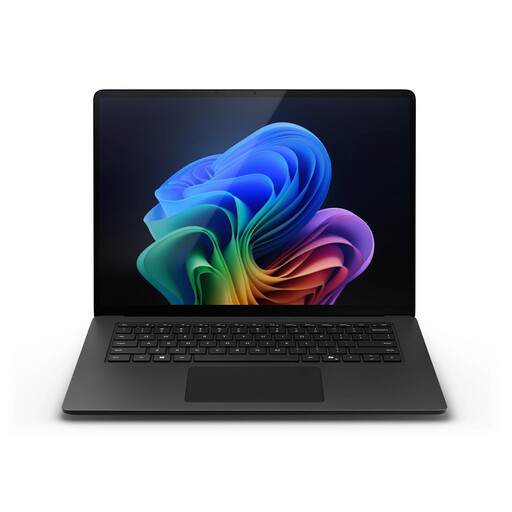 No image available
A compact Windows laptop for viewing photos and study materials and storing them locally.
The product name lists a 13.8-inch screen, Snapdragon X Plus, 16 GB RAM and a 512 GB SSD.
 No image available
A 14-inch Windows 11 Home configuration for studying and using on the go.
The product name lists a Full HD screen, Intel Core 7 150U, 16 GB DDR4 and a 512 GB SSD.
 No image available
A lightweight 14-inch Windows laptop to carry between your room and study space.
The product name lists a WUXGA OLED screen, 16 GB RAM and a 512 GB SSD. The product information gives a weight of approximately 0.98 kg and says the charger isn’t included. Also check whether your course software and older applications are compatible with Windows on Snapdragon.
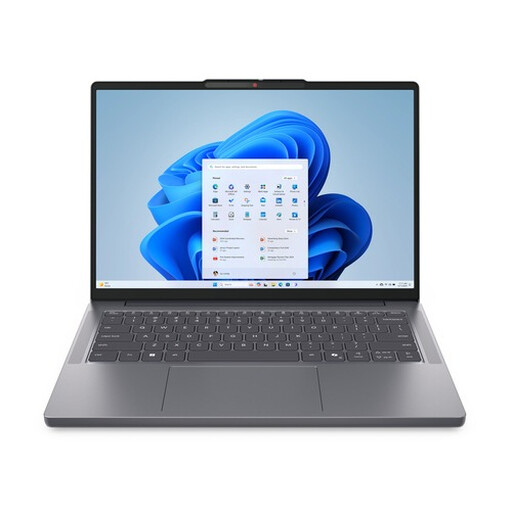 No image available
A 14-inch Windows 11 Home laptop for everyday use and study.
The product name lists 16 GB RAM, a 512 GB SSD and a QWERTY keyboard.
No, not just because you view photos. Consumentenbond distinguishes between everyday use and creative editing, so first work out whether you’ll mainly be selecting photos or regularly editing large files too. The configurations listed are examples, not tested winners.
Before buying, check that the laptop’s ports work with your camera or memory card. Also plan a separate back-up of your originals: Adobe describes the Lightroom Classic catalogue as a database of photo locations and edits, not a replacement for the original files.
Check whether a suitable charger is included with the exact laptop configuration; it wasn’t included with the ASUS and HP configurations reviewed. According to the Dutch government, online purchases are often covered by a 14-day cooling-off period; check whether this applies to your purchase. The Dutch government says there’s no fixed statutory warranty period in the Netherlands; if a product is faulty, contact the seller.
Not without first considering the privacy rules. According to the Dutch Data Protection Authority, recognisable people in images count as personal data and the GDPR applies; check the purpose and relevant rules before sharing.