Start with a screen that fits on your desk and lets you compare similar photos clearly. Then check the memory, SSD and connections you need for your camera and storage. A compact 13-inch laptop takes up less space, while a 14-inch model may offer a larger built-in screen or different connections, depending on the configuration. Neither size, on its own, guarantees faster or more accurate photo selection.
Who is this guide for?
Comparing sharpness
If you want to pick the sharpest photo from a set of very similar images, check that your photo software makes it easy to compare and zoom in on the screen. Adobe describes a Compare view for two photos and a Survey view for several photos in Lightroom Classic.
Working at a small desk
If you have limited workspace, compare the laptop’s dimensions with the space available, allowing room for any peripherals or an external monitor. Models and connections vary by configuration.
Managing RAW photo collections
If you regularly import large photo collections, consider the memory, SSD capacity and connection to your camera storage. Adobe recommends SSD storage for photos, catalogues and previews as one way to improve Lightroom Classic performance.
What should you look for when choosing?
Compact 13-inch laptop
A good fit if: desk space is your priority and you can review your photos on an external monitor if needed.
Trade-off: you get less built-in screen space. Check that your card reader and peripherals can connect to the available ports.
14-inch Windows laptop
A good fit if: you want a little more screen space and choose a configuration with connections to suit your camera and accessories.
Trade-off: ports and screens vary by model and configuration. A microSD reader is not the same as a full-size SD card reader.
Larger built-in screen
A good fit if: you often want to view several shots at once without an external monitor and have room for the laptop on your desk.
Trade-off: first measure the available space and compare it with the dimensions of the exact laptop.
The points below focus on selecting and managing photo collections in a small workspace.
| What to consider |
What should you check? |
Who is this important for? |
| Judging sharpness |
Check the screen size and resolution of the exact configuration. Try the compare and zoom views in your photo software. |
I want to spot small differences between almost identical shots before choosing one. Around 33% of consumers make judging sharpness their top priority. |
| Desk space |
Measure the available space and compare it with the laptop’s dimensions. |
If my workspace is limited, I want to leave enough room for using the laptop and for accessories. Around 27% of consumers put a good physical fit first. |
| Handling photo collections |
Check the software requirements and the memory in your chosen configuration. If you use Lightroom Classic, also decide where to store the catalogue and previews. |
I want to work through photo collections using the software I actually use. Around 20% of consumers make processing speed their main priority when choosing. |
| Storage and camera connections |
Check the card format, the ports you need, SSD capacity and your separate back-up arrangements. |
When importing and storing photos, I want to know whether my camera storage can connect and whether there is room for files and previews. Around 20% of consumers start with file management and connections. |
Common buying mistakes
-
Choosing a laptop without measuring your desk
A general ranking of laptops for photo editing may not take account of the limited space on your desk. Techboer’s ranking dated 21 October 2026 also included a 15-inch model; it is not specifically about selecting photos in a small workspace.
Measure the available space and compare it with the dimensions of the exact laptop. Remember to leave room for the peripherals you need.
-
Mistaking a microSD reader for an SD card reader
The Lenovo Yoga 7 2-in-1 14ILL10 is listed with a microSD reader. That connection is not automatically suitable for a full-size SD card.
Check which card format your camera uses and whether you need a compatible reader.
You may need a separate card reader if your card does not fit directly.
-
Assuming every configuration has the same product-family specifications
Configurations within a product range can differ in screen, memory and storage. So a general specification for a product family will not necessarily tell you what’s included in the configuration you order.
Compare the full model code and check the screen, memory and storage details for the exact configuration.
-
Allowing space only for your original photos
A Lightroom Classic catalogue also stores previews. Adobe recommends SSD storage for catalogues, photos and previews to help performance.
When planning your storage, allow for photo files as well as the catalogue and previews, and arrange your back-up separately.
Brands to compare
Apple
The MacBook Air M5 is an option if a compact macOS laptop suits the way you work.
- Apple Netherlands lists a 13.6-inch screen diagonal and two Thunderbolt 4 ports for the 13-inch model.
- Check whether your camera storage and other equipment require additional connections or adapters.
ASUS
The Zenbook S 14 UX5406 is a 14-inch Windows range with different screen configurations.
- ASUS lists WUXGA and 3K OLED configurations among the options in this range.
- Screen features cannot be assumed to apply to every configuration, so compare the full specification.
Lenovo
The Yoga 7 2-in-1 14ILL10 is a 14-inch Windows convertible worth comparing if form factor and connections matter to you.
- Lenovo lists HDMI, Thunderbolt and microSD for the product family.
- Lenovo says the memory is soldered and cannot be upgraded. A microSD reader is not a substitute for a full-size SD reader.
HP
The Dutch HP store lists 14-inch OmniBook configurations to compare if you’re considering 32 GB of memory and 1 TB of storage.
- The store configurations mentioned combine that memory capacity and storage with an OLED screen.
- These are specifications for the configurations listed, not independent speed or screen measurements. Check the model code and connections.
Joybuy laptops for selecting photos
These Joybuy picks focus on compact 13- and 14-inch laptops for selecting photos at a small desk. Check that the screen, memory, storage and connections of each configuration suit the way you work.
 No image available
HP OmniBook 3 14-hy0058ndx
This 14-inch configuration is worth comparing if you’re looking for a compact laptop with connections for peripherals.
The screen resolution is 1920 × 1200 with a 16:10 aspect ratio. This configuration has 8 GB of memory, a 512 GB SSD and USB-A, USB-C and HDMI ports. According to the product information, a charger is not included.
View at Joybuy
 No image available
ASUS ProArt P14 H7407BA-SM078X
This 14-inch configuration is an option if you want to import photos from an SD card and the listed configuration suits your software.
The product information lists a 3K OLED screen, an SD 4.0 card reader and three USB4 ports. The title specifies 128 GB of RAM and a 1 TB SSD; Windows 11 Pro is also listed. The charger is not included.
View at Joybuy
 No image available
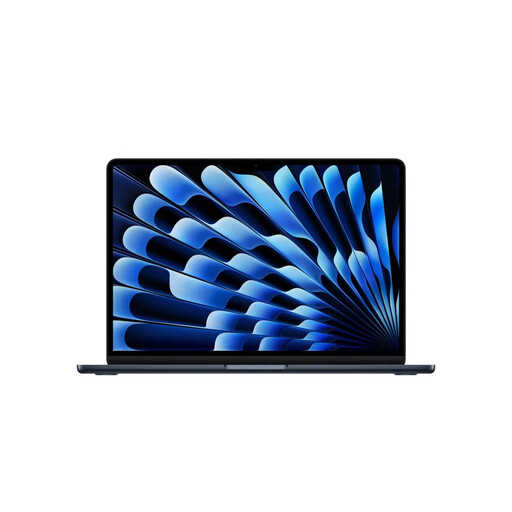
Apple MacBook Air 13-inch M5, 24 GB, 1 TB
This compact configuration is worth comparing if desk space is a key consideration and macOS suits your workflow.
The screen is 13.6 inches, and this configuration has 24 GB of memory, 1 TB of storage and two Thunderbolt 4 ports. The stated weight is 1.23 kg.
View at Joybuy
 No image available
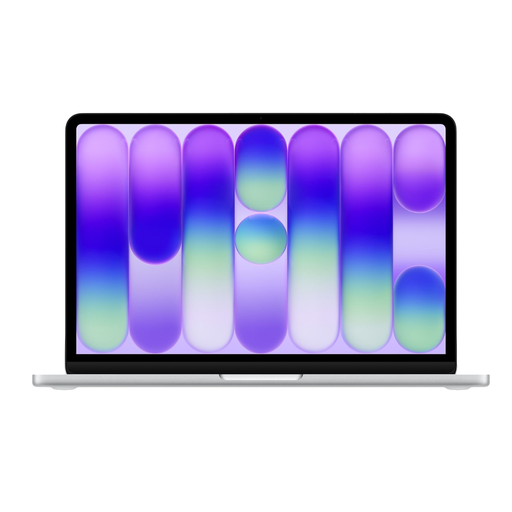
Apple MacBook Neo 13-inch A18 Pro, 8 GB, 512 GB
The 13-inch size is worth comparing if you want to save space in a small workspace.
The product information lists a resolution of 2408 × 1506, brightness of 500 nits, 8 GB of memory, a 512 GB SSD and a USB-C connection. Charging requires a USB-C power adapter of at least 20 W, which is not included. The stated weight is 1.23 kg.
View at Joybuy
 No image available
ASUS Zenbook A14 UX3407QA-QD479W
This 14-inch configuration is worth comparing if you’re looking for an OLED screen and connections for an external monitor.
The configuration lists a WUXGA OLED screen, 16 GB of memory and a 512 GB SSD. The product information lists USB4 Type-C with DisplayPort and HDMI 2.1. A compatible 65 W USB-C charger is not included.
View at Joybuy
Frequently asked questions
Do I need to buy a laptop with a bigger screen for working through photo collections?
No, a bigger screen isn’t essential. Adobe describes a Compare view for two photos and a view of several photos in Lightroom Classic. Check whether those views work well on your screen, or whether you have room for an external monitor.
What should I consider when choosing storage for Lightroom Classic?
Allow for the catalogue and previews as well as your photo files. Adobe recommends SSD storage for catalogues, photos and previews to help performance. Lightroom Classic also creates a preview cache for a catalogue.
Is a manufacturer’s warranty the same as the statutory guarantee?
No. ACM ConsuWijzer distinguishes between a manufacturer’s or seller’s warranty and the statutory guarantee in the Netherlands. If a product is faulty despite being used normally, the seller is responsible for providing an appropriate solution. There is no single fixed two-year period for the statutory guarantee that applies to every laptop.
Can I try a laptop bought online at home and return it?
For an online consumer purchase, ACM ConsuWijzer says you generally have a statutory cooling-off period of up to 14 days after delivery. Check the applicable terms for trying out and returning the laptop. The cooling-off period is separate from a remedy for a faulty product.
Can I process or publish photos showing identifiable people without permission?
That depends in part on how you use the photos. According to the Dutch Data Protection Authority, private photos taken for your own use fall under the household exemption. The GDPR may apply if you share them more widely or use them for business. Organisations must determine appropriate security measures.


