
Students checking print colours
You edit photos with a print as the end goal and want to match the on-screen image, calibration and printer and paper profile. Adobe explains these steps in its guide to colour management in Lightroom Classic.


Choose a laptop that suits your photo files and workspace. If you’re preparing images for print, also consider calibration and colour management. A larger screen gives you more room to work, while a more compact model is easier to take to lectures; neither, on its own, guarantees that the print will match what you see on screen. Adobe describes calibration and a suitable printer and paper profile as part of colour management. The Consumentenbond highlights 16 GB of RAM and 512 GB of storage for creative use, but these aren’t universal minimum requirements.
You edit photos with a print as the end goal and want to match the on-screen image, calibration and printer and paper profile. Adobe explains these steps in its guide to colour management in Lightroom Classic.
You regularly work with large files or a growing photo collection, and need to balance memory, local storage and backups. For creative use, the Consumentenbond highlights 16 GB of RAM and 512 GB of storage.
You edit photos in your student room, but also take the same laptop with you. That means screen space, portability and the connections you need for your equipment all matter.
Start with the colour management you need for your printing workflow, then choose the screen space, storage and portability that suit your workspace.
| What to consider | What should you check? | Who should pay particular attention? |
|---|---|---|
| Checking colour before printing | Check the screen specifications for the exact configuration and whether you can calibrate it. If you print photos yourself, find out which printer and paper profiles are available. | If I want my edited photos to look more like the screen when printed, I look at both the screen and the colour management process. Around 33% of consumers put checking colour before printing first. |
| Memory and photo files | Compare the RAM, SSD capacity and upgrade options for the exact configuration. Also decide where you’ll store your originals and backups. | If you work with large photo files or several programmes at once, you’ll need enough storage and memory for your workflow. Around 27% of consumers prioritise files and multitasking. |
| Workspace and portability | Compare screen size and weight, and check that it has the connections you need for a camera, storage or external monitor. | If you take one laptop between your student room and lectures, you’ll need to balance a spacious built-in workspace with portability. Around 20% of consumers put portability first. |
| Overall cost and use | Check the configuration and included accessories. Read the terms of any additional warranty alongside your statutory rights. | If you want to keep the laptop and any essential extras within budget, the complete configuration matters more than the model name alone. Around 20% of consumers make overall cost their top priority. |
A screen specification alone can’t predict how a print will look. Screen settings and the colour profile for your printer and paper combination also play a part.
First decide how you’ll print, then check what colour management options are available. Depending on your workflow, you may need a calibration tool or a test print.
The screen, memory, storage and connections can vary between configurations. Memory also isn’t upgradeable later on every model.
Note down the full model number and check the specifications for the exact configuration you’re planning to buy.
Paid-for extra cover is only worthwhile if it suits your needs and offers something beyond the rights you already have.
Check what the cover includes and compare the terms with your statutory guarantee. If a product is faulty, the retailer is your point of contact.
The MacBook Air is worth comparing if you’re looking for a portable Mac. Apple offers 13-inch and 15-inch configurations and lists P3 support for the M5 series.
ASUS positions the Zenbook S 14 (UX5406) as a compact laptop with an OLED screen, and the ProArt P16 (H7606) for more demanding creative work.
The Yoga Pro 7 14IAH10 is a Windows laptop range worth comparing if you’re looking for one laptop for editing and everyday use.
Dell describes the XPS 14 as a slim laptop for creative work on the go.
This Joybuy selection includes laptops with larger 16-inch workspaces and more compact 14-inch models for editing photos in a student room or on the go.
 No image available
A good fit if you’d like a larger built-in screen for photo work at a desk.
16-inch WUXGA screen with 100% sRGB colour coverage; 16 GB of memory and 512 GB SSD storage.
 No image available
A good fit if you’re looking for a large built-in screen and a 2-in-1 design.
16-inch OLED touchscreen with 2880 × 1800 resolution and pen input; 32 GB of memory and 1 TB SSD storage.
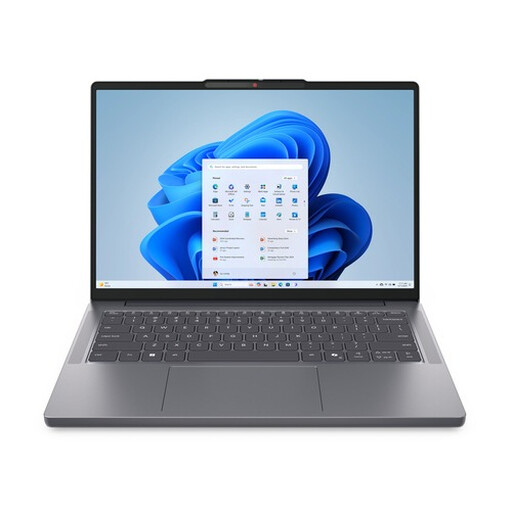 No image available
A good fit if you want a more compact model to take with you and import photos directly from a camera card.
14-inch WUXGA IPS anti-glare screen, SD card reader, 16 GB of memory and 512 GB SSD storage; listed weight is approximately 1.39 kg.
 No image available
A good fit if you want to compare a compact, high-resolution screen for photo work.
14-inch 3K OLED touchscreen with 100% DCI-P3 coverage, SD card reader, 128 GB of memory and 1 TB SSD storage; listed weight is 1.48 kg. The adapter isn’t included; USB Power Delivery charging is supported.
 No image available
A good fit if you’re looking for a lightweight laptop to take between your student room and lectures.
14-inch WUXGA OLED screen with 100% DCI-P3 coverage, 16 GB of memory and 512 GB SSD storage; listed weight is approximately 0.98 kg. A compatible 65 W USB-C Power Delivery charger is required but isn’t included. You may need a separate card reader to import photos directly from a camera card.
No, a screen specification alone can’t predict how a print will look. Calibrate the screen and, if you’re printing yourself, check which profile is available for your specific printer and paper combination. Adobe explains colour management for this in Lightroom Classic.
No, not necessarily. The Consumentenbond highlights 16 GB of RAM for creative use. Also consider the size of your files, the programmes you use and whether the memory in the exact laptop configuration can be upgraded.
Check whether the laptop on offer has a suitable card reader. If it doesn’t, find out which separate card reader or adapter will work with your card, and keep a separate backup of your photos too.
Online consumer purchases generally come with a 14-day cooling-off period, although there are exceptions. According to the Dutch government, there’s no fixed general time limit for statutory guarantees in the Netherlands: the product must be fit for purpose. If a product is faulty, the retailer is your point of contact.