First, choose a laptop configuration that suits your photo-editing software and files. Then decide whether you’ll use the built-in display or an external monitor at the shared desk. A stated colour gamut does not guarantee that prints will match what you see on screen: Adobe highlights the importance of calibration, ambient light and the correct output profile too. For large batches of photos, the memory, storage and ports on the exact configuration also matter.
Who is this buying guide for?
Print-focused photographer
You assess photos before printing them or sending them to a lab, and want to coordinate your screen, lighting and output profile as part of one workflow. Adobe lists calibration and ambient light as elements of colour management.
Photographer working with large batches
You sort and edit lots of files, and weigh your software’s requirements against memory and local storage. Adobe notes that Lightroom Classic does not automatically back up local originals.
Shared-desk user
You regularly reconnect equipment and want to know whether the laptop will work with the monitor and peripherals. If the Windows computer is shared too, separate accounts can keep users’ settings and documents apart.
What should you look for when choosing?
First decide how you’ll assess colour and what files you’ll be working with. Then check that the ports and setup are suitable for the shared desk.
| Consideration |
What should you check? |
Who should pay particular attention? |
| Assessing colour before printing |
Check the display configuration, calibration options, automatic brightness and the output profile for your printer or lab. |
If I want to assess photos before printing, I need to coordinate my screen settings, lighting and output profile. Around 36% of consumers put colour assessment at the top of their list. |
| Memory and storage for batches of photos |
Compare the RAM and SSD in the full configuration with your software’s requirements, and plan a separate backup for your originals. |
When working with large batches, I want to be able to process and store files without overlooking the backup. Around 29% of consumers give processing and storing batches of photos their highest priority. |
| Connecting to a shared desk |
Compare the video and USB ports with the monitor and peripherals available, and check whether the card reader is compatible with your camera cards. |
If I’m connecting to a shared workspace, I want to know whether the monitor and devices will connect directly, and whether other people will also use the computer. Around 21% of consumers put workspace compatibility first. |
| Moving between workspaces |
Compare the size and weight of the exact configuration, and decide which monitor, cables or card reader you’ll need to take with you. |
When I regularly move between desks, I want to be able to organise my screen assessment and essential equipment on the go too. Portability is the top priority for around 14% of consumers. |
Common buying mistakes
-
Assuming a wide colour gamut guarantees a good print match
A display specification alone cannot predict what your print will look like. Adobe also highlights calibration, ambient light and colour conversion for your chosen printing route.
Consider the display specifications alongside your complete workflow and the appropriate printer or lab profile.
Calibration and test prints can take extra time or require additional equipment.
-
Choosing a configuration based only on the model range
The display, memory and other components can vary between configurations. Lenovo’s information for the IdeaPad Slim 3 15IRH10 83K100HCMH does not automatically apply to the 83K100HBMH.
Check the full configuration code against the manufacturer’s specifications before making a decision.
-
Mistaking local storage for a backup
Adobe notes that Lightroom Classic does not automatically back up local originals. A copy on the same laptop is therefore not the same as a separate backup.
Decide separately where your original photos and their backup will be stored.
A separate storage solution or backup service may require extra management and equipment.
-
Assuming all your equipment will connect straight away
A laptop specification doesn’t tell you which monitor, cables and card reader are available at your shared desk.
Make a note of the ports on that equipment and compare them with the exact laptop configuration and your camera card type.
Depending on the existing setup, you may need suitable cables or adapters.
Brands to compare
Lenovo
The specific IdeaPad Slim 3 15IRH10 configuration, 83K100HCMH, gives you detailed specifications for comparing the display, memory, storage and ports.
- For the 83K100HCMH, Lenovo PSREF lists 16 GB of memory, a 1 TB SSD, an SD card reader and a glossy OLED display with a stated 100% DCI-P3.
- The stated colour gamut does not prove that prints will be accurately calibrated; these specifications do not automatically apply to other IdeaPad or Yoga configurations.
Apple
The MacBook Pro is worth comparing if you prefer working on a Mac. Check the memory, storage and connections for the specific configuration against your existing workspace.
- Apple lists several memory and storage configurations for the MacBook Pro.
- For print preparation, the laptop display still needs to be set up appropriately and calibrated.
ASUS
ProArt P16 H7606 is a Windows range aimed at creative professionals, with a choice of configurations.
- ASUS lists different processors and graphics cards across the range, as well as OLED displays with a stated 100% DCI-P3.
- Check the full configuration code; the stated colour gamut alone does not prove that the display will match a print.
HP
HP lists photography as a use for certain ZBook mobile workstations, making the range worth considering alongside standard laptops.
- HP’s positioning gives you a starting point for exploring the ZBook range for photo work.
- Check the display, memory and ports on the specific configuration; the stated use is not an independent performance test or confirmation of a particular display.
Laptop options at Joybuy
These laptop options are intended for photo editing on the built-in display. Compare each configuration and its connections with your software, files and shared workspace.
 No image available
HP OmniBook 3 14-hy0058ndx
An option to compare for a shared desk, provided the connections and configuration suit your monitor, software and files.
14-inch IPS display, described as anti-glare in the product description; AMD Ryzen 5 7520U, 8 GB RAM and 512 GB SSD.
The listed connections are USB-A, USB-C and HDMI 2.1. Check that they suit the equipment at your desk.
View at Joybuy
 No image available
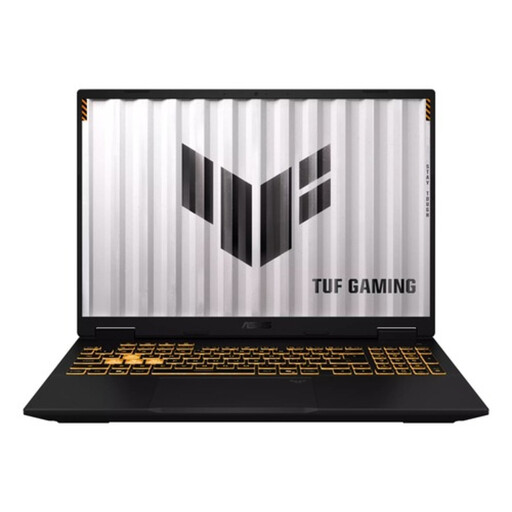
ASUS TUF Gaming F16 FX610JM-TU120W
Compare this configuration if you want to weigh its stated memory and storage against your workflow’s display requirements.
16-inch WUXGA display with a stated 100% sRGB, 16 GB RAM, 1 TB SSD and USB-C connectivity.
The stated colour gamut does not prove calibrated print accuracy; calibration, ambient light and the output profile still matter.
View at Joybuy
 No image available
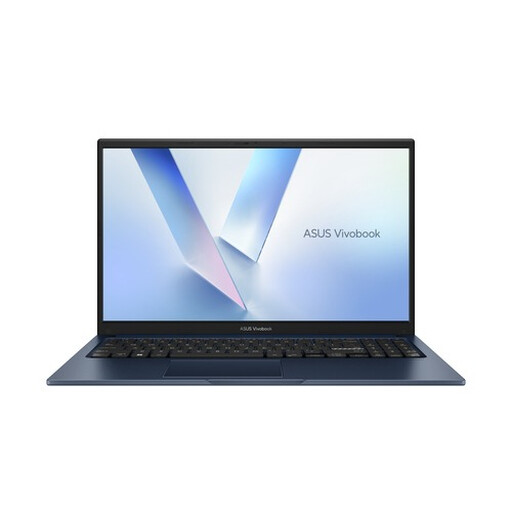
ASUS Vivobook 15 X1504MA-BQ588W
A configuration to compare if its stated memory and storage capacity suit your software requirements and local photo files.
15.6-inch Full HD display, Core 3 304, 8 GB RAM and 256 GB SSD; the display is described as anti-glare.
The listed connections are USB-C, HDMI and USB-A. Check that they suit your monitor and peripherals.
View at Joybuy
 No image available
MSI Stealth 16 AI+ B3WF-011NL
Compare this configuration if you work with large photo files and its listed specifications suit your software and storage needs.
16-inch QHD+ OLED display with a stated 100% DCI-P3, Intel Core Ultra 9 386H, GeForce RTX 5060, 32 GB DDR5 and 1 TB SSD.
The stated DCI-P3 coverage does not prove calibrated print accuracy; lighting, display settings and the output profile matter too.
The listed connections are HDMI 2.1 and Thunderbolt 4. Check that they’re compatible with the equipment at your desk.
View at Joybuy
 No image available
ASUS Zenbook A16, 16 GB RAM, 512 GB SSD
An option to compare if the configuration and USB-C connections suit your photo-editing software and workspace.
16-inch WUXGA display with a stated 100% sRGB, 16 GB RAM and 512 GB SSD; the display is described as anti-glare.
The configuration lists two USB4 Type-C ports. The stated colour gamut does not prove calibrated print accuracy.
View at Joybuy
Frequently asked questions
Is a display with 100% DCI-P3 enough to predict how a print will look?
No. That display specification doesn’t tell you how your complete print workflow will turn out. Adobe also highlights calibration, ambient light and paper. You should also use the output profile that suits your printer or lab.
What should I check again if I assess photos in a different place?
Check the monitor and its profile, the ambient light and the screen brightness. When preparing prints on a laptop display, Adobe advises turning off automatic brightness adjustment and using a consistent brightness level. The right setting depends on your working conditions.
Do people using a shared desk need separate accounts?
Not just because they use the same desk. If several people also use the same Windows computer, Windows supports separate accounts with individual settings and documents. You should also agree how access to photo files will be managed.
Who can help if a product develops a fault, and how long do you usually have to change your mind about an online purchase?
For a purchase by a consumer in the Netherlands, the seller is responsible for the statutory guarantee if a product does not perform as you could reasonably expect under normal use. There is no single fixed guarantee period for every laptop. ACM ConsuWijzer says that online purchases usually come with a 14-day cooling-off period from delivery, subject to legal exceptions.


