
Gallery creator with limited desk space
You select and organise photos, and need space for your laptop, mouse or card reader on a small desk. Adobe describes creating web photo galleries as a separate step in Lightroom Classic.


A compact laptop is a sensible starting point if desk space is limited and you want to select and organise photos or create an online gallery. If you also edit lots of photos or keep a large archive locally, consider the screen, memory, storage and backups too. Always check that the ports and exact configuration are compatible with your camera and accessories.
You select and organise photos, and need space for your laptop, mouse or card reader on a small desk. Adobe describes creating web photo galleries as a separate step in Lightroom Classic.
You edit photos on the built-in screen and need to weigh your screen options against the space the laptop takes up. The Apple, Lenovo and ASUS configurations reviewed have different screen sizes and features.
You want room for original files and a reliable way to restore them. Adobe distinguishes between backing up the Lightroom Classic catalogue and backing up photos and exports separately.
First, work out how much space you have on your desk and how you’ll handle your photos. Then consider the ports, screen and storage that best suit your workflow.
| What to consider | What to look for | Who should pay particular attention? |
|---|---|---|
| Desk space | Compare the external dimensions of the exact laptop configuration with the space available on your desk. Remember to allow room for the charger, mouse and card reader too. | If I have limited workspace, I want my laptop and the things I use to fit together. Around 33% of consumers say desk space is their top priority. |
| Reviewing photos on screen | Check the screen size, resolution and stated colour gamut for the configuration. Bear in mind that a stated colour gamut isn’t a measurement of the colour accuracy of your particular device. | When I review or edit photos on the laptop itself, I want to know what the screen offers and whether its finish suits my workspace. Around 25% of consumers prioritise reviewing photos. |
| Photo archive and backups | Estimate how many files you want to store locally and check the SSD and memory in the exact configuration. Also plan separate backups of your photos, exports and any catalogue data. | I want to be able to store my original and edited files, and restore them if something goes wrong. Around 25% of consumers say archive management is their top priority. |
| Ports and power | Make a note of your camera’s card format and the connectors used by your monitor and storage devices. Check that they’re compatible with the laptop and that the required mains adapter is included. | If I want to connect my camera and peripherals directly, I need to know in advance which ports and power supply I’ll need. Around 17% of consumers prioritise connectivity. |
The screen size doesn’t tell you how much desk space the laptop will take up, or how much room you’ll need for accessories.
Measure the free space on your desk and compare it with the external dimensions of the exact configuration. Make sure you also allow space for the things you use while working.
Adobe says that photos and exports should be backed up separately from the Lightroom Classic catalogue.
Plan separate copies of your original photos, edited images, exports and any catalogue data.
Ports and included accessories can vary by configuration. For example, Apple lists two Thunderbolt 4 ports for the MacBook Air reviewed here; the retail configuration reviewed does not include a mains adapter.
Make a list of your card format, connectors and power requirements in advance, then check what’s included with the exact configuration.
The 13-inch MacBook Air M5 reviewed here is a compact option if macOS and its available ports suit your photo workflow.
The IdeaPad Slim 5 14AKP10, configuration 83HX00DAMH, is a 14-inch alternative if built-in ports matter in a small workspace.
The Dutch Zenbook 14 OLED UX3405 configuration reviewed here is worth considering if screen quality, memory and local storage are priorities.
This selection of Joybuy products includes laptops from 13.3 to 14 inches for selecting, managing and, if needed, editing photos. The configurations listed differ in screen, storage and connectivity, so check which features suit your camera, accessories and workflow.
 No image available
This 13.3-inch configuration could suit you if you have a small workspace and want to connect peripherals.
The product description lists 16 GB of memory, a 512 GB SSD, and USB-A, USB-C and HDMI ports.
 No image available
This configuration could suit you if you want to transfer photos from an SD card and store work files locally.
The product description lists a 14-inch WUXGA IPS screen, 16 GB of DDR5 memory, a 1 TB SSD and an SD card reader.
 No image available
This 13-inch MacBook Air could suit you if a compact size and macOS fit the way you select and organise your photos.
The product title lists 16 GB of memory and 512 GB of storage. The product description mentions a 13.6-inch Liquid Retina screen and two Thunderbolt 4 ports.
 No image available
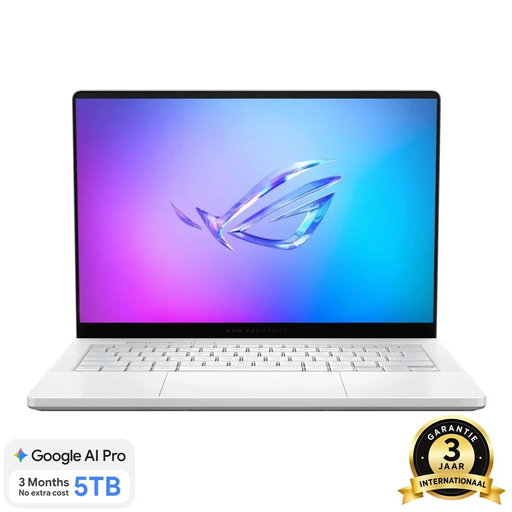
This configuration could suit you if you review photos on the built-in screen and want to use a microSD card.
The product description lists a 14-inch OLED screen, 16 GB of onboard memory, a 1 TB SSD and a microSD reader. The screen has a glossy finish, and the memory is not upgradeable, according to the description.
 No image available
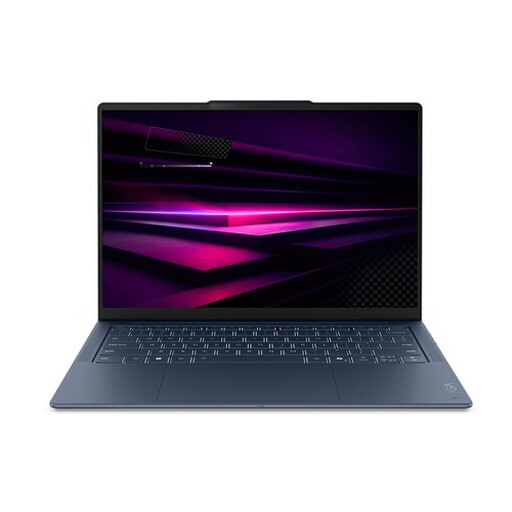
This configuration could suit you if you’re looking for a 14-inch OLED screen and local storage for your gallery files.
The product description lists 16 GB of onboard memory, a 512 GB SSD, three USB4 ports and a weight of 1,17 kg. The memory is not upgradeable, according to the description.
Not necessarily. Adobe describes creating a web photo gallery in Lightroom Classic as a separate workflow. First decide whether you’ll also be editing large files extensively, then choose the screen, memory and storage of the exact configuration to suit.
No. Adobe says you should back up edited photos and exports separately from the catalogue. So be sure to include original photos, edited files and exports in your backup plan too.
Check your camera’s card format, the connectors on your drives and monitor, and the included power supply. The Lenovo IdeaPad Slim 5 configuration reviewed has a microSD reader; the MacBook Air reviewed has two Thunderbolt 4 ports. Apple says the retail configuration reviewed does not include a mains adapter.
Many online consumer purchases come with a 14-day cooling-off period, although exceptions and conditions may apply; the Dutch government recommends checking the rules for your specific purchase. There is no fixed, general statutory warranty period in the Netherlands. According to the Dutch government, the seller must provide a solution if there is a problem with the product.
That depends on how you use the images and the applicable legal basis. The Dutch Data Protection Authority notes that identifiable people are personal data and that the GDPR may apply when images are published publicly or for business purposes. The exception for personal or household use requires images to remain private or be shared only with a very limited group. Choosing a laptop does not, in itself, give you the right to publish images.