
Selecting photos and putting together a gallery
You want to import, organise and present photos without intensive editing being your main focus. Adobe explains how to create a web photo gallery in Lightroom Classic.


If you mainly want to select, organise and publish photos, choosing a laptop based on your software, with enough local storage and the right ports, often makes more sense than opting for extra-powerful graphics hardware. If you regularly edit RAW files or assess colours closely, give more weight to memory and the specific screen. Remember to check the screen you’ll actually be working on, too. Adobe describes the web gallery workflow in Lightroom Classic, while Coolblue distinguishes between light and intensive photo editing.
You want to import, organise and present photos without intensive editing being your main focus. Adobe explains how to create a web photo gallery in Lightroom Classic.
You regularly work with larger or RAW photo files and want to consider performance and colour reproduction. Coolblue distinguishes between light photo editing and more intensive RAW and professional editing.
You take your laptop to a shared desk and may connect an external screen there. Check that the ports on the exact model suit your set-up.
Best for: you move between workspaces and usually create your gallery at the shared desk.
Trade-off: you’ll need an external screen and a compatible connection for extra workspace.
Best for: you often work without access to an external screen and want to view your photos on the laptop itself.
Trade-off: a larger screen takes up more space on a shared desk, so check the dimensions of the exact model.
Best for: RAW editing and colour assessment are important parts of your workflow.
Trade-off: a higher-spec configuration isn’t necessarily needed just to select and publish photos.
| What to consider | What to look for when buying | Who is this most relevant to? |
|---|---|---|
| Storage for your collection | Work out how many photos you need to keep locally and check the SSD capacity of the exact model. | If I mainly want to organise and store photos locally, I’ll first look at the space available for my collection. Around 33% of consumers prioritise storage for their photo collection as their main requirement. |
| Editing and colour | Check the software requirements, memory and exact screen. For colour-critical work, assess the external screen as well. | If I often edit larger or RAW files, I want to know whether the configuration and display suit my workflow. Around 25% of consumers prioritise editing and colour assessment. |
| Connecting at your desk | Compare the ports on the full model number with the input on the desk screen, and check which connections you need to use at the same time. | If I want to use my laptop with the shared screen, the connection needs to suit that set-up. Around 25% of consumers make desk connectivity their top priority. |
| Taking it between workspaces | Compare the size and weight with your daily journey, and check how you’ll connect the laptop at your workspace. | If I regularly take my laptop with me, I want its size to suit the journey and to be able to carry on working at my desk. Around 17% of consumers prioritise portability above all else. |
ASUS lists several screen and memory options for the Zenbook 14 OLED UX3405. HP also points out that specifications can vary by configuration.
Before you decide, compare the full model and configuration number with the specifications of the version you’re considering.
You assess colours on the screen you actually use; a feature of the laptop screen alone doesn’t tell you how an external screen will display colours.
Check the video connection and consider whether calibration is needed for your colour-critical work. Adobe recommends calibrating your monitor for colour management in Lightroom Classic.
If your existing set-up isn’t suited to your work, you may need additional connection equipment or calibration.
The Dutch government explains that consumers are entitled to a product that works properly and that there is no fixed statutory warranty period.
Read any additional warranty terms, but contact the retailer if something goes wrong.
Other people’s photos may be protected by copyright. Privacy rules may also apply to identifiable people; the Dutch Data Protection Authority distinguishes between limited private use and sharing more widely.
Before publishing, check the rights to the photos and what legal basis applies to identifiable people and your intended audience.
When sharing photos publicly, consent and privacy considerations may need extra attention.
A compact macOS option for working at a desk with an external screen.
The Zenbook 14 OLED UX3405 is a compact Windows range with several configurations.
The Yoga Pro 7 Gen 10 is a Windows range worth considering if photo editing makes up a larger part of your workflow.
The OmniBook Ultra 14-fd0000 range includes Windows models with different configurations.
The Aspire 17 may be worth considering if a larger built-in screen is important to you.
This selection of Joybuy products includes laptops with listed screen, memory and storage specifications for selecting and editing photos. Check that the exact model suits your software and screen set-up.
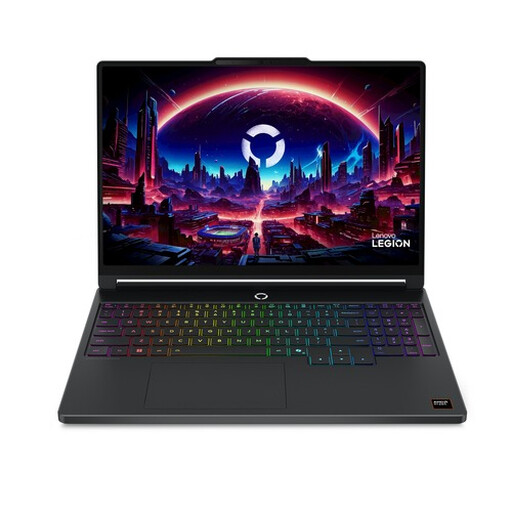 No image available
An option to compare if you’re looking for an OLED screen and local storage for photo work.
The product name lists 16 GB of DDR5 memory and a 512 GB SSD.
 No image available
A model to compare if you’re weighing up the screen, memory and storage for photo editing.
The product name lists a 16-inch QHD+ OLED screen, 32 GB of DDR5 memory and a 1 TB SSD.
 No image available
An option to compare if you’re considering the screen and local storage for photo work.
The product name lists 16 GB of memory, a 512 GB SSD and Windows 11 Home.
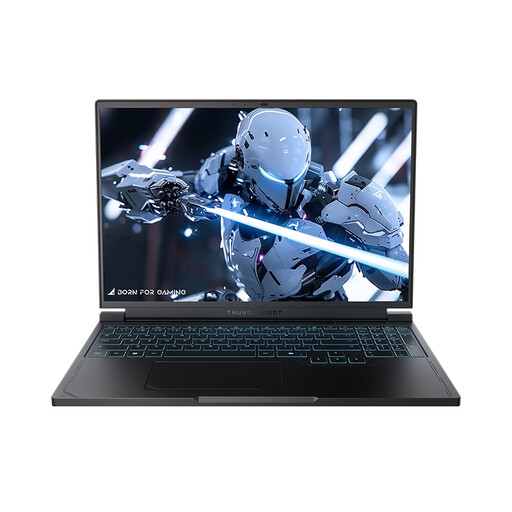 No image available
A 16-inch model to compare if you’re looking for a built-in screen and local storage.
The product name lists a QHD+ screen, 16 GB of DDR5 memory and a 1 TB SSD.
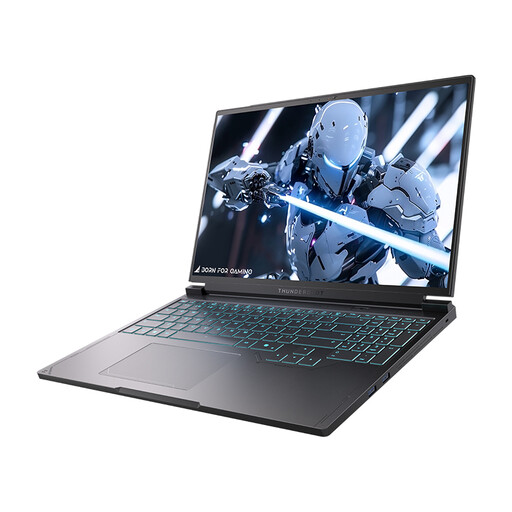 No image available
Compare this model if you’re looking for a built-in screen and local storage for photo work.
The product name lists a 16-inch QHD+ screen, 16 GB of DDR5 memory and a 1 TB SSD.
No, not if you mainly select photos and publish a gallery. Adobe describes this workflow in Lightroom Classic; how powerful your laptop needs to be also depends on how much editing you do alongside it. Start by choosing your software and workflow, then check their requirements.
Check the screen’s input, the video outputs on the exact laptop model and whether they support the screen set-up you want. Apple’s listed support for external displays on the MacBook Air M5, or the ports on the ASUS Zenbook UX3405, doesn’t by itself confirm that your particular set-up will work.
Adobe recommends calibrating your monitor before using it for colour management in Lightroom Classic. So assess the screen you actually view your photos on, even if it’s an external screen at the shared desk.
According to the Dutch government, you’re entitled to a product that works properly and there is no fixed statutory warranty period; if there’s a problem, contact the retailer. For many online purchases made remotely from a business, you have 14 days to change your mind, although exceptions apply.
No. You generally need the creator’s permission to publish other people’s copyright-protected photos. Privacy rules may also apply to identifiable people. The Dutch Data Protection Authority distinguishes, among other things, between limited private use and wider or commercial publication. So before publishing, check which photos you’re sharing and who will be able to see them.