
Choosing photos with a second screen
You sort and compare photos on one screen, while keeping a larger photo or gallery view visible on the other. Adobe describes a second Library view for Lightroom Classic.


For a laptop screen plus one monitor, the key thing is to check that the exact laptop configuration has the right video output. Then choose based on your photo work and storage needs. A Windows laptop with HDMI can be handy if you have an HDMI monitor, while Apple states that the 13-inch MacBook Air with M5 supports up to two external displays via Thunderbolt/USB-C. Before you buy, check your monitor’s connections, the cables or adapters you need, and whether you mean one or two external displays.
You sort and compare photos on one screen, while keeping a larger photo or gallery view visible on the other. Adobe describes a second Library view for Lightroom Classic.
You edit photos before adding them to the gallery, so consider the display on the configuration you choose and make sure there’s enough space for your files. ASUS, Apple and Lenovo offer models in different configurations; specifications vary by configuration.
You work in different locations and connect a monitor at home. In that case, it’s important to consider both how easy the laptop is to carry and whether it has the right video connection for your monitor.
First decide how many displays you want to use at once and check the video outputs on the exact configuration. Then choose a display, storage capacity and level of portability to suit your photo work.
A good fit if: you want to connect an HDMI monitor or import photos from a microSD card; ASUS lists these connections for the Vivobook S 14 S5406SA.
Bear in mind: memory and storage depend on the configuration. The list of ports alone doesn’t confirm support for every setup with two external monitors.
A good fit if: macOS suits the way you work, or you want to use two external displays alongside the built-in screen; Apple lists support for this on the 13-inch MacBook Air with M5.
Bear in mind: the listed display connections are Thunderbolt/USB-C, so check which cables or adapters will work with your displays.
A good fit if: your storage needs and a plan for your photo archive matter more to you than one particular way of connecting a monitor.
Bear in mind: check the storage capacity of the exact configuration and make a separate backup plan. You’ll need to check specifically whether the video output on the Lenovo ThinkPad E14 Gen 7 21T9001TMH will work with your monitor.
| What to consider | What should you check? | Who should pay particular attention? |
|---|---|---|
| A two-screen setup that works | Decide whether you mean the laptop screen plus one monitor, or two external monitors. Check the video output on the exact configuration, your monitors’ inputs and the cables you’ll need. | If I’m choosing photos on one screen and keeping the gallery view on the other, I want to be sure the connections will work together before I buy; around 33% of consumers put screen connectivity first. |
| Reviewing photos on a suitable display | Check the display type, stated colour gamut and configuration. Also decide which display you’ll use for colour-critical work. | When I edit photos before adding them to the gallery, I want to know which display I’ll use; around 27% of consumers give image and colour assessment their top priority. |
| Space for your photo archive | Estimate the size and growth of your library and compare it with the SSD capacity of the exact configuration. Plan backups separately. | If I import and store lots of photos, I want to match the storage to my own library; around 20% of consumers put archive storage and importing at the top of their list. |
| Working on the go and connecting at home | Check the weight, screen size and connections you’ll use in both locations. | When I take my laptop with me and connect a monitor at home, I want to weigh portability against what I need at my regular workspace; around 20% of consumers make working on the move their main priority. |
A laptop screen plus one monitor is a different setup from a laptop screen plus two external monitors.
Before you buy, note how many displays need to be active at once. Then check support for the exact model and the inputs on your monitor.
Memory, storage and display can vary between configurations of the same model. Specifications for an older MacBook Air M4 don’t automatically apply to the M5.
Check the full model number and configuration before making your choice.
The storage space you need depends on the size and growth of your own photo library.
Estimate your storage needs separately and decide how you’ll store and back up your gallery files.
The Vivobook S 14 S5406SA is worth considering if you’re looking for built-in HDMI, video over Thunderbolt and a microSD reader.
The 13-inch MacBook Air with M5 is an option if macOS suits the way you work, or if you want to use two external displays alongside the built-in screen.
The ThinkPad E14 Gen 7 is worth considering if storage, memory configuration and serviceability are important to you.
Below are Joybuy laptops for photo and gallery work. For each model, check that the video output is right for your monitor and that the connections support the display setup you want.
 No image available
The product listing mentions HDMI for connecting an external display; check that the output is suitable for your monitor.
According to the product listing, this configuration has a 14-inch IPS display with a resolution of 1920 × 1200, 8 GB of RAM and a 512 GB SSD. The laptop is supplied without a charger.
 No image available
The product listing mentions HDMI 2.1 and USB-C DisplayPort Alternate Mode; check which connection is right for your monitor.
According to the product listing, this configuration has an 18.4-inch IPS display, 16 GB of RAM and a 512 GB SSD. A compatible 45–65 W USB-C Power Delivery charger is required and isn’t included.
 No image available
The product listing recommends this laptop for photo work, but before buying, check the video output on the exact configuration to make sure you can connect your monitor.
According to the product listing, this configuration has a 15.6-inch FHD IPS display, 16 GB DDR4 and a 512 GB SSD. It also lists a 3050E processor, fingerprint unlocking and a backlit keyboard.
 No image available
The product listing mentions HDMI for an external monitor and support for extra storage via microSD; check your monitor’s connection.
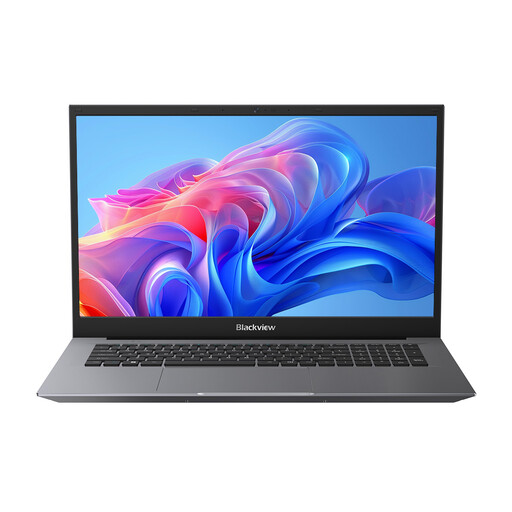
According to the product listing, this configuration has an 18.5-inch LCD display, 16 GB DDR4, a 512 GB SSD and an Intel Pentium Silver N6000 processor. Windows 11 Pro and Bluetooth 5.2 are also listed.
 No image available
The product listing mentions USB-C with DisplayPort support; check that it works with the input on your external monitor.
According to the product listing, this configuration has a 15.6-inch FHD display, 16 GB DDR5 and a 512 GB SSD. It also lists an Intel Core i5-13420H processor, Wi-Fi 6 and Windows 11 Pro; the stated weight starts at 1.61 kg.
No, the basic setup described here is the laptop screen plus one external monitor. If you want to use two external monitors, check support for the exact model; Apple lists this option for the 13-inch MacBook Air with M5. In Windows, you can identify and arrange connected displays in the display settings.
Yes. Adobe describes a second Library window where you can view selected photos while working in Lightroom Classic. You’ll also need to connect the laptop and monitor correctly.
Yes. According to Adobe, the Web module creates web galleries where thumbnails link to larger photos. Your software and files will determine how you work from there; you don’t need a specific laptop brand for this.
Before publishing, check the relevant copyright and privacy rules. The Dutch Government states that you may only use someone else’s copyright-protected photos with the creator’s permission. According to the Dutch Data Protection Authority, an organisation needs a lawful basis under the GDPR to publish images of recognisable people. Consent is one possible lawful basis, but it isn’t the only one.
When you buy as a consumer in the Netherlands, you have a legal right to a remedy if the product doesn’t do what you could reasonably expect under normal use. According to ACM ConsuWijzer, the seller must offer a free solution, depending on the circumstances. A manufacturer’s warranty period doesn’t replace this right.