Choose a laptop that supports your preferred external monitor setup, and check the screen specification of the exact model. Two connected screens won’t automatically show the same colours: Adobe explains that the same image file can look different on each screen. So, for colour-critical work, plan to profile both screens and take your viewing conditions into account. If you work with large photo files, consider memory and storage too; if you’re often on the move, a smaller screen may be more appealing.
Who is this laptop guide for?
Product photographers who need accurate colour
If you assess product colours on both your laptop’s built-in screen and an external monitor, a colour-managed workflow and suitable profiles for the screens you use can help. Adobe explains that the same file can look different on different screens.
Photo editors with a fixed two-screen setup
If you split your photos and controls between your laptop and monitor, it’s worth checking the video output and connections on the exact laptop configuration. Adobe explains how to use a second monitor in Lightroom Classic.
Mobile creators working with large photo files
If you edit on the move, weigh up your preferred screen size against portability, memory and storage. The relevant specifications vary by model and configuration.
What should you look for when buying?
First, check that the laptop can drive your external monitor in your preferred setup. Then assess the screen profiles, performance for your files and the size you want to carry with you.
| What to consider |
What should you check? |
Who is this important for? |
| Colour on both screens |
Check the screen specification of the exact model, and take profiling and consistent viewing conditions into account. |
If I assess product colours on my laptop and monitor, I want to know whether my screens will work within a colour-managed workflow. Around 36% of consumers prioritise colour matching. |
| Connecting the monitor |
Check the laptop’s video output, along with the monitor’s connection and resolution. |
For my permanent workspace, I want to use an external monitor without any uncertainty about connections. Around 29% of consumers prioritise the screen connection they need. |
| Large photo projects |
Compare the memory and storage in the configuration on offer with the requirements of your files and software. |
If I work with large photo files or several programmes at once, I want to match the configuration to my workload. Around 21% of consumers prioritise processing capacity and storage. |
| Working on the move |
Balance screen size against the workspace you need, and check that the connections suit your permanent setup too. |
If I work in different locations, a size I can comfortably carry is a factor in my choice. Around 14% of consumers prioritise portability. |
Common buying mistakes
-
Assuming a wide colour gamut means two screens will show the same colours
A stated colour gamut doesn’t prove that the laptop screen and monitor will show the same image. Adobe points out that screens can display the same file differently.
Compare the screen specification and, for colour-critical work, set up a suitable profiling and viewing workflow.
-
Assuming all the cables and power supplies you need are included
Connections and included accessories can vary by configuration. ASUS states that the Dutch ProArt P16 H7606GP does not include a power adapter; this information doesn’t automatically apply to other configurations.
Check the monitor connection and what’s in the box for the exact offer.
If a required cable, adapter or charger is missing, you’ll need to arrange one separately.
-
Applying specifications from a different configuration
A product family can include different screen options. Dell lists an FHD+ screen with 100% sRGB and a separate OLED option with 100% DCI-P3 for the XPS 16 9640; its Dutch product page states that the 9640 is no longer available.
Check the full model name and screen specification. Don’t assume the XPS 16 9640’s specifications also apply to another model.
Brands to compare
Apple
Apple offers MacBook Air models in different screen sizes. For MacBook Pro, external display support depends on the configuration.
- Apple Netherlands lists 13- and 15-inch MacBook Air M5 models.
- Apple Support says the number of external displays a MacBook Pro can support depends on the model, resolution and refresh rate.
ASUS
The ProArt P16 is worth comparing if you’re looking for a Windows laptop with a screen option marketed for creative work.
- ASUS lists a 16-inch OLED screen with 100% DCI-P3 for the Dutch ProArt P16 H7606GP configuration. This is a manufacturer specification, not an independent colour measurement.
- For the same H7606GP configuration, ASUS lists 32 GB of non-upgradeable memory and states that no power adapter is included. Check the details of the exact configuration.
Dell
Dell lists different screen options for the XPS 16; the configuration determines which specifications apply.
- For the XPS 16 9640, Dell Netherlands lists both an FHD+ screen with 100% sRGB and a separate OLED option with 100% DCI-P3.
- Dell says the 9640 is no longer available on its Dutch product page. Don’t automatically apply its specifications to a newer model.
Lenovo
The IdeaPad Slim 3 15IRH10 appears in a Dutch editorial ranking of laptops for photo editing.
- Techboer’s ranking describes an OLED configuration; Lenovo Support confirms the model identity as 15IRH10.
- Confirming the model identity doesn’t mean every configuration has the same screen. Check the screen specification of the model on offer.
HP
The EliteBook Ultra G1i is mentioned as a business option for photo editing in a Dutch editorial ranking.
- Techboer includes the EliteBook Ultra G1i in its photo-editing ranking.
- A ranking doesn’t prove that every EliteBook configuration is suitable for colour-critical work. Check the screen specification and monitor output separately.
Joybuy laptops for photo work
This selection includes laptops with a focus on the built-in screen, as well as models for larger photo projects. For colour-critical work, check the exact screen specification and confirm that the laptop supports your preferred external monitor setup.
 Image unavailable
ASUS ProArt P16 H7607BA-SE030X, 16-inch, 64 GB RAM, 1 TB SSD
A good fit if you’re looking for a 16-inch laptop with plenty of memory and storage for photo work; check the screen specification for colour-critical use.
The product name lists 64 GB RAM and a 1 TB SSD.
Joybuy
 Image unavailable
ASUS ProArt P14 H7407BA-SM078X, 14-inch, 128 GB RAM, 1 TB SSD
A 14-inch model worth comparing if you’re looking for a smaller screen for working in different locations.
The product name lists 128 GB RAM and a 1 TB SSD. The product information states that the charger is not included.
Joybuy
Image unavailable
ASUS ProArt P16 H7607BA-SE181X, 16-inch, 128 GB RAM, 1 TB SSD
A good fit if you’re looking for a 16-inch model with plenty of memory and storage for photo projects.
The product name lists 128 GB RAM and a 1 TB SSD. Check the screen specification and external connections for this configuration.
Joybuy
 Image unavailable
HP OmniBook Ultra Next Gen AI 16-bk0004nd, 128 GB RAM, 2 TB SSD, 3K OLED touchscreen
A good fit if you’re looking for a large built-in screen and plenty of memory and storage for photo work.
The product name lists 128 GB RAM, a 2 TB SSD and a 3K OLED touchscreen with 120 Hz.
Joybuy
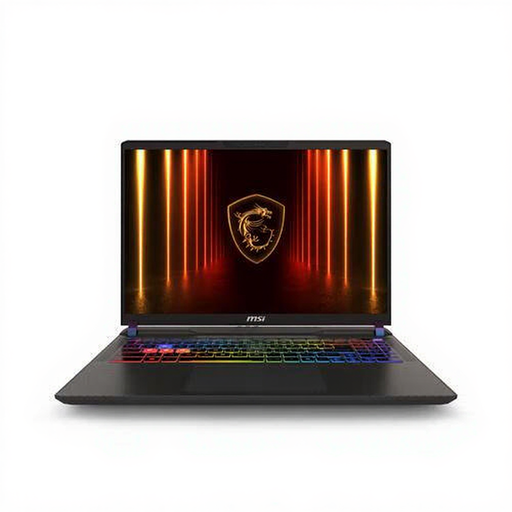 Image unavailable
MSI Vector A16 HX A8WIG-025NL, Ryzen 9 8940HX, 16 GB DDR5, 1 TB SSD
A model worth comparing if you work on larger photo projects and want a configuration with a dedicated graphics card.
The product name lists a 16-inch Quad HD+ screen, 16 GB DDR5 memory, a 1 TB SSD and NVIDIA GeForce RTX 5080.
Joybuy
Frequently asked questions
Will two connected screens automatically show the same colours?
No. Adobe explains that the same file can look different on different screens. For colour-critical work, use a colour-managed application, profile the screens you use and keep your viewing conditions as consistent as possible.
Can I use Lightroom Classic on a second screen?
Yes. Adobe explains how to open a second Lightroom Classic window on a connected monitor. Whether the connection works in your setup also depends on your laptop and monitor.
How do I set up displays in Windows after connecting them?
Microsoft explains how to identify connected displays and set their positions individually. These settings control your display layout, but they don’t replace colour profiling.
If something goes wrong, should I contact only the manufacturer?
No. For a consumer purchase in the Netherlands, the seller is your point of contact if a product is faulty, according to the Dutch government. The Dutch government also states that the Netherlands has no fixed statutory warranty period; a manufacturer’s or extended warranty is in addition to your statutory rights.
Will I always need a dock or power adapter?
That depends on the connections available on the exact laptop configuration and what’s included in the offer. For example, ASUS states that the Dutch ProArt P16 H7606GP is supplied without a power adapter; this doesn’t automatically apply to other configurations.


