What should you consider when choosing?
First, measure the available space and decide how much you want to see at once. Then compare colour management, software requirements, storage and the ports your camera and any monitor need.
| What to consider |
What should you look for? |
Who is this important to? |
| Workspace and screen space |
Measure your desk and check the laptop’s dimensions, not just its screen size. Also check whether you can connect an external monitor if that suits your setup. |
When I edit at a small desk, I want to leave room for my things while still being able to see my photo windows. Around 29% of consumers make desk space their top purchasing priority. |
| Colour assessment |
Compare the screen on the exact configuration and factor in colour management or profiling. Adobe says that a wide colour gamut or connecting a calibrated monitor alone does not guarantee accurate colour reproduction. |
When I assess product colours, I want to factor my screen settings and colour management into my workflow. Around 29% of consumers prioritise colour assessment. |
| Memory and editing |
Check the requirements for your software version and the laptop’s configuration. Adobe recommends 16 GB of RAM or more for Photoshop 27.x; this is not a universal requirement for every photo editor. |
When I edit large photos or use several programmes at once, I focus on the available memory. Around 24% of consumers make editing performance their top priority. |
| Importing, storage and backups |
Check which card or USB connection your camera uses, which ports the laptop has and where you will back up your originals and exports separately. The Consumentenbond recommends 512 GB or more for large files; Adobe says a Lightroom Classic catalogue backup does not automatically include photo files. |
When I import and store lots of images, I want to know how to transfer and back them up separately. Around 18% of consumers make importing and storage their top priority. |
Joybuy products for photo editing
This selection of Joybuy products includes compact Windows laptops, compact MacBook models and a larger laptop with more built-in screen space. Compare the configuration with the space available, your software and the ports your camera and any monitor need.
 No image available
HP OmniBook 5 Flip 14-fp0075nd C5VM5EA#ABH
Ideal if you’re looking for a compact Windows laptop with a touchscreen and a hinge that supports different modes of use.
The product description lists a 14-inch OLED touchscreen, 16 GB of memory, a 512 GB SSD, USB-C with DisplayPort and HDMI. A compatible USB-C charger of at least 45 W is not included.
View at Joybuy
 No image available
Apple MacBook Air 13-inch M5, 16GB, 512GB, Midnight (2026), QWERTY Keyboard
Ideal if you want a compact macOS laptop and can check that your apps and peripherals will work with the available ports before buying.
The product details list a 13.6-inch screen, 16 GB of memory, a 512 GB SSD and a weight of 1.23 kg. The laptop has two Thunderbolt 4 ports.
View at Joybuy
 No image available
Apple MacBook Pro 14-Inch M5 Pro, 24GB, 1TB, Space Black (2026), QWERTY Keyboard
Ideal if you want a built-in 14-inch screen along with the card and monitor connections listed.
The product details list 24 GB of memory, 1 TB of storage, an SDXC card slot, HDMI and three Thunderbolt 4 ports. The description states that it supports up to two external displays.
View at Joybuy
 No image available
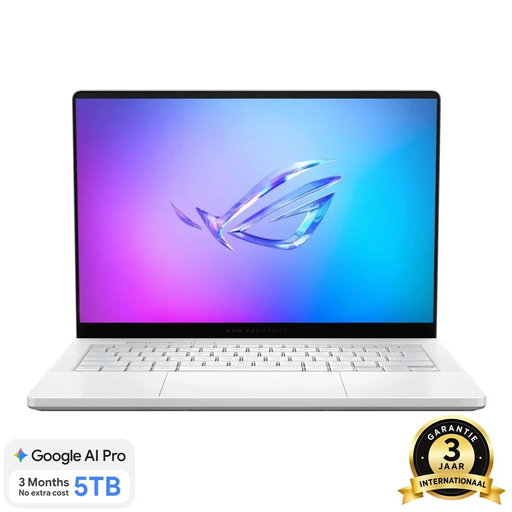
ASUS ROG Zephyrus G14 GA403UM-QS024W, 14-inch, 16GB, 1TB SSD, QWERTY Keyboard
Ideal if you’re looking for a compact Windows laptop with a card reader and local storage for photo files.
The product description lists a 14-inch OLED screen with 100% DCI-P3 coverage, 16 GB of memory, a 1 TB SSD and a microSD card reader. The stated colour gamut is not a measurement of colour accuracy; the stated weight is 1.50 kg.
View at Joybuy
 No image available
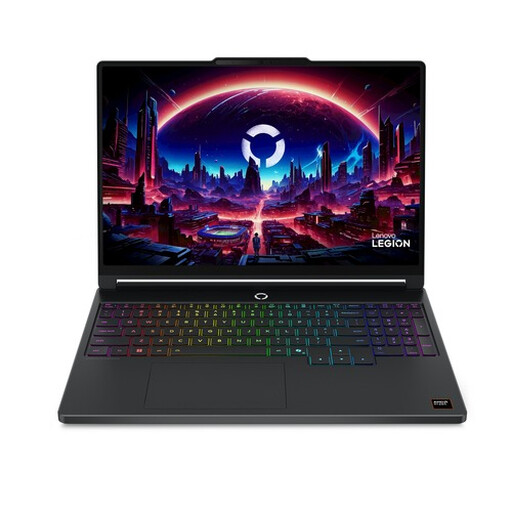
Lenovo Legion 5 15AHP11, 15.3-inch WQXGA OLED, 16GB, 512GB SSD
Ideal if you want more screen space for photos and editing panels and have room for it on your desk.
The product details list a 15.3-inch WQXGA OLED screen with a 165 Hz refresh rate, 16 GB of DDR5 memory, a 512 GB SSD and a 100% DCI-P3 colour gamut. This model takes up more space than the more compact laptops in this selection; the colour gamut alone does not prove colour accuracy.
View at Joybuy
Frequently asked questions
Do I need 16 GB of RAM to edit product photos?
No, 16 GB is not a universal requirement. Adobe lists 8 GB as the minimum and 16 GB or more as the recommendation for Photoshop 27.x. Choose according to your software version, files and the other programmes you use at the same time.
How can I keep colour assessment consistent in my workspace?
Include colour management and a suitable screen profile in your workflow if consistent colour assessment matters to you. According to Adobe, simply connecting a monitor—even a calibrated one—does not guarantee accurate colour reproduction.
Are my original photos safe if Lightroom Classic backs up the catalogue?
No. Adobe says this backup includes only the catalogue file, so make separate backups of your photos and exported files too.
What if the laptop doesn’t work properly after I buy it?
For consumer purchases in the Netherlands, you have statutory rights if a product is faulty, and the seller is responsible. According to the Dutch government, there is no fixed statutory warranty period of two years; a manufacturer’s warranty does not replace these statutory rights. Different rules may apply to business purchases.
Can I return a laptop bought online within 14 days?
For a standard online purchase from a business as a consumer, you generally have a statutory 14-day cooling-off period, according to the Dutch government. If you’re buying for your business, don’t assume the same right applies: the protection available may depend on the circumstances.


