First decide whether you want to manage your photos using standard folders, web apps or local cataloguing and editing software. Then compare the storage and ports with your own archive, and make sure you have a separate back-up. A larger screen gives you more room to work, while a compact laptop is easier to take to lectures.
Who is this choice for?
Student with a growing local photo archive
You want to keep photos from different devices together and be able to find them easily. Check the size of your archive, make sure you have the ports you need and arrange a separate back-up. Adobe distinguishes between backing up the catalogue and backing up the photos themselves in Lightroom Classic.
Student who also edits photos
You want to use photo software as well as organise your pictures. Choose the software first, then check its requirements and the screen specifications for the exact laptop configuration. The Consumers’ Association gives guidelines for creative use, but these don’t automatically apply to every way of organising photos.
Student who often takes their laptop out
You manage photos in your room but also take your laptop to lectures. Compare the stated weight and screen size with the space on your desk and what you plan to carry. A compact size and plenty of built-in workspace involve different trade-offs.
What should you look for?
Windows laptop
Best for: working locally with Windows photo software and files.
Trade-off: memory, storage and screen specifications can vary between configurations in the same model range.
MacBook
Best for: using macOS software and choosing a compact laptop for your room and campus.
Trade-off: check that your camera, card reader and external drives are compatible with the available ports.
Chromebook
Best for: using your chosen photo workflow with supported web apps and files.
Trade-off: Google notes that some apps don’t work offline, and files made available offline in Drive take up space on your device.
| What to consider |
What to look for |
Who should pay extra attention? |
| Space for photos |
First check the size of your existing archive and allow for new files. The Consumers’ Association recommends 512 GB as a guideline for creative use, not a fixed requirement for every archive. |
If I want to keep existing and new photos locally, I compare the measured size with the storage in the exact configuration. Around 28% of consumers put archive space first. |
| Photos and back-ups |
Decide where your originals and any catalogue will be stored, and how you’ll make separate copies. Adobe says that a Lightroom Classic catalogue back-up doesn’t include the photos referred to by the catalogue. |
I want to avoid an issue with my working copy affecting my only photo files. For around 22% of consumers, keeping their photos and catalogue safe is their main concern. |
| Photo workflow and software |
First choose between folders, web apps or a local programme. Then check the operating system and software requirements for your preferred workflow. |
If I want to use a particular photo programme, I first check that it works with the laptop I’ve chosen. Around 22% of consumers prioritise compatibility with their preferred software. |
| Viewing photos on screen |
Compare the screen size, resolution and stated screen specifications for the exact configuration. Don’t treat different colour gamut standards as directly comparable measurements. |
I want a good view of my photos on the built-in screen while sorting them. Around 17% of consumers give workspace and screen specifications the highest priority. |
| Taking it to lectures |
Compare the weight and screen size with your desk and the things you plan to carry. Also check the ports and whether a power adapter is included. |
If I often carry my laptop between my room and campus, portability matters more to me than extra screen space. This is the main priority for around 11% of consumers. |
Common pitfalls
-
Mistaking a catalogue back-up for a complete photo back-up
According to Adobe, the catalogue back-up in Lightroom Classic covers only the catalogue file, not the photos referred to by the catalogue.
Check which folders contain your original photos and make a separate copy of them, as well as backing up the catalogue.
A growing archive may mean you need additional external or cloud storage later.
-
Assuming every configuration has the same screen or includes the same items
Screen specifications and included items vary by configuration. Lenovo lists an IPS screen with 45% NTSC colour gamut for the IdeaPad configuration reviewed; ASUS says the power adapter isn’t included with the Zenbook configuration reviewed.
Check the full model number, screen specifications and box contents for the configuration you choose.
If your chosen configuration doesn’t include a power adapter, you’ll need to arrange one separately.
Brands to compare
Lenovo
The IdeaPad Slim 5i is worth comparing if you’re looking for a Windows laptop and want to check the precise screen and memory configuration.
- For the 14-inch IdeaPad Slim 5i Gen 10 configuration reviewed, Lenovo specifies 16 GB of memory, a 512 GB SSD and a weight of 1.34 kg.
- Lenovo lists 45% NTSC colour gamut for the IPS screen in this configuration. Don’t assume other configurations have the same screen specifications.
Apple
The MacBook Air is worth comparing if you want to use macOS and are looking for a compact laptop for your room and campus.
- For the 13-inch MacBook Air with M5 sold in the Netherlands, Apple lists a 512 GB SSD, 16 GB of memory and two Thunderbolt 4 ports.
- Check that your camera, card reader and external storage work with the available ports. The stated battery life isn’t based on an independent test of photo management.
ASUS
The Zenbook 14 OLED is a Windows option worth comparing if you’re looking for a compact laptop with a specified OLED screen.
- For the Zenbook UX3405 configuration reviewed, ASUS lists 32 GB of memory, a 1 TB SSD and a 14-inch OLED screen with 100% DCI-P3 coverage.
- ASUS states that this particular configuration doesn’t include a power adapter. Check the configuration and what’s included.
HP
The OmniBook 3 is a range worth comparing if you want to look at different screen sizes for studying and home use.
- HP describes OmniBook 3 configurations with 14, 16 and 17.3-inch screens.
- The range’s screen sizes don’t tell you how much memory or storage an individual model has, or what screen it uses. Check the full model number.
Laptop options on Joybuy
This selection includes Windows laptops to compare for managing a local photo archive, with a range of screen sizes, storage configurations and ports. Before buying, check that the exact configuration suits your software, accessories and back-up routine.
 No image available
HP OmniBook 7 AeroNGAI 13-bg1051nd NL Copilot+
A compact configuration worth comparing if you often take your laptop out and want to manage a local archive.
13.3-inch IPS screen, 16 GB RAM, 512 GB SSD, Windows 11 and a weight of 1.46 kg. Listed ports include USB-A, USB-C and HDMI. AZERTY keyboard; the power adapter must be purchased separately.
View on Joybuy
 No image available
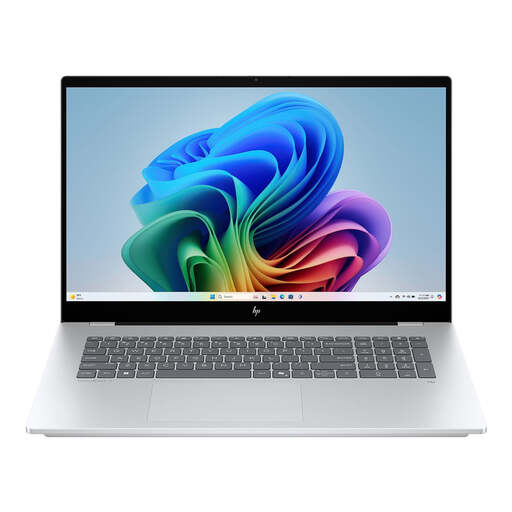
HP OmniBook 7 NG AI PC 17-dc0051nd D75LTEA#ABH
A configuration with a large built-in screen worth comparing if you do most of your sorting at a desk.
17.3-inch Full HD IPS touchscreen, 16 GB memory, 512 GB SSD and Windows 11.
View on Joybuy
 No image available
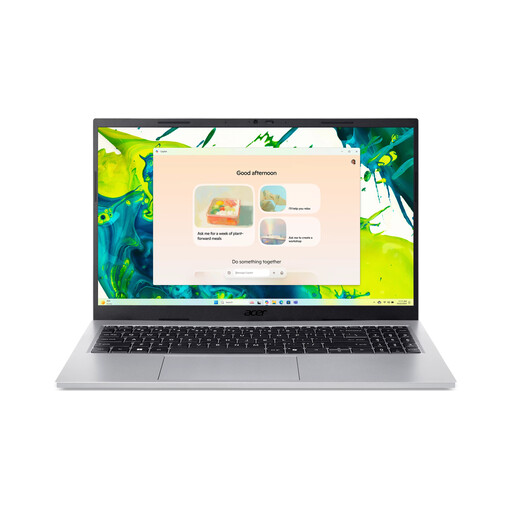
Acer Aspire Go 15 AG15-72P-56BJ
A 15.6-inch configuration worth comparing if you want plenty of room on the built-in screen while organising photos.
Full HD IPS screen, Intel Core 5 120U, 16 GB RAM, 512 GB SSD, Wi-Fi 6 and Windows 11 Home. Listed ports include USB-A, USB-C and HDMI. AZERTY keyboard; the power adapter must be purchased separately.
View on Joybuy
 No image available
Auusda T161N
A configuration with a 16-inch screen and 1 TB SSD worth comparing if local storage and a clear view of your photos are important to you.
16 GB DDR4 memory, 1 TB SSD and an i3 1000NG4 processor. The 16-inch IPS screen has a stated resolution of 1920 × 1200. Listed ports include USB-C, USB 3.0, mini-HDMI and a TF card reader.
View on Joybuy
 No image available
Auusda T156A
A 15.6-inch configuration worth comparing if you want a built-in screen for sorting photos.
Full HD IPS screen, 16 GB DDR4 memory, 512 GB SSD and a 3050E processor. Listed ports include USB 3.0, USB 2.0, USB-C and HDMI.
View on Joybuy
Frequently asked questions
Is 256 GB of storage enough for your photo archive?
You can work this out by first checking the size of your current photos and how much free space you’ll need. The Consumers’ Association recommends 256 GB for basic everyday use and 512 GB for creative use; these aren’t fixed requirements for every photo archive.
Does backing up your photo catalogue also make a copy of your photos?
Not in Lightroom Classic: according to Adobe, the built-in catalogue back-up covers only the catalogue file. Back up your photos and any exported files separately too.
Can you manage your photos on an external drive?
According to Adobe, Lightroom Classic lets you store photos on an external drive. Decide in advance where your originals and catalogue will be kept, and make separate copies of them too.
Can you return a laptop bought online?
For online purchases by consumers in the Netherlands, there’s generally a statutory 14-day cooling-off period after delivery. Exceptions may apply, so check the information the seller provides about them before you buy.


