
Organising photos with limited desk space
You want to bring photos from different devices together in one place and are looking for a compact laptop that leaves you enough room to work at your desk.


Start with the space available on your desk and the size of your photo archive. A 13 to 14-inch laptop can be compact, but gives you less screen space to view photos side by side. The Dutch Consumers’ Association recommends 512 GB or more if you regularly work with large photo and video files. Choose storage and ports to suit your files and devices, too. Even a large SSD is no substitute for a separate back-up.
You want to bring photos from different devices together in one place and are looking for a compact laptop that leaves you enough room to work at your desk.
Your collection contains lots of files, or large ones, and you want to decide what to keep locally, what to store elsewhere and how to create a separate back-up.
You regularly sort, review or edit photos. As a result, screen specifications and enough memory may matter more than they would for managing files alone.
First, decide how much space your laptop can take up on your desk and where you want to store your photos. The Dutch Consumers’ Association recommends at least 512 GB if you often work with large photo or video files.
| What to consider | What should you check? | Who should prioritise this? |
|---|---|---|
| Compact size and screen space | Compare the laptop’s dimensions with your desk and consider how many photos you want to view at once. | If I want to organise photos on a small desk without the laptop taking up all my workspace, a compact design comes first. Around 37% of consumers say compact size is their main reason for buying. |
| Storage for a growing archive | Check how much space your current collection takes up and decide which files need to be available locally. Make sure you also have a separate back-up. | For consumers who want to store lots of photos, or large ones, directly on their laptop, local capacity is crucial; around 27% prioritise this need. |
| Screen and editing | Check the screen specifications for the exact configuration and consider whether you’ll mainly be sorting photos or editing them regularly, too. Manufacturer specifications are not an independent measure of colour accuracy. | If you regularly review or edit photos, you may want to give more weight to the screen and available workspace. Around 18% of consumers put this need first. |
| Ports for importing files | Make a list of the devices and cables you want to use, then check the port type, number of ports and whether you need a card reader. | If I want to transfer photos from a card reader, phone or external drive, the ports need to work with the devices I already use. Around 18% of consumers make this their top priority. |
Having more storage on one laptop won’t stop you losing your photos if the laptop or SSD is lost or damaged.
Keep a separate back-up, for example on an external drive or online, and check that new photos are being saved to it.
A smaller screen gives you less room to view photos at the same time. Screen size alone also doesn’t tell you everything about the panel.
Compare the specifications of the exact configuration with how you plan to use it: sorting photos, reviewing them or editing them, too.
A laptop range can include different screen, storage and memory options.
Before buying, check the model code and specifications of the configuration on offer, including the SSD, RAM, screen and ports.
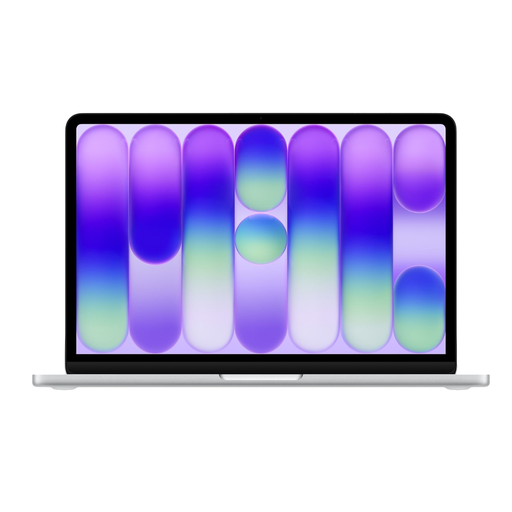
The 13-inch MacBook Air with M5 is a compact macOS option. According to Apple’s Dutch specifications, the base configuration described has 16 GB of memory, a 512 GB SSD and two Thunderbolt 4 ports.
The Swift Go 14 OLED range includes compact Windows configurations. Acer specifies 16 GB of RAM and a 512 GB SSD for NX.KTSEH.007, and 16 GB of RAM and a 1 TB SSD for NX.KP0EH.006.
The IdeaPad Slim 5 Gen 9 (14-inch AMD) is a compact Windows range worth comparing if ports are important to you.
According to HP, the OmniBook 3 range includes a 14-inch laptop for everyday use, making it a compact Windows option.
These laptops are suited to organising and storing photos in a compact workspace. Compare their storage and ports with your archive and devices. For larger models, also check how much desk space you’ll have left.
 No image available
A 14-inch configuration to consider if you’re looking for a compact laptop with ports for peripherals.
The listed configuration has an AMD Ryzen 5 7520U, 8 GB of LPDDR5 memory and a 512 GB SSD. USB-A, USB-C and HDMI ports are listed.
The memory is built in and cannot be upgraded. A suitable charger is not included.
 No image available
This 14-inch configuration may suit you if you want to store photos locally and import files using a card reader.
The listed configuration has an Intel Core 7 150U, 16 GB of DDR4 memory and a 512 GB SSD. The description lists a Full HD IPS-Level screen, USB-C and a microSD card reader.
 No image available
The listed 13-inch size is a compact option for a small desk.
The product name lists an A18 Pro chip, 8 GB of memory and a 512 GB SSD. The description mentions two USB-C ports.
The 8 GB of memory cannot be upgraded. A USB-C power adapter is not included.
 No image available
This 14-inch configuration is worth considering if you also review or edit photos visually.
The listed configuration has a Snapdragon X, 16 GB of RAM and a 512 GB SSD. The screen is described as WUXGA OLED with 100% DCI-P3 colour coverage; this is not an independent measure of colour accuracy.
A suitable 65 W USB-C Power Delivery charger is not included.
 No image available
Its listed 15.6-inch screen is larger than those on the 13 to 14-inch options, so measure how much desk space you have available.
The description lists 16 GB of DDR4 memory, a 512 GB SSD, a 3050E processor and a USB-C port.
First, make a list of everywhere your photos are stored. The Dutch Consumers’ Association recommends including storage locations such as phones, memory cards and external drives. Then gather the files in an organised way, for example in folders by date and subject, and check your back-up before deleting originals elsewhere.
No. More capacity gives you room to store more photos locally, but won’t protect them if your laptop or SSD is lost or damaged. The Dutch Consumers’ Association recommends keeping a separate back-up, for example on an external drive or online.
It depends on the connector on your card reader and the ports on your laptop. Apple specifies two Thunderbolt 4 ports via USB-C for the 13-inch MacBook Air with M5, so check which connector your card reader has first.
Contact the seller. According to the Dutch Government, the seller must supply a product that works properly and offer an appropriate solution if it doesn’t. The seller cannot simply refer you to the manufacturer.
For many distance sales, you have a statutory 14-day cooling-off period. Check the seller’s information for the terms that apply to your purchase. According to the Dutch Government, buying online from a private individual does not count as a distance sale in this sense.