
Planner without reliable Wi-Fi or power
You want to work on programmes and materials while travelling. Check which files are available offline and how you can charge your chosen laptop.


First, choose a laptop that runs the programmes and files you need, including when you need to work offline while travelling. Then compare the size and ports of the exact model with your bag, workspace and presentation screen. The stated maximum battery life won’t tell you how long your training session will last.
You want to work on programmes and materials while travelling. Check which files are available offline and how you can charge your chosen laptop.
You already edit presentations or organisational documents. So first check that the operating system and features you need suit the way you currently work.
You take your laptop between venues and want to connect it to a presentation screen, while keeping portability and screen space in mind.
A good fit if: you need Windows programmes or want to connect directly to a screen with HDMI. Lenovo lists HDMI, USB-A and two Thunderbolt 4 ports for the ThinkPad X13 Gen 6 range.
The trade-off: a 13.3-inch screen gives you less workspace than a larger display, and battery life depends on how you use it.
A good fit if: your essential programmes and files work on macOS and you don’t need many built-in ports. Apple lists two Thunderbolt 4 ports for the 13-inch MacBook Air with M5.
The trade-off: if your screen only has HDMI, you’ll need to arrange the right connection or adapter. Apple’s maximum battery life figures relate to specific activities, not your training session.
A good fit if: you want more screen space while planning or are considering business support. Compare the exact models and the service included, for example.
The trade-off: a larger laptop takes up more room in your bag. Configurations, service and included charging accessories can vary.
A good fit if: you can manage your planning using suitable web apps and Google Docs or Slides. Google says some Drive files can be made available offline.
The trade-off: some apps don’t work offline. Check in advance that your programmes are compatible and your files have synced.
| Priority | What to check before buying | Who should consider this? |
|---|---|---|
| Working offline and power | Check the charging options and power supply included with the model. Make files available offline and test them without an internet connection. | Without reliable Wi-Fi, I want to be able to open my plans and materials and know how I can charge my laptop while travelling. Around 29% of consumers put working offline and power supply first. |
| Existing software and files | Make a note of the programmes, versions and file formats you need, and test a representative training document on the system you’re considering. | When I edit existing training materials, I want to keep using my current programmes and documents. Around 29% of consumers give software and file compatibility top priority. |
| Portability and screen space | Compare the screen size and overall dimensions with your bag and workspace. Consider the conditions in which you’ll use the screen. | When travelling between venues, I want a laptop that’s easy to carry, but with enough room to read my materials while planning. Around 24% of consumers prioritise portability and screen space. |
| Connecting at the venue | Find out which input the presentation screen has and compare it with the ports on the exact laptop model. Check whether any adapter you need is included. | When I’m presenting, I want to be able to connect at the venue without having to search for the right cable at the last minute. Around 18% of consumers put presentation connections at the top of their list. |
Apple gives different maximum battery life figures for web browsing over Wi-Fi and video streaming on the MacBook Air. These activities don’t reflect the combination of planning, apps and presenting you’ll be doing.
Compare the activity used for the stated figure with what you expect to do, and arrange a suitable way to charge the exact model you choose.
Google explains how to make Drive files available offline and warns that some apps don’t work offline.
Sync the files you need before you leave and try opening a test file without an internet connection.
Lenovo lists HDMI for the ThinkPad X13 Gen 6 range; Apple lists Thunderbolt 4 ports for the MacBook Air mentioned here. So the connections vary by product range.
Check the ports on the exact model and the input on the screen at the venue. If needed, bring a suitable adapter or cable.
The ThinkPad X13 Gen 6 (Intel) range is worth considering if you’re comparing compact Windows laptops with built-in ports.
The 13-inch MacBook Air with M5 is worth comparing if your training workflow runs on macOS.
The Dell Pro 14 PC14250 is a 14-inch business Windows option to compare if you want more screen space.
The HP EliteBook 8 G2i 14 model DS5R1EA#ABH we checked is a business Windows option where the exact configuration and service terms matter.
This Joybuy selection features Windows laptops for preparing and presenting training materials while travelling. Compare the screen size, stated connections and configuration with your programmes, bag and presentation screen.
 No image available
A compact Windows model to compare if you work while travelling and want to present via HDMI at the venue.
13.3-inch IPS screen; AMD Ryzen AI 5; 16 GB RAM; 512 GB SSD; Windows 11.
The description lists a weight of 1.46 kg, HDMI, USB-A and a 43 Wh battery. Battery capacity isn’t a measure of battery life.
 No image available
A 14-inch Windows laptop to compare if you want more screen space for documents and presentations.
14-inch screen with 1920 × 1200 resolution and a 16:10 aspect ratio; AMD Ryzen 5 7520U; 8 GB RAM; 512 GB SSD; Windows 11 Home.
The description lists HDMI 2.1 and a weight of around 1.42 kg. According to the product description, the charger isn’t included.
 No image available
A 14-inch option to compare if Mini-HDMI and the stated size suit your presentation set-up.
FHD IPS screen; N5095 processor; 8 GB RAM; 256 GB SSD; Mini-HDMI.
The product description lists a weight of 1.39 kg and battery life of up to 5 hours. This is the stated maximum, not a guarantee of how long it will last for you.
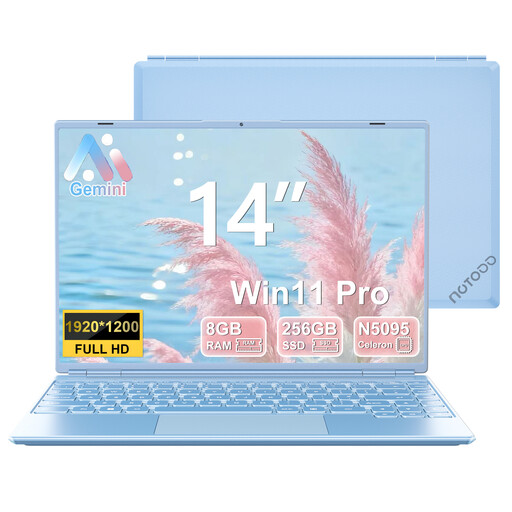 No image available
A Windows laptop to compare if you need a 14-inch screen and Mini-HDMI for presenting on an external display.
14-inch IPS screen with 1920 × 1200 resolution; quad-core N5095 processor; 8 GB RAM; 256 GB SSD; Windows 11.
The product title lists Mini-HDMI. Check the connection and included accessories for your presentation set-up.
 No image available
A 14-inch Windows model to compare if you edit documents while travelling and want to present at the venue.
Intel Core 7 150U; 16 GB DDR4; 512 GB SSD; Windows 11 Home.
The description lists HDMI and USB-C with DisplayPort, and gives a weight of 1.40 kg.
If you’re using a Chromebook, make the Google Drive files you need available offline in advance and check that they’ve synced. Google says some apps don’t work offline, so test the app you’ll use to edit your materials as well.
It depends on the screen’s input and the ports on your model. Lenovo lists HDMI for the ThinkPad X13 Gen 6 (Intel); Apple lists two Thunderbolt 4 ports for the 13-inch MacBook Air M5. Check the connection at the venue before you set off.
Arboportaal advises using a laptop without accessories for no more than two hours a day, and for no longer than one hour at a time. For employees who do more than two hours of screen work a day, Arboportaal also describes requirements for a workstation where a separate monitor or keyboard can be used. This condition doesn’t automatically apply to every training trip.
When an organisation processes personal data, the Dutch Data Protection Authority says it must determine the necessary security measures based on the risks. Buying a laptop with a particular security feature alone doesn’t prove that the processing meets this requirement.
For consumer purchases in the Netherlands, the statutory guarantee applies alongside any seller’s or manufacturer’s warranty. ACM ConsuWijzer explains that the seller is responsible if a product used normally doesn’t meet what you could reasonably expect; an additional warranty is something different.