
Indexer with local source files
You link index entries to scans or PDFs on your own drive and want those links to keep working when you move files or use a second computer. Zotero, for example, distinguishes between stored and linked files.


Start with your indexing software and where your source files are stored: a faster laptop won’t fix a broken link. A larger screen is useful when comparing scans for long periods, while working with lots of local files calls for suitable storage and a separate back-up. If you work in several locations, portability matters too. If OCR is processed externally or you already use searchable PDFs, you may not need a powerful graphics laptop.
You link index entries to scans or PDFs on your own drive and want those links to keep working when you move files or use a second computer. Zotero, for example, distinguishes between stored and linked files.
You spend long periods looking at page images or searchable PDFs alongside index fields. The KB describes Delpher newspapers as scans with OCR and word coordinates, with a searchable PDF for each newspaper.
You work at home and, for example, in a library or archive. You need to weigh the laptop’s portability against having enough screen space and access to the same index and source files.
First, check how your software handles linked files and how you’ll keep those files available across different workstations. Then choose the screen size, storage and connections to suit your collection and workflow.
| What to consider | What should you check? | Who is this important for? |
|---|---|---|
| Working links to source files | Test a sample collection on two computers. Check the storage location, file paths, synchronisation and back-up. | If I want to use my index on several computers, the related scans need to open too. Around 33% of consumers give keeping source-file links working their highest priority. |
| Room to read and enter information | View a representative scan alongside the index form on the laptop screen. Also check the resolution and whether you can connect an external monitor. | When I look at scans and fields side by side for long periods, I want enough room to read without constantly switching between windows. Around 27% of consumers put screen space first. |
| Storage for local scans | Measure a representative folder and work out how much space your collection needs. Remember that back-up storage should be separate from the internal SSD. | If I want to keep a large collection offline, the laptop needs enough space for my files. Around 27% of consumers say local storage is their main buying priority. |
| Use in several locations | Balance screen size against portability, and check that your chosen laptop has the ports and charging options you need. | When I work at home, in a library or in an archive, I want to be able to take my index and source files with me. Around 13% of consumers put working on the move at the top of their list. |
Zotero doesn’t synchronise linked files through its synchronisation for stored files. As a result, an index entry may be available on another computer even though the source file won’t open.
Create a test index, use it at your second workstation and try opening a linked scan there. If necessary, arrange separate synchronisation and back-up for your source files.
You may need separate storage and a back-up for your source files.
Delpher offers searchable PDFs with OCR. Transkribus describes processing through its own infrastructure, which is different from OCR run locally on your laptop.
First decide whether you’re reading existing OCR, using an external processing service or running OCR locally yourself. Check the requirements of the specific local software before choosing extra processing power.
A large internal SSD can provide room for your collection, but it isn’t a separate copy of your source files.
Estimate the storage you need based on the files you actually keep, and arrange a separate back-up as well.
You may need external or online storage for that separate copy.
For the Dell Pro 14 configuration reviewed, Dell says that a charger isn’t included. This doesn’t necessarily apply to every version.
Check what’s included with the exact offer you’ve chosen, and see whether you need an adapter for external storage or a monitor.
You may need to buy a suitable charger or adapter separately.
The ThinkPad T16 is a 16-inch business range worth considering if you usually compare scans and index fields at one workstation.
The ProBook 4 G1i 16 is a 16-inch Windows option; the EliteBook X Flip G2i is a separate 14-inch range with a touchscreen.
The Dell Pro 14 is a more compact Windows option for anyone working in different locations.
The 13- or 15-inch MacBook Air is worth considering if your existing indexing workflow runs on macOS and portability matters.
These Joybuy products are 16-inch laptops suited to comparing scans and index fields. Check the storage, connections and requirements of your own software for each version.
 No image available
The 16-inch touchscreen may suit you if you want to view scans and index fields side by side.
16-inch touchscreen with 1920 × 1200 resolution; Thunderbolt 4.
 No image available
A 16-inch screen and 1 TB SSD may suit you if screen space and local file storage are priorities.
16-inch OLED screen, 2560 × 1600; 16 GB of memory; 1 TB SSD.
The product description says that the charger must be purchased separately.
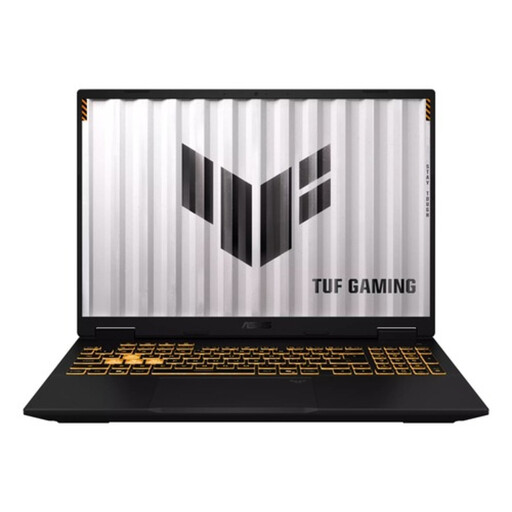 No image available
The 16-inch screen may suit workflows where you view scans and data-entry fields side by side.
16 GB of RAM; 1 TB SSD; WUXGA screen with a 16:10 aspect ratio and anti-glare finish.
The product description lists a weight of 2,20 kg; bear this in mind if you’ll be carrying the laptop around often.
No image available
The 16-inch screen may suit you when comparing scans and index fields.
WUXGA screen with a 16:10 aspect ratio and anti-glare finish; 16 GB of memory; 1 TB SSD.
The product description lists a weight of 2,20 kg; factor this in if you often travel between workstations.
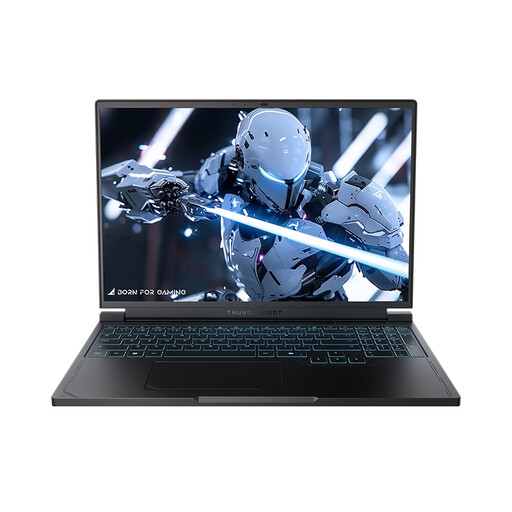 No image available
The 16-inch screen is worth considering if you want to view scans and index fields side by side.
16-inch QHD+ screen with 240 Hz; AMD Ryzen 7 7745HX; 16 GB DDR5; 1 TB SSD.
Not if you already use searchable Delpher PDFs. For new scans, the processing power you need depends on your chosen OCR workflow: Transkribus describes processing through its own infrastructure, so it doesn’t necessarily happen on your laptop. The KB describes the OCR and searchable PDFs available for Delpher newspapers.
With Zotero, you need to synchronise linked files separately; Zotero doesn’t synchronise them as stored attachments. Its documentation describes a base directory for linked attachments and relative paths. Test whether the files actually open on the second computer. Other indexing software may use different settings.
No. Don’t assume you can simply because a newspaper is historical. The KB describes different usage terms and states that only some files are freely accessible and downloadable. Check the terms for the specific collection and how you intend to use it.
According to the Dutch Data Protection Authority, information about a person who can be identified directly or indirectly may be personal data. If you publish online on behalf of an organisation, you need to assess whether there is an applicable legal basis. The Authority describes a limited exception for use solely for personal or household purposes. The age of a newspaper does not, in itself, determine whether you’re allowed to publish your index.
Check whether the version you’ve chosen comes with a suitable charger, and whether your workflow calls for an external drive, monitor adapter or extra storage. This depends on the exact laptop version and the equipment you already have.