
Indexers who enlarge scans
You spend long periods reading historical newspaper scans and want to enlarge details without losing sight of the source.


First, choose a screen and magnification settings that let you view a newspaper scan alongside your data-entry work. Then consider memory, storage and portability. A larger laptop screen gives you more room on one device, while a portable laptop with an external monitor can work well if you move between locations. If you process large collections locally, storage and your software’s requirements matter more than they would if you mainly search online.
You spend long periods reading historical newspaper scans and want to enlarge details without losing sight of the source.
You switch between a scan and data-entry fields, and prioritise screen space and comfortable typing over a compact design.
You take your laptop with you and want to balance portability on the go with a larger screen at your main workspace.
Test one of your own newspaper scans alongside your data-entry screen, using the magnification you need. This helps you see how much of the page remains visible and whether you can comfortably switch between the source and the index fields.
| What to consider | What should you check? | Which consumers does this matter to? |
|---|---|---|
| Reading enlarged scans | Open a representative scan and test readability and navigation at your preferred magnification. Check your operating system’s zoom and magnification settings. | If I need to read details in scans for long periods, I want to enlarge them without losing sight of the whole page. Around 36% of consumers prioritise enlarged reading above all else. |
| Viewing a scan and data-entry fields side by side | Try viewing your scan and data-entry screen side by side at your preferred magnification. If you use an external monitor, check the ports on the exact model. | When I’m transferring information from a scan, I want to see the source and index fields at the same time. Around 29% of consumers prioritise this combination. |
| Working with local files | Decide whether you work online or store and process scans locally. Compare the storage capacity with the size of your own files, and check your software’s requirements. | If I process a lot of scans or OCR files locally myself, I want to choose storage capacity to suit my collection. Around 21% of consumers put local files first. |
| Taking your laptop to other workspaces | Compare the size and weight of the model with how often you travel. Also test whether the built-in screen is comfortable to use for magnification on the go. | If I regularly move between workspaces, I want a laptop I can take with me and still use comfortably for working with scans. Portability is the top priority for around 14% of consumers. |
The magnification you need determines how much of a scan you can see at once. Screen size alone won’t tell you whether your documents will be comfortable to read.
Try a representative scan alongside your data-entry screen, set to the magnification you actually use.
Delpher warns that OCR can contain errors in older material, so recognised text may not always be a substitute for checking the scan.
Check names, dates and other important index details against the image.
Checking details you’re unsure about can take extra time.
Ports and included components can vary between models. For example, HP states that the charger for the OmniBook X 17-de0625ndx is sold separately.
Check the exact model, its ports and what’s in the box before pairing a laptop with your workspace.
An external monitor, a suitable adapter or a separately purchased charger may require extra space or preparation.
According to the Dutch government, statutory consumer protection is separate from a manufacturer’s warranty. Cover under an additional package depends on its terms and conditions.
Read the cover and exclusions, and compare them with your existing rights before choosing an additional package.
The OmniBook range includes models with a large built-in screen, suited to people who mainly work in one place.
The Aspire 16 is worth considering if you’re looking for a matte 16-inch screen.
The 16-inch IdeaPad Slim 5 Gen 10 offers a mid-sized built-in screen for working with scans and entering data.
The MacBook Air is a macOS option available in two screen sizes, for those looking for a portable computer.
These laptops are suited to indexing at a fixed workspace, with an emphasis on using the built-in screen for scans and data-entry fields.
 No image available
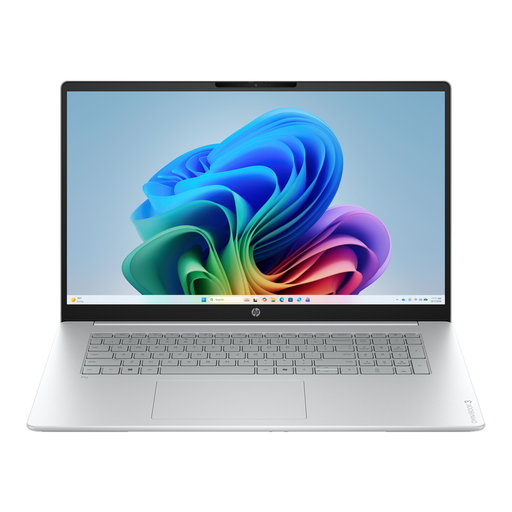
The 17.3-inch model is worth comparing if you want to work with scans and data-entry fields on one laptop.
The product name lists an Intel Core 3 310 processor, 12 GB RAM, a 512 GB SSD, a Full HD IPS screen and Windows 11 Home.
 No image available
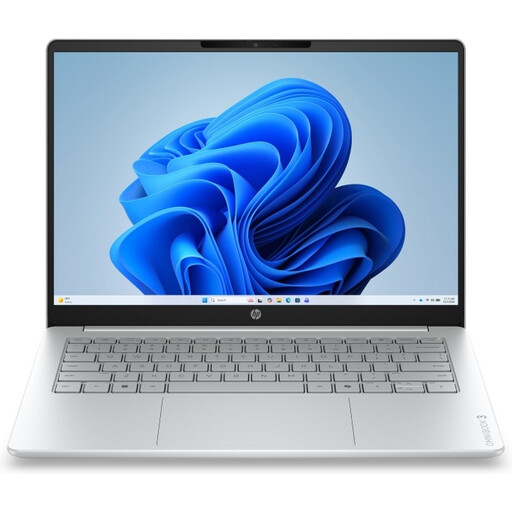
The 17.3-inch model is worth including in your comparison if you work with scans and enter data at a fixed workspace.
The product name lists an AMD Ryzen 5, 8 GB RAM, a 512 GB SSD, a Full HD IPS screen and Windows 11 Home. According to the product description, the mains adapter is not included.
 No image available
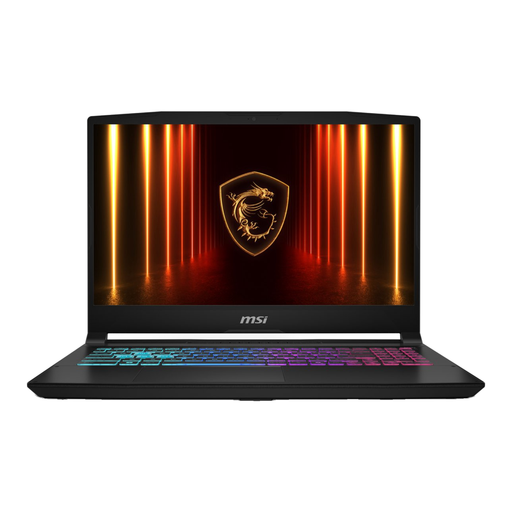
This model is included as an option to compare for working with scans and entering data at a fixed workspace.
The product name lists 16G, a 1TB SSD and a QWERTY keyboard. According to the product description, the mains adapter is sold separately.
 No image available
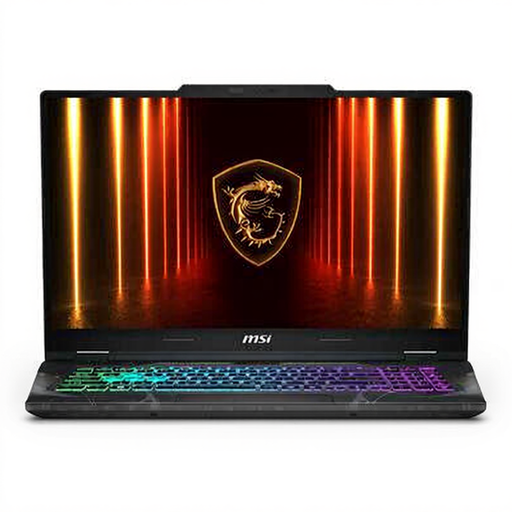
This model is worth comparing if you want to work with a scan and index fields on one laptop.
The product name lists a 17.3-inch Full HD screen, 16 GB DDR5 memory, a 512 GB SSD, NVIDIA GeForce RTX 5050, Wi-Fi 6E and a QWERTY keyboard.
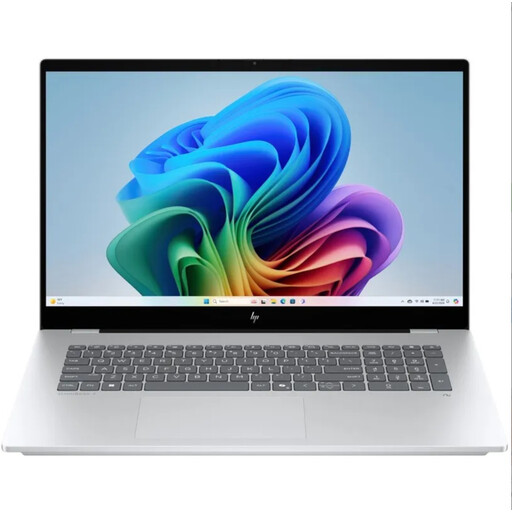 No image available
This HP OmniBook is included as an option to compare for indexing at a fixed workspace.
The product name lists a QWERTY keyboard. Check the full specifications and the features your software requires before choosing.
No, not if you mainly search and read online. The KB, the national library of the Netherlands, also offers datasets and downloads. Whether you need local storage depends on how you work and the access rights for the material.
No. Magnification makes text or images larger, but it doesn’t correct OCR errors. Delpher warns that OCR can contain errors in older material, so check any index details you’re unsure about against the scan.
In Windows, you can adjust the text size and display scaling, or use Magnifier, according to Microsoft Support. On a Mac, you can check the zoom settings under Accessibility, according to Apple Support. Test the settings with the scans and data-entry fields you use.
For an online purchase from a business, a 14-day cooling-off period applies in many cases; the exact rules depend on the terms and any exceptions. The Dutch government explains that there is no fixed statutory warranty period in the Netherlands and that you’re entitled to a product that works properly. If there’s a problem, contact the seller.
Not without checking which rights apply to the material and your intended use. Indexing does not in itself give you permission to republish scans or text; check the rights for the specific newspaper before making material public.