
Writer with a monitor on the desk
You write longer pieces and want to view your sources alongside your draft. Check the video output and set up your workspace comfortably; you don’t necessarily need a powerful graphics card for writing.


For a local newsletter using your laptop screen plus one monitor, choose a laptop with a video output that matches the monitor. For two separate external monitors, check support for the exact model. Lenovo specifies support for up to three external displays alongside the built-in screen for the ThinkPad E14 Gen 6 AMD; Apple specifies up to two for the MacBook Air with M5. Also check the ports on the configuration you choose and whether you’ll need an adapter.
You write longer pieces and want to view your sources alongside your draft. Check the video output and set up your workspace comfortably; you don’t necessarily need a powerful graphics card for writing.
You keep text, sources and photos or layouts open side by side. So consider your screen space and choose memory and storage to suit the programmes and files you use.
You sometimes work on the go and sometimes at a desk with a monitor. Weigh the size of the built-in screen against portability, and check which cable or adapter you’ll need for your regular workspace.
A good fit if: you write on one screen and view sources on the other. Compare the laptop’s output with your monitor’s input.
Bear in mind: a USB-C port doesn’t automatically support video output; you may need a suitable cable or adapter.
A good fit if: you want separate screens for text, sources and, for example, selecting images. Check how many external displays the exact laptop configuration supports.
Bear in mind: series specifications don’t automatically confirm the ports or dock support of every configuration. Lenovo specifies support for up to three external displays for the ThinkPad E14 Gen 6 AMD; Apple specifies up to two for the MacBook Air with M5.
| What to consider | What should you check? | Who is this most relevant to? |
|---|---|---|
| Screen connection | Decide whether you’ll use the laptop screen plus one monitor, or two external monitors. Compare the video outputs on the exact model with the connections on your monitor or dock. | If I want to see text and sources at the same time, I need to know that my monitor can connect to the laptop. Around 33% of consumers put screen connectivity first. |
| Writing comfort and windows | Compare the keyboard, screen size and memory. The Consumentenbond says 8 GB is enough for light use and recommends 16 GB if possible when you use several programmes at once. | When I write for long periods, I want to type comfortably and keep my programmes open side by side. Around 27% of consumers put writing comfort first. |
| Taking it between workspaces | Weigh the size of the built-in screen against portability, and check which cables or adapters you’ll need to take for your regular monitor. | If I work in different places and at my desk, I want to be able to carry the laptop easily and connect it again when I get home. Around 20% of consumers put portability first. |
| Matching specifications to your needs | Choose a processor, memory and storage to suit your programmes and files. A more powerful configuration won’t make up for a missing or unsuitable video output. | If I mainly write text, I don’t want to pay for features my work doesn’t require. Around 20% of consumers put a suitable, no-frills configuration first. |
For video, the laptop output, monitor connection and cable must all be compatible. The shape of the USB-C connector alone doesn’t confirm video output.
Before you buy, compare the ports and specifications of the exact laptop configuration and monitor.
The laptop screen plus one external monitor already gives you a two-screen setup. Two separate external monitors require specific support from the laptop model.
Decide which setup you mean and check how many external displays the exact configuration supports.
For newsletters that mainly involve text, email and simple layouts, extra processing power isn’t automatically necessary. The Consumentenbond distinguishes between light office work and photo or video editing.
Once you’ve confirmed the screen connection, choose memory and storage based on the programmes you use, the number of windows you keep open and your files.
A commercial guarantee and your statutory rights are not the same thing. The ACM states that there is no fixed statutory guarantee period.
Read any additional guarantee terms separately and keep your purchase details and product specifications.
The ThinkPad E14 Gen 6 AMD series is worth considering if you want to compare support for multiple external screens.
The MacBook Air with M5 comes in 13-inch and 15-inch versions for those who want to use macOS.
The 16-inch ProBook 4 G1i configuration A23QQEA#ABH is an example of a larger business Windows laptop for desk work.
The Aspire Lite series is one option to compare if you’re looking for an everyday Windows laptop.
The Inspiron 14 2-in-1 7440 is an option to compare with a standard laptop if you’re looking for a convertible device.
These Joybuy laptops may suit newsletter work where screen space, typing or working with several windows matters. Check that the ports on each configuration are suitable for your monitor.
 No image available
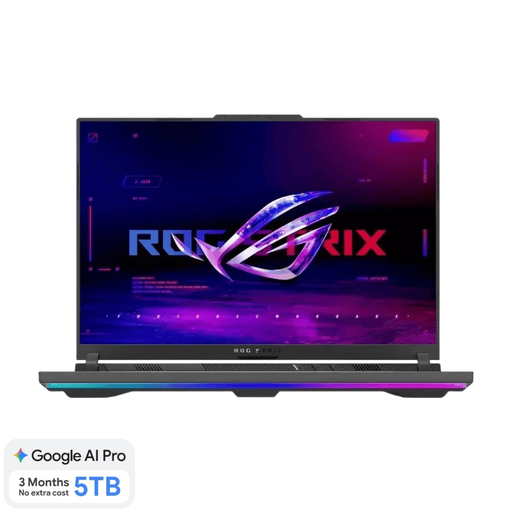
The listed 16 GB of memory and 1 TB SSD are suited to working with several windows and files; check the video outputs on this configuration for your monitor.
16-inch screen, Ryzen 9 9955HX, RTX 5070 Ti, 16 GB memory, 1 TB SSD and Dutch QWERTY keyboard.
 No image available
The listed memory and storage capacity are relevant if you use several programmes and files; check the ports on this configuration before choosing a monitor.
The product name lists 16 GB DDR4 memory, a 512 GB SSD, a 3050E processor and a backlit keyboard.
 No image available
The 16-inch screen and listed memory and storage capacity may suit work involving several windows and media files. Check the exact video outputs for your monitor setup.
16-inch QHD+ OLED screen, 16 GB DDR5, 1 TB SSD, Windows 11 Home and QWERTY keyboard.
 No image available
The 16-inch screen gives you plenty of built-in screen space when you’re not working with an external monitor. Check the ports on your chosen configuration for your regular workspace.
16-inch WUXGA screen, 16 GB memory, 512 GB SSD and Windows 11 Home.
 No image available
This 14-inch configuration is a more compact option to consider if you take your laptop between workspaces. Before you buy, check that the ports on this model are suitable for your monitor.
14-inch Full HD screen, Core 7 150U 10-core, 16 GB DDR4, 512 GB SSD and Windows 11 Home.
No. The laptop screen and one external monitor already give you two screens. If you mean two separate external monitors, check how many external displays the exact laptop model supports.
Connect a compatible cable and open Windows display settings. There, you can identify detected screens and arrange their positions, so the mouse moves naturally between your document and sources.
No. The Consumentenbond says 8 GB is enough for light use and recommends 16 GB if possible when you use several programmes at once. Also choose your storage capacity based on how many large photos and other files you keep.
Position your screens so that you can work comfortably, and change your posture regularly. For employees working from home, the Dutch government recommends an ergonomically sound workspace and notes that employers have a duty of care; this isn’t a requirement for any specific laptop model.
According to the Dutch government, a 14-day cooling-off period applies to many distance purchases; conditions and exceptions may apply. The ACM states that there is no fixed statutory guarantee period. Read any commercial guarantee terms separately.