
Map annotator using a pen
You want to add handwritten references directly to a digital neighbourhood map. Check that the exact device works with your preferred pen and note-taking app.


If you want to write directly on a digital neighbourhood map, look for a laptop with a 360-degree touchscreen and check that it supports and includes a compatible pen. If you mainly want to view a map alongside paper notes, a standard laptop may be enough. For mapping software such as QGIS, check in advance that the operating system meets the project requirements. A Chromebook is best suited to a workflow based on compatible browser services.
You want to add handwritten references directly to a digital neighbourhood map. Check that the exact device works with your preferred pen and note-taking app.
You may need to install a mapping programme. Before choosing a model, find out which operating system your course or project requires.
You keep your references on paper and mainly use your laptop to view maps and sources. In this case, writing directly on the screen may not be essential.
First, decide whether you want to write on the map, mainly view maps and notes, or use desktop software. Screen space and portability can then help narrow down your options.
Best for: regularly writing by hand on a digital map while also needing a keyboard.
Bear in mind: a touchscreen does not automatically mean that every pen will work or be included.
Best for: viewing existing paper notes alongside a map, typing or using compatible desktop software.
Bear in mind: writing directly on a laptop screen is not the same as using a pen-compatible convertible.
Best for: working with maps, sources and notes using compatible browser services.
Bear in mind: don’t assume it will run desktop software; also check whether Linux is available on the specific device.
| What to consider | What should you check? | Who is this important for? |
|---|---|---|
| Handwriting on the map | Check pen support for the full model, which pen is compatible and whether it is included. Also check that you can use your map in your preferred app. | If I want to write references directly on a digital map, the device, pen and app need to work together; around 31% of consumers prioritise writing by hand directly on the map. |
| Viewing maps and sources side by side | View an example of your map and notes on the screen size you’re considering. If needed, check whether you can connect an external monitor. | I want to be able to read maps and sources clearly at the same time; around 25% of consumers prioritise readability. |
| Mapping software requirements | Find out which programme and operating system your course or project requires. If you’re considering a Chromebook, check separately whether a Linux workflow is possible on that device and permitted under your school’s management settings. | If my project requires desktop mapping software, I want to know in advance whether it will work on my chosen system; around 25% of consumers make software compatibility the deciding factor. |
| Taking it between study locations | Compare the weight of the exact model with how often you’ll be carrying your laptop. Check the stated battery life and the test conditions it’s based on. | I carry my laptop around often and want its portability to suit the way I study; around 19% of consumers put portability first. |
A touchscreen doesn’t prove that your preferred pen will work with the device. For example, Lenovo advises checking system compatibility for the Yoga Pen.
Before buying, check the full model number, which pen is compatible and what’s included with the specific configuration.
With some models, you’ll need to buy a compatible pen separately.
Viewing a map in a browser is different from installing desktop software to edit geographical data. QGIS lists Windows, macOS and Linux as desktop platforms. Linux availability on a Chromebook depends on the device and may be restricted by school management settings.
First, check which application and operating system you need. Don’t assume that a Linux workflow will work on a Chromebook without checking.
If the required software doesn’t work on your chosen device, you may need a different computer or workflow.
Specifications and pen support can vary between configurations. The Studenten Wegwijzer student ranking, updated on 2 January 2026, also doesn’t specifically assess writing on neighbourhood maps.
Compare the full model number and check the features your map and note-taking workflow requires.
The Vivobook 14 Flip TP3407SA range is a convertible that lets you switch between using the keyboard and a pen. ASUS lists stylus support for this range.
The Yoga 7 2-in-1 Gen 9 is a convertible for switching between laptop and tablet mode.
The OmniBook X Flip 14-kb0636ndx is a 2-in-1 model for comparing different ways of using a laptop.
A MacBook Air running macOS is suitable for viewing maps and typing if the software you need works with macOS. QGIS offers a macOS version.
This selection includes 2-in-1 models and laptops for viewing maps and notes. For each configuration, check the software requirements and, if you want to write digitally, whether a compatible pen is supported and included.
 No image available
A 2-in-1 design may suit you if you want to switch between using maps and laptop or tablet mode; check separately which pen is compatible and whether it’s included.
The product name lists a 16-inch screen, 32 GB of RAM and a 1 TB SSD.
 No image available
This laptop may suit you if you want to view maps and existing notes, and the software you need works on macOS.
The product name lists a 15-inch screen, M5, 16 GB of memory and 512 GB of storage.
 No image available
A standard laptop is suitable for viewing a map alongside paper references if you don’t need to write directly on the screen.
The product name lists a 15.3-inch screen, Ryzen 5 7535HS, 16 GB of memory and a 512 GB SSD.
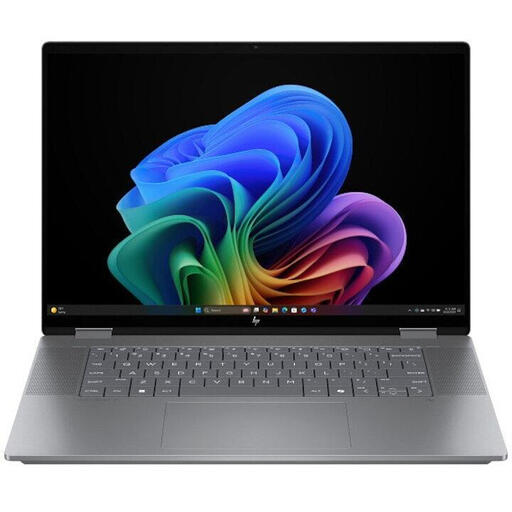 No image available
Consider this Flip model if you’re looking for a laptop that lets you switch between map use and another mode; check the exact screen and pen support for your workflow.
Check the specifications of the configuration you’re considering to make sure it meets your software and note-taking needs.
 No image available
The 2-in-1 design may suit you if you want to view maps in a different mode and also type. You’ll need a separately purchased compatible pen for digital handwriting.
The product name lists an Intel Core 5 120U, 8 GB of RAM, a 512 GB SSD, a 14-inch 2K touchscreen and Windows 11 Home. The stylus isn’t included.
No, not if you only want to read existing paper references alongside a map. If you want to write digitally on or next to a map, check that the exact device supports your pen and that your note-taking app has the features you need.
In the Windows versions of OneNote mentioned, you can insert an image and set it as a background to add typed notes. For handwritten annotations, also check that your device, pen and app are suitable.
Don’t assume so. QGIS lists Windows, macOS and Linux among its desktop platforms. Google warns that Linux availability on a Chromebook depends on the device and may be restricted by work or school management settings.
For an online consumer purchase, you generally have a statutory 14-day cooling-off period from the day after delivery, with some exceptions. ACM ConsuWijzer also states that you have a statutory guarantee if a product is faulty, subject to the applicable conditions; a manufacturer’s warranty does not replace this right.