
Student editing the film
You want to know whether the timeline, preview and export will work well with your source footage and software. Adobe lists different RAM recommendations for HD and 4K in Premiere.


Choose based on your editing software, source footage and how much space you need for media, cache and exports. For Premiere, Adobe recommends 16 GB RAM for HD and 32 GB or more for 4K. Portability may matter more for a lighter project, while more demanding editing can call for extra memory and screen space. These are software recommendations, not a guarantee of the performance of any particular laptop.
You want to know whether the timeline, preview and export will work well with your source footage and software. Adobe lists different RAM recommendations for HD and 4K in Premiere.
You manage recordings, photos and audio clips, and need storage for both your source files and editing work. Adobe recommends fast storage for media and cache.
You take your laptop with you and weigh portability against screen space and ports for connecting, for example, an external display or storage.
Start with the resolution and software, then work out how much space you need for files and weigh this against portability and the cost of any software you need.
| What to consider | What should you check? | Who might prioritise this? |
|---|---|---|
| Editing performance | Decide whether you’ll be editing in HD or 4K, then check the memory against your software’s requirements. For Premiere, Adobe recommends 16 GB RAM for HD and 32 GB or more for 4K. | If I need a usable timeline and preview for the footage I’ve chosen, I’ll look at memory and workflow first. Around 33% of consumers put editing performance first. |
| Working storage | Allow space for source footage, project files and exports. Adobe recommends fast storage for media and cache; check the ports too if you plan to use external storage. | I want to be able to keep my source footage and project files somewhere suitable. Around 27% of consumers prioritise working storage. |
| Portability and workspace | Compare the weight, screen size and ports of the exact configuration. Also check which connections you’ll need for the equipment at the exhibition venue. | If I’m taking my laptop between study, filming and editing locations, I’ll weigh portability against having a larger screen for the timeline. Around 20% of consumers prioritise portability. |
| Total cost | Check what editing software your course provides and review the terms of any subscription you may need to pay for yourself. Compare the full configuration too, not just the model range. | I want to keep the cost of my laptop and the software I need within my budget. Around 20% of consumers prioritise the total cost of the laptop and software. |
Configurations can vary within the same model range. Adobe recommends more memory for 4K than for HD in Premiere.
Check your source footage, editing software and the exact configuration. Adobe also describes a proxy workflow for editing demanding source footage.
As well as your original footage, project files and cache also need storage space. Adobe recommends fast storage for media and cache.
Plan your storage in advance and check that the laptop has the ports you need for any external storage.
If the internal storage isn’t enough, you may need a fast external drive; remember to factor in carrying and connecting it too.
Your project may also require editing software and storage. Adobe offers Premiere to students subject to subscription terms.
First check whether your course provides a licence. If not, review Adobe’s current terms.
Without a licence through your course, a personal Premiere subscription may involve ongoing costs.
The MacBook Air M5 is a compact option for editing, while the MacBook Pro is a separate range with different configurations.
The Vivobook Pro 15 OLED configuration reviewed is a Windows option with a larger OLED screen and an RTX 4050.
The OMEN range includes Windows configurations with varying amounts of memory and storage.
This Joybuy selection includes laptops for editing where screen space, memory or storage for footage are important considerations. Check the exact configuration of each model and whether it suits your software and source footage.
 No image available
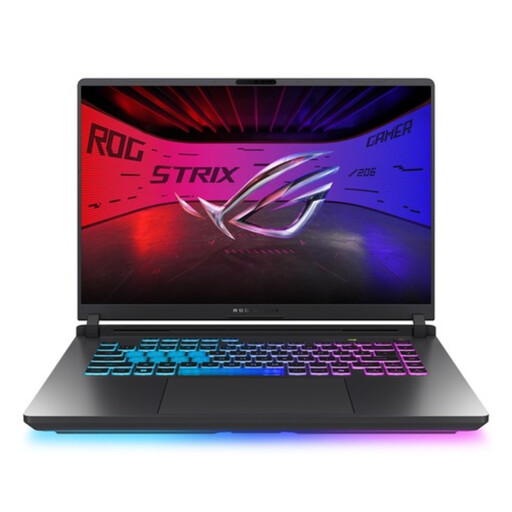
For anyone looking for a laptop with a 16-inch screen and RTX 5070 Ti; check the memory of the exact configuration before choosing it for a 4K project.
Gaming laptop; Core Ultra 9; RTX 5070 Ti; QWERTY keyboard.
 No image available
The configuration listed combines 32 GB RAM with a 1 TB SSD for anyone considering memory and local storage; it doesn’t guarantee a particular editing speed.
16-inch 3K OLED touchscreen; 120 Hz; 32 GB RAM; 1 TB SSD; Windows 11 Pro.
 No image available
For anyone comparing laptops for editing and prioritising plenty of memory and local storage; check that the other specifications meet your software’s requirements.
15.3-inch screen; 64 GB RAM; 1 TB SSD.
 No image available
The configuration listed offers 32 GB RAM and a 1 TB SSD; compare this capacity with the requirements of your film project and editing software.
16-inch 2-in-1; 32 GB RAM; 1 TB SSD; QWERTY keyboard.
 No image available
For anyone looking for a 16-inch screen and 32 GB RAM; bear in mind that the SSD listed is 512 GB, and compare that space with your source files.
Intel Core Ultra 7 255H; 32 GB DDR5 RAM; 512 GB PCIe 4.0 SSD; Intel Arc Graphics; 1920 × 1200 screen, 144 Hz; Windows 11 Pro.
That depends on your software and footage. For Premiere, Adobe recommends 16 GB for HD and 32 GB or more for 4K and higher resolutions. This is a software recommendation, not a guarantee for every project.
If you use Premiere, Adobe says you can work with proxies: lighter working versions of the original footage. Keep the original files and use them for the final export.
Adobe recommends fast SSD or NVMe storage for media and cache, and mentions fast external drives when internal storage is limited. So check both the available storage and the laptop’s ports.
According to ACM ConsuWijzer, the retailer is responsible for the legal guarantee if a product doesn’t meet what you could reasonably expect when used normally. Online purchases in the Netherlands generally also come with a cooling-off period that ends 14 days after delivery; check the relevant terms and exceptions.
Not automatically: according to the Dutch government, you may need permission from the creator to use copyright-protected material. The Dutch Data Protection Authority sets out specific consent requirements when a school takes and publishes recognisable images of pupils; in the situation described, pupils aged 16 and over must give their own consent. Before the screening, identify which works, people and forms of publication feature in your film.