If you usually work at a desk and want to view text and reference images side by side, start by looking at a 15- or 16-inch laptop. If you often take it with you, compare models around 13 to 14 inches. Also check that your document software works with your chosen operating system, and that the memory and storage suit your files. According to the Consumentenbond, light office work requires less processing power than demanding image or video editing. Microsoft says you can’t install the Windows or Mac desktop version of Word on a Chromebook.
Who is this laptop guide for?
Writer working with lots of image references
You’re creating a guide and want to view text and images side by side. Microsoft Support explains how to insert images into a document, so screen space and a suitable way of working with documents are important considerations.
Writer working in different locations
You often take your laptop with you and are weighing up a more compact built-in screen against working with an external display. Lenovo lists 14- and 15.6-inch screen sizes for the IdeaPad Slim 3 models mentioned here.
Buyer with straightforward needs
You mainly want to write text and insert images, without choosing hardware designed for demanding creative work. The Consumentenbond suggests 8 GB of RAM as a starting point for light work. Also check that your preferred document software is available for your chosen operating system.
What should you look for?
First decide how much space you need on the built-in screen. Then check whether the memory, storage and software suit the way you work.
| What to consider |
What should you check? |
Who is this most important for? |
| Viewing text and images side by side |
Compare the screen size and resolution. Consider whether you use an external display at your regular workspace. |
If I want to see text and reference images at the same time without constantly switching between windows, I prioritise the screen. Around 33% of consumers consider screen space particularly important. |
| Multiple windows and files |
Check the RAM and storage. The Consumentenbond suggests 8 GB as a starting point for light office work; 16 GB may be suitable if you often have several programmes open at once. If you have lots of large image files, 512 GB of storage may be useful. |
If I want to keep my document, sources and images open at the same time, I look for enough memory and storage for my files. Around 27% of consumers prioritise being able to work smoothly with multiple windows. |
| Taking it to different locations |
Compare the dimensions and stated weight of the specific model. Also check whether you can connect an external display. |
When I take my laptop with me regularly, a compact size matters more to me than having as much built-in workspace as possible. Around 20% of consumers prioritise portability above all else. |
| Document software and how you use it |
Check whether you need desktop software or can use a web-based programme. Microsoft says the Windows and Mac desktop versions of Microsoft 365 can’t be installed on a Chromebook. |
If I mainly want to write and insert images, I don’t want to pay for features I don’t need, but my document software still has to work. Around 20% of consumers prioritise a straightforward setup that meets their needs. |
Common buying mistakes
-
Choosing a Chromebook because it comes with Word
Word on the web isn’t the same as the Windows or Mac desktop version that you can install. Microsoft says those desktop versions can’t be installed on a Chromebook.
Check which Word features your guide needs, and try an existing document using the web-based setup you plan to use.
If you need the desktop version, you may need to use a different setup or access another device.
-
Choosing powerful hardware just because you use images
Inserting images isn’t the same as intensive photo, video or 3D editing. The Consumentenbond distinguishes light office work from these more demanding tasks.
Work out which edits you’ll actually be making and choose a laptop to suit.
-
Choosing based only on a laptop range’s name
Models within the same range can differ in screen, memory, keyboard layout and included accessories. HP lists a recommended USB-C adapter for the OmniBook 3 14-hy0620ndx, which is sold separately.
Check the full model number, keyboard layout, connections and what’s included with the specific offer.
With the HP model mentioned, the recommended adapter may need to be bought separately.
Brands and models to consider
Lenovo
The IdeaPad Slim 3 Gen 8 models mentioned offer a choice between a 14-inch and a 15.6-inch IPS screen.
- Lenovo lists 16 GB of RAM and a 512 GB SSD for both models.
- Lenovo says the memory is soldered. The models mentioned have an English (Euro) keyboard; check that the layout suits you.
HP
The HP OmniBook 3 14-hy0620ndx is listed with Windows 11 Home, 16 GB of RAM, a 512 GB SSD and a 14-inch 2K screen.
- This model combines a compact screen with the ability to use several programmes.
- HP lists a recommended USB-C adapter that is sold separately. Check what’s included with the offer you choose.
Acer
The Acer Aspire Go 15 AG15-31P, reference NX.KRPEH.00E, is listed with a 15.6-inch Full HD IPS screen, 8 GB of RAM and a 512 GB SSD.
- The screen size mentioned may suit light document work on a larger built-in display.
- According to Acer, this model has 8 GB of RAM, compared with 16 GB in some of the other models discussed here. The Acer Store page checked listed this model as out of stock; this doesn’t say anything about availability from other retailers.
Apple
Apple lists a 13.6-inch screen, 16 GB of unified memory and a 512 GB SSD in the base configuration of the 13-inch MacBook Air with M5.
- The model mentioned has two Thunderbolt 4 ports and a separate MagSafe connection.
- Check that the connections suit your equipment. Apple’s stated battery life is a manufacturer’s estimate, not a measurement for this writing scenario.
Joybuy laptops for text and image references
These Joybuy products have larger built-in screens, giving you room to compare the screen, memory and storage specifications mentioned with your writing needs.
 No image available
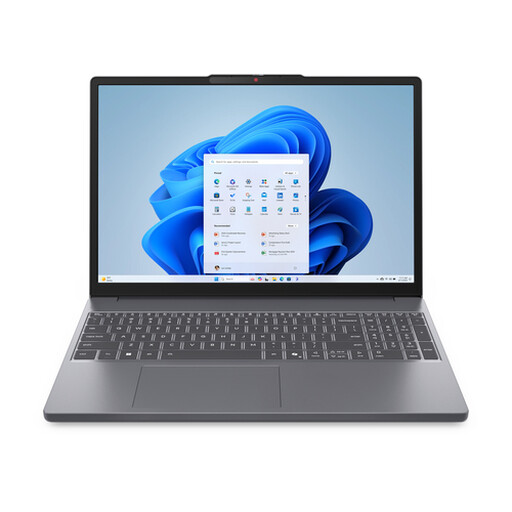
Lenovo IdeaPad Slim 3 15AHP10, 15.3-inch, Ryzen 7 8840HS, 16 GB, 512 GB SSD, QWERTY
The screen size and stated memory may suit anyone who wants to view text and image references on the built-in screen and work with several windows.
The product name lists a 15.3-inch screen, a Ryzen 7 8840HS processor, 16 GB of memory and a 512 GB SSD.
According to the product information, the charger is sold separately. The listed keyboard layout is English QWERTY.
View at Joybuy
 No image available
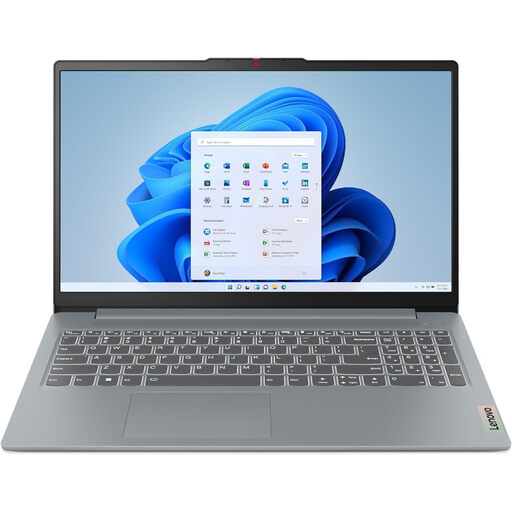
Lenovo IdeaPad Slim 3 15AHP10, 15.3-inch WUXGA, Ryzen 7 8840HS, 16 GB DDR5, 512 GB PCIe 4.0 SSD
The listed screen size may suit you if you want to view text and reference images on a single built-in screen.
The product name lists 16 GB of DDR5 memory, a 512 GB SSD and a QWERTY keyboard.
View at Joybuy
 No image available
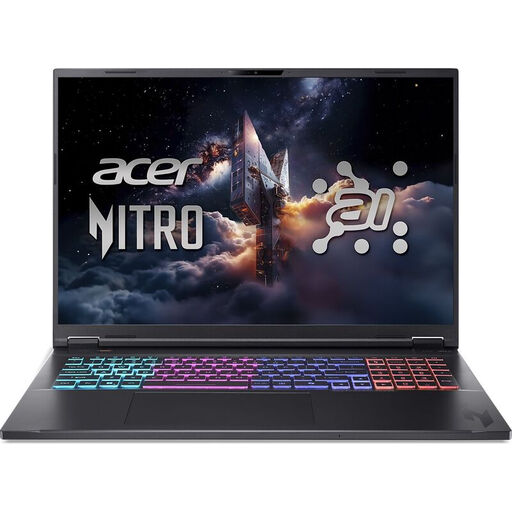
Acer Nitro 18 AI AN18-61-R25V, Ryzen AI 7 350, GeForce RTX 5060 8 GB GDDR7, 18-inch WQXGA IPS, 16 GB DDR5, 1 TB SSD
The 18-inch screen is an option if you want to view text and image references on a large built-in display.
The product name lists a Ryzen AI 7 350 processor, GeForce RTX 5060 with 8 GB GDDR7, 16 GB DDR5, a 1 TB SSD and Windows 11 Home.
The product name states that the keyboard layout is QWERTY.
View at Joybuy
 No image available
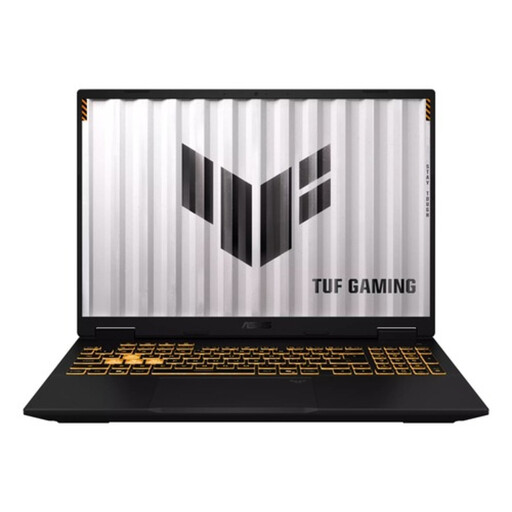
ASUS TUF Gaming 16 FX610JM-TU005W, Core i7-14650HX, RTX 5060, 16 GB RAM, 1 TB SSD, QWERTY
The 16-inch screen may suit you if you’re looking for a larger built-in workspace for documents and image references.
The product name lists a WUXGA screen with a 16:10 aspect ratio, 16 GB of RAM and a 1 TB SSD.
The product name states that the keyboard layout is QWERTY.
View at Joybuy
 No image available
ASUS Zenbook A16, 16-inch WUXGA, 16 GB, 512 GB SSD
The 16-inch screen may suit you if you want to view text and image references on the built-in display.
The product name lists a WUXGA screen, 16 GB of memory and a 512 GB SSD.
View at Joybuy
Frequently asked questions
Do I need a powerful graphics card for this guide?
Not just for writing text and inserting images. The Consumentenbond distinguishes light office work from demanding tasks such as complex video editing and 3D. Only look for higher specifications if you’ll be doing those tasks too.
Can I install the desktop version of Word on a Chromebook?
No. Microsoft says you can use Microsoft 365 apps, including Word, on a Chromebook through the web, but you can’t install the Windows or Mac desktop versions.
How can I keep a Word document with lots of reference images manageable?
In the Windows desktop versions covered by Microsoft’s instructions, you can compress images. Keep the originals separately if you remove cropped image data: Microsoft warns that you won’t be able to restore that data afterwards.
Can I include other people’s photos or images of music in an exam guide?
It depends on how they’re used and what rights apply. The Rijksoverheid warns that a private copy for personal use can’t be distributed. According to Auteursrecht.nl, exceptions apply to certain types of educational use, subject to conditions; don’t assume there’s a general exemption for every guide or way of distributing it.
Can I try a laptop bought online and return it afterwards?
Online purchases generally come with a statutory cooling-off period; ACM ConsuWijzer says this ends 14 days after delivery. Check the relevant terms and exceptions before you order.


