What should you look for?
Start with your day-to-day editing workflow: try out the keyboard and screen layout, then check the software and connections you’ll need in a shared workspace.
| What to consider |
What to look for |
Who is this important for? |
| Typing comfort and readability |
Try out the keyboard layout and typing experience. Check whether the screen size and finish, as well as any connection for an external monitor, suit your workspace. |
If I want to review label text alongside object information and sources, I prioritise space for reading and a comfortable keyboard setup. Around 36% of consumers share this primary concern about typing comfort and readability. |
| Software and collaboration |
Check which programmes, file formats, accounts, printers and screens the museum uses, and whether the configuration you choose will work with them. |
When I exchange files and comments with colleagues, I want to be sure my laptop works with the existing editing tools. Around 29% of consumers put software compatibility and collaboration first. |
| Quiet and privacy |
Assess the noise level of the exact configuration and where the screen will sit. A webcam cover blocks the camera, not the content visible on the screen. |
In a shared space, I want to work without distractions and avoid unpublished text being visible to others. Around 21% of consumers prioritise quiet and privacy. |
| Portability and power |
Compare the weight and ports of the exact configuration. Check whether the required power adapter is included and whether your equipment can be connected without an extra adapter. |
If I move between workspaces or museum locations, I want to know what I need to take with me and how I can charge my laptop. Around 14% of consumers prioritise portability and working away from a fixed power supply. |
Joybuy products
This selection includes Windows laptops and a MacBook Air for writing and working with documents. Before buying, check that the operating system, ports and included power supply suit your museum’s editing tools and shared workspace.
 No image available
MSI Venture 16 AI A2HMG-068NL
A 16-inch model for viewing label text and sources on the built-in screen.
The product name lists an Intel Core Ultra 7 255H, 32 GB DDR5 RAM, a 512 GB PCIe 4.0 SSD, Intel Arc Graphics, a 1920 × 1200 screen with a 144 Hz refresh rate and Windows 11 Pro.
According to the product information, the power adapter is not included. You’ll need to arrange a suitable power supply if you plan to work in different locations.
Joybuy
 No image available
Apple MacBook Air 15-inch M5, 16 GB, 512 GB, QWERTY
An option if the museum’s editing tools and peripherals work with macOS; check compatibility beforehand.
The product name lists a 15-inch M5 model, 16 GB of memory, 512 GB of storage and a QWERTY keyboard.
According to the product information, the power adapter is not included; a USB-C adapter of 35 W or higher is required.
Joybuy
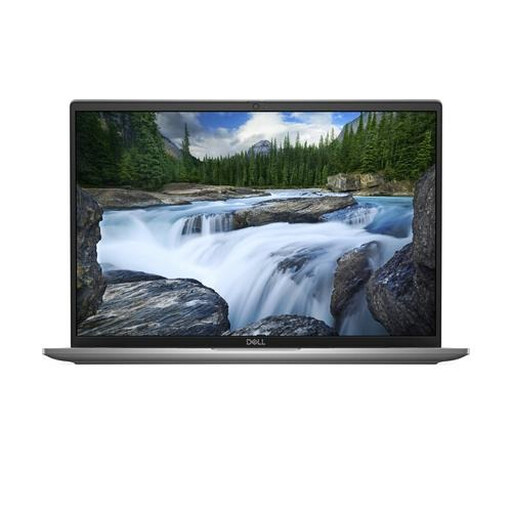 No image available
Dell Latitude 7650, Core Ultra 7 155U, 16 GB, 512 GB SSD
A 16-inch model for viewing longer texts and source material on screen; check that its ports are compatible with the equipment in your office.
The product name lists 16 GB LPDDR5x memory, a 512 GB SSD, Wi-Fi 7, Windows 11 Pro and a QWERTY keyboard.
According to the product information, the power adapter is not included and must be purchased separately.
Joybuy
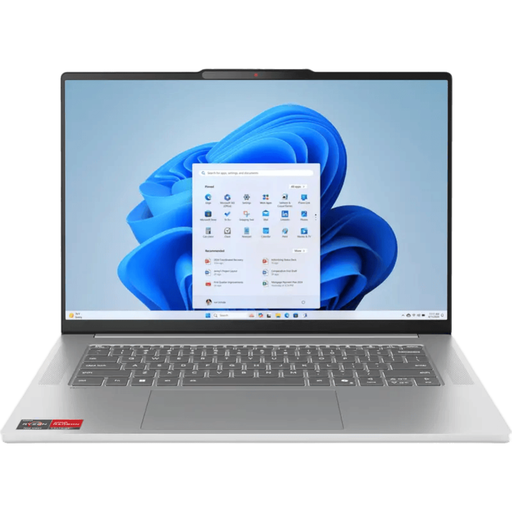 No image available
Lenovo IdeaPad Slim 5 15ARP10 R7, 16 GB, 512 GB, 11H
A 15.3-inch model for viewing label text and sources on the same screen.
The product name lists R7, 16G, 512G, 11H and a QWERTY keyboard.
According to the product information, the power adapter is not included and must be purchased separately.
Joybuy
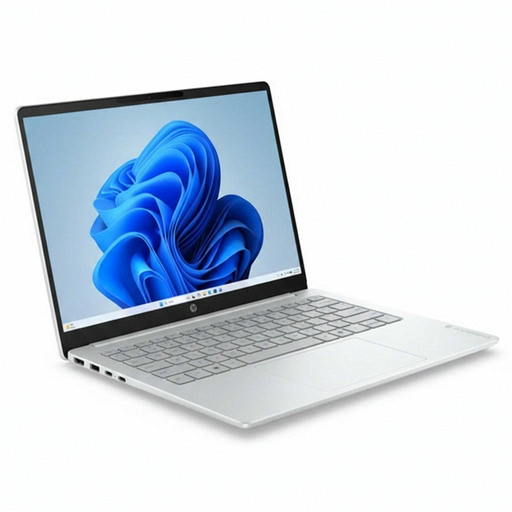 No image available
HP OmniBook 3 AI PC 14-ht0013nd, 8 GB, 512 GB SSD
A 14-inch model for anyone who values a more compact screen; bear in mind the space available for reading text alongside sources.
The product name lists an Intel Core 3 304, 8 GB RAM, a 512 GB SSD and Windows 11 Home.
Joybuy
Frequently asked questions
What should you check first when colleagues are editing your museum label?
First, check which programmes, file formats and accounts the museum uses. Then make sure the laptop and operating system you choose will work with them; having a suitable processor does not guarantee compatibility.
How should you set up your laptop for longer writing sessions in the office?
Check how you can set up the laptop at your workspace, including when you move between desks. For employees who spend more than two hours a day working with screens, Arboportaal describes a setup where the screen and keyboard must be separate; you may therefore need a separate screen or keyboard. This is a conditional workplace requirement, not a general requirement to choose one particular laptop model.
What extra equipment should you check before buying?
Check whether a power adapter and the connection accessories for your workspace are included. ASUS states that the Zenbook configuration reviewed is supplied without a power adapter; check the details of the exact model you’re considering.
Can you return a laptop bought online if you don’t like the keyboard?
For online consumer purchases, you generally have a statutory cooling-off period of up to 14 days after delivery, subject to applicable exceptions. This answer for consumers does not necessarily apply if the museum is buying as a business.


