Who is this guide for?

Designer with a small desk

You want to design without giving up too much workspace. Consider how much room the screen, keyboard and any peripherals take up together; the configurations reviewed from Apple Netherlands, Lenovo Netherlands and Microsoft Netherlands come in different screen sizes and layouts.

Sketch artist who draws on the screen

You want to sketch ideas and make changes on the screen with a pen. Check that the pen works with the configuration and design app you choose, and that it’s actually included. Lenovo Netherlands and Microsoft Netherlands describe different pen and touchscreen configurations.

Creator of large design files

You work with lots of raster layers or want to use a design at different sizes. Sketchbook warns that large images with many layers may need more memory; Adobe describes vector illustrations as resolution-independent.

What should you look for in a laptop for painting a mural?

Convertible with integrated keyboard

A good fit if: you want to sketch, edit and type in the same workspace.

Bear in mind: the Lenovo Yoga 7a 2-in-1 configuration reviewed has a 14-inch screen, so it takes up more desk space than smaller models.

Tablet-style 2-in-1

A good fit if: you want to sketch directly on the screen and a compact display is important.

Bear in mind: for the Surface Pro 12th Edition reviewed, Microsoft sells the pen and keyboard separately.

Traditional compact laptop

A good fit if: you mainly work with vector paths or a separate drawing tablet and want a fixed keyboard.

Bear in mind: for drawing directly on the laptop screen, this option doesn’t offer the same pen and tablet modes as the 2-in-1 models reviewed.

What to consider What should you check? Who is this most relevant to?
Workspace and portability Compare the dimensions of the specific configuration and allow space for the keyboard, stand and any drawing tablet; screen size alone doesn’t tell you how much room the whole set-up will take. If I also need space for sketching materials or a separate drawing tablet, the whole set-up matters. Around 31% of consumers choosing a laptop for this design workflow put workspace first.
Drawing directly with a pen Check pen compatibility, what’s included in the box and whether your chosen app supports pressure-sensitive drawing. Sketchbook notes that Windows Ink must be enabled for pressure sensitivity with a stylus in Sketchbook Pro on Windows. If I want to sketch directly on the screen, the pen, device and app all need to work together. Around 25% of consumers say pen input is their main concern.
Colour and viewing your design Compare the screen specifications for the exact configuration, and discuss colour samples and final colour choices separately with the company creating the mural. If I’m assessing design choices on screen, I want to know what the screen specifications tell me and what they can’t tell me about paint on a wall. Around 25% of consumers put colour assessment first.
Memory and file type First decide which app and file format you’ll use. Sketchbook warns that large raster images with many layers need more memory; Adobe describes vector illustrations as resolution-independent. If I work with large files or lots of layers, I want to choose a configuration that suits my software and files. Around 19% of consumers give memory and file type the highest priority.

Common buying mistakes

  • Assuming a touchscreen is all you need to draw

    A touchscreen on its own doesn’t confirm that pressure-sensitive drawing will work with the pen and app you want to use. For the Surface Pro 12th Edition reviewed, the pen and keyboard are sold separately.

    Before you buy, check pen support for the exact configuration and app, as well as what’s included in the bundle you’ve chosen.

    If the pen or keyboard isn’t included in your chosen bundle, you may need to buy it separately as an accessory.

  • Assuming screen specifications determine the final colour on the wall

    Screen specifications describe the laptop display, but they don’t determine the final colour of the paint on your wall.

    Use the screen for designing, then agree the final colours separately with the person carrying out the work, using suitable colour samples.

  • Focusing only on the minimum—or maximum—memory specifications

    Sketchbook lists 8 GB for the desktop versions reviewed, but also notes that large images with many layers may need more memory.

    Choose a configuration based on your design app and the files you expect to work with. Don’t treat a software minimum as a guarantee that it’ll handle every mural file.

Brands to consider

Lenovo

The Yoga 7a 2-in-1 Gen 11 configuration reviewed combines typing with sketching on screen.

  • For configuration 83TD005HMH, Lenovo Netherlands lists 32 GB of memory, a glossy 14-inch OLED touchscreen and a Yoga Pen Gen 2.
  • These features apply to the configuration specified, not every Yoga model; check whether the pen is included with each offer.

Microsoft

The Surface Pro reviewed is a tablet-style option for a small workspace and pen input.

  • For the Surface Pro 12th Edition reviewed, Microsoft Netherlands lists a touchscreen and support for the optional Surface Slim Pen.
  • Microsoft sells the pen and keyboard separately. If you choose a Snapdragon configuration and an external drawing tablet, it’s worth checking that ARM drivers are available.

Apple

The 13-inch MacBook Air with M5 reviewed is a traditional compact laptop for anyone who doesn’t need to draw directly on the laptop screen.

  • For the base configuration specified, Apple Netherlands lists a 13.6-inch P3 display, 16 GB of memory and two Thunderbolt 4 ports.
  • Check the connection for any separate drawing tablet you plan to use, and make sure the software suits your files; these specifications don’t measure performance with your design files.

Joybuy products

This selection includes compact convertibles and traditional laptops for designing in a small workspace. Check whether each model’s ability to draw directly on screen suits the way you work.

HP OmniBook 5 Flip 14-fp0075nd C5VM5EA#ABH

HP OmniBook 5 Flip 14-fp0075nd C5VM5EA#ABH

A convertible set-up could suit you if you want to type on one device and switch between laptop and tablet modes.

The configuration described has a 14-inch IPS touchscreen, a 360° hinge and 16 GB of memory. The stylus and USB-C charger aren’t included.

View at Joybuy

Apple MacBook Pro 14-inch M5 Pro, 24 GB, 1 TB, Space Black (2026), QWERTY keyboard

Apple MacBook Pro 14-inch M5 Pro, 24 GB, 1 TB, Space Black (2026), QWERTY keyboard

A traditional laptop with a fixed keyboard could suit you if you mainly work with vector paths or an external drawing tablet.

The product description lists a 14.2-inch Liquid Retina XDR display; the title specifies 24 GB of memory and a 1 TB SSD. This configuration doesn’t have a touchscreen.

View at Joybuy

ASUS Zenbook A14 UX3407QA-QD479W, Snapdragon X, 16 GB RAM, 512 GB SSD, WUXGA OLED, Dutch QWERTY, Iceland Gray

ASUS Zenbook A14 UX3407QA-QD479W, Snapdragon X, 16 GB RAM, 512 GB SSD, WUXGA OLED, Dutch QWERTY, Iceland Gray

A traditional laptop could suit you if you want a fixed keyboard and don’t need to draw directly on the screen.

The title lists 16 GB of RAM, a 512 GB SSD and a WUXGA OLED screen; the product description lists a 14-inch screen and a weight of around 0.98 kg. The screen isn’t touch-sensitive, the charger is sold separately, and software and driver compatibility may vary with Windows on Snapdragon.

View at Joybuy
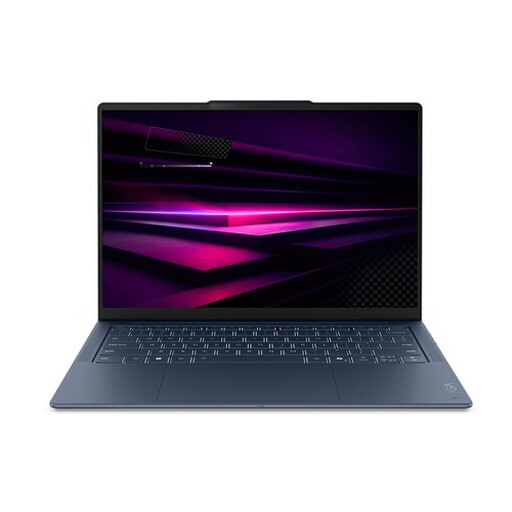
Lenovo Yoga Slim 7 14Q8Y11 Copilot+ PC, Snapdragon X2P-42-100, QWERTY keyboard

Lenovo Yoga Slim 7 14Q8Y11 Copilot+ PC, Snapdragon X2P-42-100, QWERTY keyboard

A traditional laptop could suit you if you want a fixed keyboard set-up and use an external drawing tablet.

The product description lists a 14-inch OLED screen, 16 GB of memory and a weight of around 1.17 kg. If you’re using an external drawing tablet, check the ARM drivers for Sketchbook Pro on Windows.

View at Joybuy
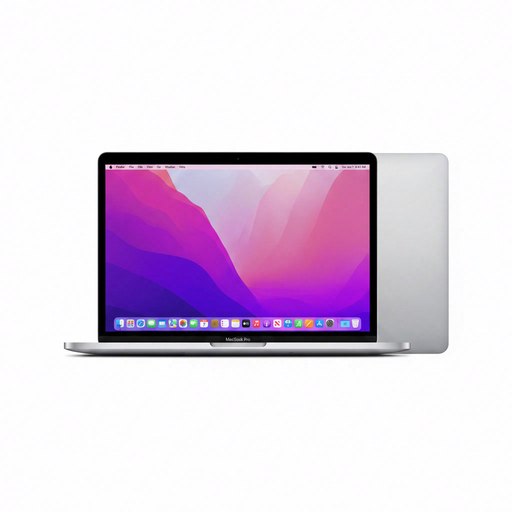
Apple MacBook Pro 13-inch M2, 24 GB, 256 GB, Space Gray (2022), QWERTY keyboard

Apple MacBook Pro 13-inch M2, 24 GB, 256 GB, Space Gray (2022), QWERTY keyboard

A traditional laptop could suit a small workspace if you mainly use a fixed keyboard and perhaps an external drawing tablet.

The title lists 24 GB of memory and a 256 GB SSD; the product description specifies a 13.3-inch Retina display. Drawing directly on the laptop screen isn’t the input method described.

View at Joybuy

Frequently asked questions

Is a touchscreen enough for pressure-sensitive drawing?

No. Check that the pen and app also support pressure-sensitive drawing. According to Sketchbook, Windows Ink must be enabled for pressure sensitivity with a stylus in Sketchbook Pro on Windows.

How can I start a large design without immediately creating a huge raster file?

First decide whether you’ll mainly use scalable shapes or painted raster layers. Adobe describes vector illustrations as resolution-independent, while Sketchbook notes that large images with many layers may need more memory.

Are the pen and keyboard included with a Surface Pro?

Not with the 12-inch Surface Pro 12th Edition reviewed: Microsoft says the Surface Slim Pen and Surface Keyboard are available separately. Check what’s included in the specific bundle you’re considering.

In the Netherlands, am I only entitled to a two-year warranty on a laptop bought online?

Not necessarily. According to ACM ConsuWijzer, the statutory guarantee is separate from any manufacturer’s or retailer’s guarantee and depends on what you could reasonably expect from the product under normal use. If a product develops a fault too soon, the retailer is responsible for providing an appropriate solution.

Can I return a laptop bought online if the set-up isn’t right for me?

For a consumer online purchase, ACM ConsuWijzer says you’ll generally have a statutory cooling-off period of up to 14 days after delivery, subject to exceptions. Check which terms apply to your purchase.
