
Developer using local containers
MDN Web Docs lists a code editor, modern browsers and a local test server as essential software. If you also plan to run containers, check Docker’s installation requirements too.


Start with the programmes you plan to use locally: an editor and browser testing call for a different configuration from running several containers side by side. Then choose between more built-in screen space and easier portability, and check the operating system, ports and memory configuration for the specific model. Product specifications alone can’t predict how your project will perform.
MDN Web Docs lists a code editor, modern browsers and a local test server as essential software. If you also plan to run containers, check Docker’s installation requirements too.
The W3C describes a multilingual website as one that has more than one language. When building one, you’ll want to check your code, results, translations and browser views carefully.
Chrome for Developers describes device mode as an initial approximation of how a site appears on mobile. If you work in different places, consider screen space, weight and the ports you need.
First decide which tools you’ll run at the same time, then compare workspace, portability and software requirements for the exact model.
Best for: anyone who regularly wants to view code, translations and browser pages side by side.
Trade-off: a larger built-in screen is less compact to carry around; also check that the Windows model works with your tools.
Best for: anyone looking for a smaller screen size who wants to run several processes locally.
Trade-off: you’ll have less built-in screen space; check the memory configuration and included accessories for the specific model.
Best for: anyone who wants to use macOS with their tools and often moves between workspaces.
Trade-off: check that the software and ports you need are compatible with the exact Mac configuration.
| Consideration | What should you check? | Who should give this more weight? |
|---|---|---|
| Local development work | Compare your tools with the requirements for the exact operating system, and check the installed RAM and storage. The recommendation for VS Code alone doesn’t tell you how much memory your complete working environment needs. | If I’m running an editor, browsers and possibly containers locally at the same time, I want to match the requirements to my entire workflow. Around 29% of consumers put local development work first. |
| Screen space for multilingual work | Compare the screen size and resolution of the model. Check the video ports if you want to use an external display. | When I’m checking results, translations and code side by side, having a clear overview matters to me. Around 23% of consumers prioritise screen space for multilingual work. |
| Taking it between locations | Compare the stated weight and the ports you need. Treat battery life as a manufacturer’s figure based on its own test conditions, not as a measure of how long it will last during your development workload. | If I often move between locations, I want to weigh up how much built-in screen space I need. Around 18% of consumers put portability first. |
| Compatibility | Check support for your programmes, processor architecture and any container backend on the exact model. | I want to know before buying whether my chosen tools and backend work with the operating system. Around 18% of consumers make compatibility with their toolchain a deciding factor. |
| Cost of a basic workspace | First decide whether you mainly edit code and test in browsers, or whether you’ll also run containers locally. Then check the configuration and what’s included with your purchase. | If basic editing is enough, I don’t want to choose a more expensive configuration without a good reason. Around 12% of consumers focus mainly on the cost of a suitable basic workspace. |
Microsoft Visual Studio Code recommends 1 GB RAM for the editor itself. Browsers, a local server and any containers may also be running alongside it as part of your workflow.
Write down your complete local workflow, then compare the requirements of those tools with the exact laptop model.
For the Zenbook 14 OLED configuration it reviewed, ASUS states that the power adapter is not included and that a 65 W adapter is required. This information doesn’t automatically apply to other models.
Check the box contents and ports for the specific listing before you buy.
You may need to buy a suitable power adapter separately for this ASUS configuration.
The Dutch government states that the Netherlands has no fixed statutory warranty period and that the seller must provide a solution if there’s a problem with a product.
Check any additional service terms separately and confirm who the seller is.
The Zenbook 14 OLED configuration reviewed is a compact Windows option to compare, with the stated memory and storage capacity.
The ProBook 4 G1i D4TM6EA#ABH is a Windows 11 Pro option to compare, with a built-in 16-inch screen.
The 13-inch MacBook Air M5 with 16 GB memory and a 512 GB SSD is a macOS option to compare if you’re looking for a smaller screen size.
The ThinkPad E14 Gen 7 (Intel) is a 14-inch business laptop range to compare if ports and configuration matter to you.
These picks include Windows laptops with both larger built-in screens and more compact formats for code, translations and browser testing.
 No image available
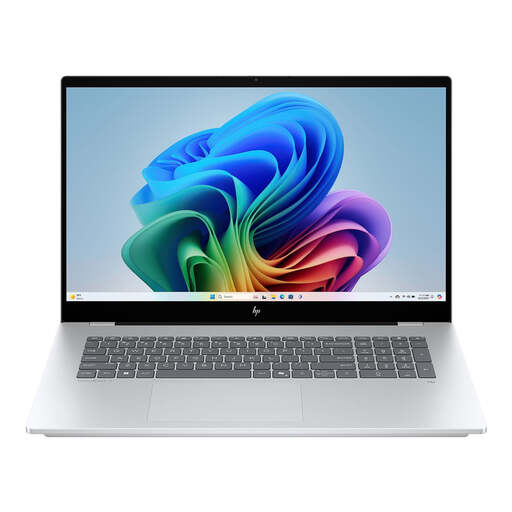
An option to compare if you want a large built-in screen for code and browser views.
According to the Joybuy product information: 17.3-inch touchscreen, Full HD resolution, 16 GB RAM, 1 TB SSD and Windows 11 Home.
 No image available
A more compact screen size to compare if you want to check text and website views on one laptop.
According to the Joybuy product information: 14-inch OLED touchscreen with 1920 × 1200 resolution, 360° hinge, 16 GB RAM, 512 GB SSD and Windows 11 Home.
 No image available
A large built-in screen to compare if you want plenty of space to view code, translations and browser pages.
According to the Joybuy product information: 18.4-inch WUXGA screen, Ryzen 7 260, 16 GB DDR5, 512 GB SSD, Windows 11 Home and a stated weight of 2.60 kg. A compatible 45–65 W USB-C Power Delivery charger is not included.
 No image available
A 16-inch model to compare if you want more built-in screen space than a compact model offers.
According to the Joybuy product information: 16-inch WUXGA OLED screen, Snapdragon X processor, 16 GB LPDDR5X, 512 GB SSD and Windows 11 Home.
 No image available
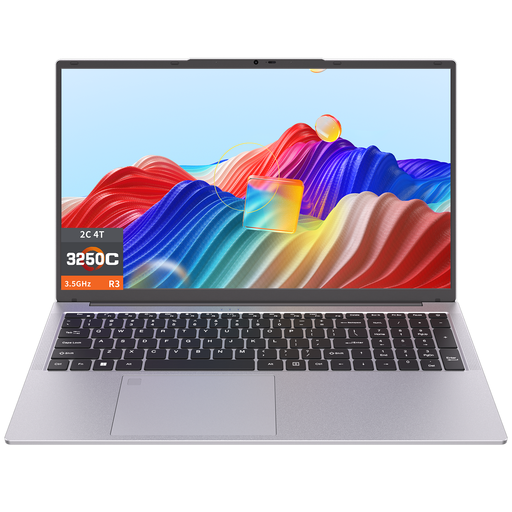
Compare the configuration with the requirements of your chosen tools if you want a large screen and don’t expect to run demanding workloads locally.
According to the Joybuy product information: 17.3-inch screen, 3250C processor, 8 GB DDR4 RAM, 512 GB SSD and fingerprint unlocking.
No, not just because of the website. MDN Web Docs lists an editor, browsers and a local test server among the tools used for web development; Microsoft Visual Studio Code gives a recommendation for the editor itself. Also check the requirements of any containers and other tools you use at the same time.
Check the current requirements for the Windows version, processor architecture and backend you want to use. Docker states that the per-user installation doesn’t support Windows containers, so check whether that limitation works for your project.
Chrome DevTools can simulate a mobile view and conditions such as a slower CPU or network connection. Chrome for Developers describes device mode as an initial approximation; test on a real mobile device when you want to check features that the simulation doesn’t cover.
According to the Dutch government, the Netherlands has no fixed statutory warranty period and the seller must provide a solution if there’s a problem with a product. For online consumer purchases, a 14-day cooling-off period applies in many cases; check whether it applies if you’re buying for business.