
Entering multilingual names
You enter lots of inscriptions and want to type special characters reliably and check them against the photo. So pay attention to the physical keyboard layout, input languages and the software you use.


Choose a more compact laptop if you regularly work on site, or a larger screen if you mainly check photos alongside transcriptions. A bigger screen gives you more room to work, but is less convenient to carry around. For each configuration, also check the keyboard layout, the input languages you need and compatibility with your software. Always compare OCR text with the photo.
You enter lots of inscriptions and want to type special characters reliably and check them against the photo. So pay attention to the physical keyboard layout, input languages and the software you use.
You take photos and notes to locations without a permanent workspace or power socket. Weight, screen readability and the conditions under which the stated battery life was tested are all useful points of comparison.
You process existing photos at a desk and want to check the original image alongside the information you enter. Screen space, storage for photos and a suitable back-up method are all worth considering.
The main decision is whether you work on the go more often or want to view lots of photos and data fields at once. Also choose an operating system and keyboard layout that suit your languages and software.
| What to consider | What should you check? | Who is this important for? |
|---|---|---|
| Entering multilingual text | Try the physical keyboard layout, the input languages you need and your indexing software on the exact operating system. | If you enter names with special characters, you’ll want to type and check them without errors. Around 31% of consumers give reliable multilingual input top priority. |
| Portability and power | Compare the weight and dimensions of the exact configuration, and check the conditions under which the battery life was measured. | When you work on site, you’ll want to carry and use your laptop without relying on a power socket. Around 25% of consumers prioritise portability and working without a mains connection. |
| Comparing photos and transcriptions | View one of your own photos alongside the data-entry screen, and assess readability and reflections in the environment where you’ll be working. | If you check names, dates and characters against the original image, you’ll want to compare the relevant details easily. Around 25% of consumers prioritise checking photos against transcriptions. |
| Software, files and accessories | Check your software’s system requirements, storage space for photos, connections for back-ups and what’s included with the configuration. | If you want to check that the laptop suits your software and photo collection first, you’ll want to avoid unexpected costs or an unsuitable configuration. Around 19% of consumers give software compatibility and project costs top priority. |
A battery test under video or internet-use conditions won’t necessarily tell you how long the laptop will last with your brightness settings, photos and software.
Compare the test conditions for the exact configuration, and consider how you’ll recharge it if you’ll be working for a long time without a power socket. Apple Netherlands lists the test conditions for the stated battery life of the MacBook Air.
OCR suggests text, but image quality can affect how well it recognises characters. Tesseract documentation discusses, among other things, the effect of skewed images. This doesn’t tell you how accurately it will recognise weathered lettering in a particular photo.
Keep the original photo and check important names, dates and special characters before saving or publishing an entry. FamilySearch Indexing Review’s process includes comparing the transcription with the original image.
Manual checking and correction take time, even when you use OCR.
The keyboard layout, screen, ports and included accessories can vary by configuration or bundle. For example, an English keyboard layout may be inconvenient if you expect a different physical layout.
Check the specifications and box contents for the exact configuration you want to buy. Lenovo and Dell list specifications by configuration, and a change may mean different features.
If the configuration doesn’t suit your work, you may need to arrange a suitable adapter or choose a different configuration.
The MacBook Air range includes 13-inch and 15-inch models for those using macOS software.
The ThinkPad X1 Carbon is a compact business Windows range; bundle contents and specifications depend on the configuration.
The EliteBook 8 G1i 14 is a business Windows range for data entry and image checking at a desk or on the go.
The Dell Pro 14 Premium PA14250 is a configurable business Windows laptop.
The Joybuy options shown are Windows laptops for entering text and checking photos, with screen sizes ranging from 14 to 17.3 inches.
 No image available
The 16-inch model offers plenty of screen space if you want to check photos and data-entry fields.
AMD Ryzen 5 7520U, 8 GB RAM, 512 GB SSD, 2K IPS screen and Windows 11 Home.
The charger isn’t included and the memory can’t be upgraded.
 No image available
The 16-inch model is an option if you want more screen space to view original photos and text.
Intel Core Ultra 5 135H, 16 GB DDR5, 512 GB SSD, WUXGA IPS anti-glare screen, Windows 11 Pro and QWERTY keyboard.
 No image available
This 16-inch model offers plenty of screen space for viewing photos alongside entered data.
32 GB RAM, 1 TB SSD, 3K 120 Hz OLED touchscreen, Windows 11 Pro and QWERTY keyboard.
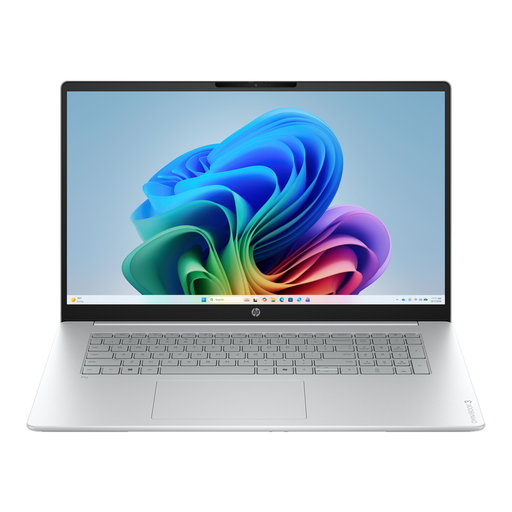 No image available
The 17.3-inch screen offers plenty of room for checking images, but the size is worth considering if you’ll be carrying the laptop around.
Intel Core 3 310, 12 GB RAM, 512 GB SSD, Full HD IPS screen and Windows 11 Home.
The stated configuration weighs approximately 2.01 kg and is supplied without a power adapter.
 No image available
The 14-inch size is a more compact screen option if portability is also a consideration.
Intel Core 7 150U, 16 GB DDR4, 512 GB SSD, IPS-Level screen, backlit keyboard, Wi-Fi 6E and Windows 11 Home.
No. The main thing is to check that your input languages, physical keyboard layout and indexing software work well together. Microsoft Support explains how to manage additional keyboard layouts in Windows. Set up any language packs you need in advance if you’ll be working offline later.
No. Treat OCR as a suggestion and compare names, dates and characters with the photo. Tesseract supports UTF-8 and many languages, but its documentation also discusses how image quality can affect recognition. This doesn’t establish how accurately it can read weathered gravestones.
Choose a separate back-up method for your original photos and index files in advance, and test that you can restore a file. Microsoft Support explains File History in Windows. Check that your chosen software and storage location are included in the back-up.
Not before checking what information is visible and what rules apply at the location. According to the Dutch Data Protection Authority, information relating solely to deceased people is not covered by the GDPR. If a photo or entry also contains information that could identify living people, the GDPR may apply. Also check the rules set by the cemetery or its management.
No. Your statutory rights are separate from a manufacturer’s or seller’s warranty. According to ACM ConsuWijzer, there is no fixed statutory warranty period in the Netherlands. What you can reasonably expect from the product and whether it has been used normally are among the factors that matter.