Start with the software and tools you’ll use to create and test the guide, then choose a screen, keyboard and ports to suit your work. A compact model is practical if you take your laptop with you often, while a larger built-in display can make it easier to compare text, maps and pages. No laptop can make the guide accessible on its own, so plan to test it with a keyboard and screen reader too.
Who is this laptop guide for?
Accessibility tester and creator
You build or review the guide yourself and want to test pages with a keyboard and screen reader, not just run an automated test. Chrome for Developers describes testing interactive elements with assistive technology as part of these checks.
Multilingual editor
You manage location content in several languages and want to review language changes, as well as your own keyboard and publishing workflow. The W3C Web Accessibility Initiative explains why language changes on a page need to be identifiable to assistive technology.
Location researcher
You take your laptop to different locations and weigh portability against having enough screen space to work with notes, photos and guide information.
What should you look for in a laptop for a multilingual location guide?
First, check that your software and tools work. Then consider the keyboard layout, screen space and what you need to work on location.
| What to consider |
What to look for when buying |
Who is this important for? |
| Software and accessibility testing |
Check that your operating system, software and peripherals are compatible. Test relevant interactions with a keyboard and screen reader too. |
If I build and test the guide myself, I need to be able to use my publishing software and tools, and carry out keyboard and screen reader tests. Around 33% of consumers put this testing workflow first. |
| Multilingual editing and input |
Check that the keyboard layout suits the languages you type in. The W3C Web Accessibility Initiative also explains why language changes on published pages need to be identifiable to assistive technology. |
When I’m working with a lot of text in several languages, I look for a comfortable keyboard layout and a good way to review different versions. Around 25% of consumers prioritise multilingual editing and input. |
| Taking it to different locations |
Compare the weight and screen size of the exact configuration, its ports and the power supply included. Don’t treat the stated battery life as a guarantee of how long it will last in your use. |
If I take my laptop to different locations, I weigh portability against having enough space to work with notes, photos and guide information. Around 25% of consumers prioritise site visits. |
| Space for maps and pages |
Compare the screen size and resolution of the configuration you’re considering. Also check whether you can connect an external monitor at your desk if you need more display space. |
Screen space matters when I want to view maps, images and text at the same time. Around 17% of consumers give this visual workspace their highest priority. |
Pitfalls to avoid when choosing a laptop
-
Assuming a high automated accessibility score means the guide has been fully tested
The Lighthouse score doesn’t cover every manual check. A good score alone doesn’t confirm that every part of your guide is usable.
Alongside automated audits, plan keyboard and screen reader tests for relevant elements. Chrome for Developers describes these checks for interactive elements.
-
Assuming every model in a range has the same configuration
Specifications can vary between configurations. For example, the Lenovo ThinkPad E14 Gen 7 configuration reviewed has an English (EU) keyboard; the HP offer reviewed lists a recommended USB-C adapter as sold separately.
Before you buy, check the full model code, the configuration you’ve chosen, the keyboard layout and exactly what’s included in the offer.
-
Assuming Windows on Arm supports all your existing tools
Microsoft says that many Windows apps work on Arm, sometimes through emulation. This doesn’t confirm that your specific editing software or peripherals are compatible.
Before choosing Windows on Arm, check that all the software and devices you rely on work with the specific configuration.
Brands to compare
Apple
A compact macOS option if your editing and publishing software works on macOS and you take your laptop with you often.
- For the 13-inch MacBook Air with M5 reviewed, Apple lists 16 GB of unified memory, a 512 GB SSD and Thunderbolt 4 ports.
- Check that the software you need and any port adapters suit your workflow. The built-in screen space is worth considering if you often view several pages side by side.
Lenovo
The ThinkPad E14 Gen 7 configuration reviewed is a business Windows option to compare for text work, with an anti-glare screen.
- Lenovo lists 16 GB RAM and a 512 GB SSD for configuration 21SXCTO1WWNL5.
- This configuration has an English (EU) keyboard. Check that the layout feels comfortable for the languages you work in; other E14 configurations may have different specifications.
HP
The OmniBook 5 Flip is a Windows option to consider if a touchscreen would be useful for your editing work.
- For the OmniBook 5 Flip 14-fp0605ndx reviewed, HP lists 16 GB RAM, a 512 GB SSD and a 14-inch touchscreen.
- The offer reviewed lists the recommended USB-C adapter as sold separately. Check what’s included in the offer you’re considering.
Dell
The Latitude 5455 is a Windows on Arm option to consider only after checking the software and equipment you need.
- Dell lists Snapdragon options and a 14-inch screen with an anti-glare coating for this model range.
- The specifications shown cover several configurations. Microsoft explains that many Windows apps work on Arm, sometimes through emulation; this doesn’t confirm that your specific software or equipment is compatible.
Joybuy laptops for editing and site visits
The Joybuy products below are Windows laptops for editing and guide work. This selection includes both touchscreen convertibles and traditional laptop designs. Check which configuration suits your software, input needs and screen space requirements.
 Image unavailable
HP OmniBook 5 Flip 14-fp0075nd C5VM5EA#ABH
An option to compare if you want a Windows laptop that also lets you navigate directly on the screen. Check that your software and tools are compatible first.
The description lists Windows 11 Home, a 14-inch touchscreen, a 360° hinge, a QWERTY keyboard, an Intel Core 7 processor, 16 GB memory and a 512 GB SSD.
A charger isn’t included; the description specifies a compatible USB-C charger, available to buy separately.
View at Joybuy
 Image unavailable
HP OmniBook X Flip NG AI PC 16-as0050nd D75LQEA#ABH
An option to compare if you want to view text, maps or pages on a larger built-in screen. Check that the convertible design suits the way you work.
The description lists Windows 11 Home, a 16-inch IPS touchscreen, a 360° hinge, an Intel Core Ultra 5 226V processor and a Thunderbolt 4 port.
View at Joybuy
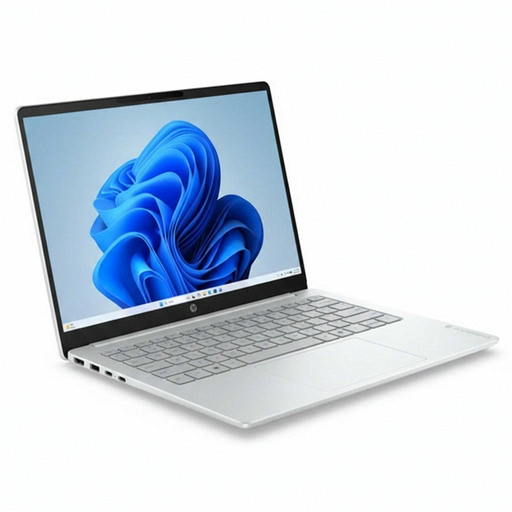 Image unavailable
HP OmniBook 3 AI PC 14-ht0013nd, 14-inch
An option to compare for editing documents and web pages in a Windows environment. Check that the configuration suits the software you need.
The description lists Windows 11 Home, a 14-inch IPS screen with 1920 × 1200 pixels, a QWERTY keyboard, an Intel Core 3 304 processor, 8 GB memory and a 512 GB SSD.
The listed ports are USB-C, USB-A and HDMI.
View at Joybuy
 Image unavailable
HP OmniBook 3 16-by0058ndx, 16-inch
An option to compare if you want to view text and websites on a larger built-in screen. Check that the size suits how often you take your laptop with you.
The description lists Windows 11 Home, a 16-inch anti-glare IPS screen with 1920 × 1200 pixels, a QWERTY keyboard, an AMD Ryzen 5 7520U processor, 8 GB memory and a 512 GB SSD.
The listed ports are USB-C, USB-A and HDMI. A charger isn’t included.
View at Joybuy
 Image unavailable
HP OmniBook 5 Flip 14-fp0250ndx 2-in-1, 14-inch
An option to compare if you want to review page layouts directly on screen as well as enter text. Check first that it’s suitable for the software you use.
The description lists Windows 11 Home, a 14-inch touchscreen, a 360° hinge, a QWERTY keyboard, an Intel Core 5 120U processor, 8 GB memory and a 512 GB SSD.
The charger and stylus aren’t included.
View at Joybuy
Frequently asked questions
Can an automated accessibility test confirm that a guide is accessible?
No, not on its own. The Lighthouse score doesn’t cover every manual check, so test relevant interactions with a keyboard and screen reader too.
What should I check on multilingual pages?
Check that assistive technology can identify the page’s default language and any sections in a different language. The W3C Web Accessibility Initiative explains why language changes need to be indicated; this is a feature of the published page, not the laptop brand.
Will Windows software automatically work on a Snapdragon laptop?
No, don’t assume it will without checking. Microsoft says many Windows apps work on Arm, either natively or through emulation, but this doesn’t confirm that your specific editing software, testing tools or peripherals will work.
Do the same legal accessibility requirements apply to every location guide in the Netherlands?
Not automatically; the rules that apply depend on the provider and the service. The Dutch government sets out accessibility requirements for government websites based on WCAG 2.2 levels A and AA. Ondernemersplein lists conditions for certain digital products and services for consumers, including having more than 10 employees or annual turnover above €2 million. Choosing a laptop doesn’t demonstrate compliance.


