Start with the software you need to run locally: for Xcode and the iOS Simulator, choose a compatible Mac, while a suitable Windows laptop is also an option for Android Studio. Then work out how many virtual devices you’ll run at once, how much storage you’ll need for them, and which connections your test phones and home workspace require. You don’t automatically need a higher-spec configuration if you mainly test one device at a time.
Who is this relevant to?
iOS tester working from home
You want to test iOS builds locally with Xcode, using a simulator or a connected iPhone. Apple Developer describes Xcode and its simulators as part of the development environment for Apple platforms, so check the requirements for the version you plan to use.
Android tester working from home
You mainly use Android Studio and choose memory, storage and connections to suit your emulators and physical test phones. Google’s Android documentation explains how to install the Android Emulator and use hardware acceleration.
iOS and Android tester
You want to use both local toolchains on one laptop. Focus on which tools and virtual devices will be active at the same time, how much storage their files will take up, and whether the laptop is compatible with Xcode.
What should you consider when choosing?
Mac for local iOS testing
Choose this if: you need to run Xcode or the iOS Simulator locally.
Bear in mind: memory, storage and ports vary between Mac configurations.
Windows laptop for Android testing
Choose this if: your work centres on Android Studio and Android emulators or physical Android devices, and you don’t need to run Xcode locally.
Bear in mind: check the Android Studio system requirements for the processor and configuration you’re considering.
One laptop for both platforms
Choose this if: you want to use both iOS and Android tools locally; you’ll need a compatible Mac for Xcode.
Bear in mind: running several tools and virtual devices at once can require more memory and storage.
| What to consider |
What should you check? |
Who is this important for? |
| Local iOS testing |
Check that the Mac and macOS version are suitable for the version of Xcode you need, and consider whether you’ll use a simulator, a physical device or both. |
If I want to test iOS builds locally, my laptop needs to run Xcode; around 33% of consumers rank local iOS testing as their top priority. |
| Android emulators |
Work out how many Android Virtual Devices (AVDs) you’ll use at once. Google estimates around 4 GB of memory per additional AVD and up to 6 GB of extra storage per additional AVD; exact requirements can vary by system. Also check that hardware acceleration works. |
If my Android testing involves several emulators, I want enough memory and SSD space to handle the workload; around 27% of consumers prioritise Android emulators. |
| Both toolchains |
Check that the Mac is compatible with Xcode, and look at the memory and SSD capacity of the exact configuration. |
If I want to test iOS and Android on the same laptop, compatibility and the combined workload both matter; around 27% of consumers give equal weight to both platforms. |
| Connecting devices and your workspace |
Count the connections you’ll need for phones, a monitor, charging and networking. Check the ports on the exact configuration and whether a hub or dock will suit your setup. |
If I want to connect real test phones and peripherals, the ports need to suit my workspace; around 13% of consumers prioritise physical devices and connections. |
A simulator isn’t always a substitute for real hardware: Apple notes that simulators don’t fully reproduce the performance and features of physical devices. So use a real device when you want to check features or performance that depend on the device itself.
Common mistakes when choosing
-
Choosing a Windows laptop when you need to run Xcode locally
Extra memory or a faster processor won’t make Windows suitable for the Mac-only Xcode and iOS Simulator setup.
Before comparing specifications, decide whether you need to test iOS locally with Xcode.
If you find you need Xcode locally, you may still have to use a compatible Mac.
-
Allowing storage for the development environment only
Android emulator files also take up space. Google estimates up to 6 GB of extra storage per additional AVD.
Factor in the virtual devices you want to install and keep when choosing your SSD capacity.
-
Assuming a simulator is a complete substitute for a real device
According to Apple, simulators don’t reproduce all the performance and features of physical devices.
Use real test devices when you need to check how something works on hardware, and remember to allow for the connections you’ll need.
-
Comparing the manufacturer’s warranty alone
A manufacturer’s warranty is separate from your statutory rights against the seller. The Dutch government states that there is no fixed statutory warranty period in the Netherlands; what you can reasonably expect from a product also matters.
Compare service terms, but if a product is faulty, contact the seller about your consumer rights too.
Brands to consider
Apple
The MacBook Air and MacBook Pro are relevant Mac ranges if you want to test locally with Xcode.
- Apple lists features including 16 GB of memory, a 512 GB SSD and two Thunderbolt 4 ports for MacBook Air M5 configurations.
- Apple lists features including HDMI alongside Thunderbolt ports across the MacBook Pro range.
- Memory, storage and connections depend on the configuration you choose. These specifications aren’t independent measurements of compile or testing performance.
Lenovo
The ThinkPad T14 Gen 6 (AMD) is a Windows option for combining Android testing with a home workspace and peripherals.
- Lenovo lists two memory slots and connections such as USB-A, Thunderbolt 4, HDMI and Ethernet for this range.
- Memory and connections vary by configuration; a Windows laptop isn’t the route to running Xcode locally.
ASUS
The Dutch Zenbook 14 OLED UX3405 configuration with Core Ultra 7 255H is a compact Windows option for Android tools and peripherals.
- For the configuration reviewed, ASUS lists 32 GB of built-in memory, a 1 TB SSD and connections including Thunderbolt 4, USB-A and HDMI.
- The memory is built in on this configuration. The OLED screen is glossy, so bear reflections in mind where you work. These specifications aren’t an independent test of Android emulator performance.
Laptop options at Joybuy
These laptops are suitable for local iOS testing on a Mac or Android testing on a Windows laptop; check that each configuration suits your workload when running tools at the same time.
 No image available
Apple MacBook Air 13-inch M5, 16 GB, 512 GB
A Mac option for local iOS testing with Xcode; check that it’s compatible with the version of Xcode you need.
16 GB of memory and a 512 GB SSD. The product description lists two Thunderbolt 4 ports and MagSafe charging.
View at Joybuy
 No image available
MSI Prestige 16 AI+ C3MG-236NL Copilot+ PC
A Windows configuration to consider for Android Studio; match the emulator workload to how you’ll actually use it.
Intel Core Ultra X7 358H, 32 GB LPDDR5x and a 1 TB SSD. The description lists Windows 11 Home, two Thunderbolt 4 ports, two USB-A ports and HDMI 2.1.
View at Joybuy
 No image available
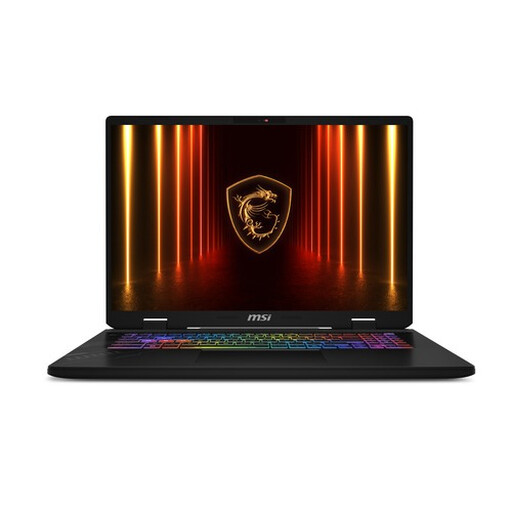
MSI Crosshair 17 HX AI D2XWFKG-071NL
A Windows laptop for Android testing, with memory and storage to suit your local tools and emulator files.
Intel Core Ultra 7 255HX, 32 GB DDR5 and a 1 TB SSD. The product name lists Windows 11 Home; the description mentions USB-A, Thunderbolt 4, HDMI and Ethernet.
View at Joybuy
 No image available
Thunderobot 16-inch, i7-14700HX, RTX 5070
A laptop with plenty of memory and storage to compare against the demands of your local development tools and test files.
32 GB of memory and a 1 TB SSD. The product name lists a 16-inch IPS screen with a resolution of 2560 × 1600 and a 240 Hz refresh rate.
View at Joybuy
 No image available
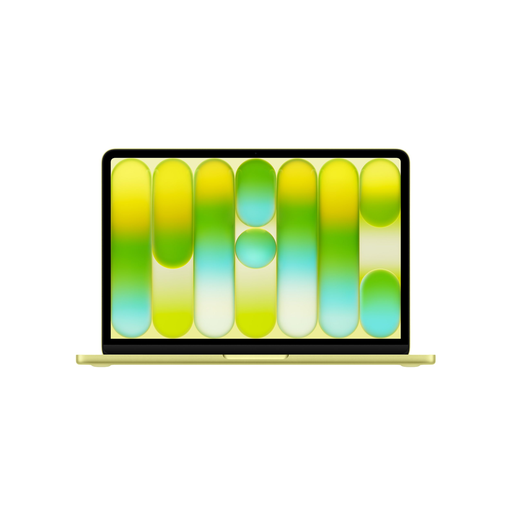
Apple MacBook Neo 13-inch A18 Pro, 8 GB, 512 GB
A Mac option to consider for local iOS testing; bear the listed memory configuration in mind if you’ll be using Android emulators.
8 GB of memory and a 512 GB SSD. Google estimates around 4 GB of memory per additional AVD, although exact requirements can vary by system. The listed configuration has two USB-C ports and no USB-A or HDMI port.
View at Joybuy
Frequently asked questions
Can I choose a Windows laptop for local iOS testing?
Not if you want to use Xcode and the iOS Simulator locally on that laptop: you’ll need a compatible Mac. Also check the macOS requirements for the version of Xcode you plan to install.
Do I need a real phone as well as an emulator?
Use a physical device when you want to check features or performance on real hardware. Apple cautions that simulators don’t reproduce all the performance and features of a physical device.
What should I consider when setting up Android emulators?
Check Google’s system requirements and make sure hardware acceleration works on your computer. Also allow memory and SSD space for the AVDs you’ll actually use; running several AVDs at once requires extra memory.
What can I do if my laptop develops a fault after purchase?
When you buy as a consumer in the Netherlands, you’re entitled to a product that works as it should. The Dutch government states that there is no fixed statutory warranty period; depending on the fault, repair, replacement or a refund may be appropriate. Keep your proof of purchase and report the problem to the seller.
Can I return a laptop bought online?
For distance purchases covered by consumer law, the Dutch government says you’ll often have a 14-day cooling-off period. Check the terms that apply to your purchase; this consumer rule doesn’t necessarily apply to a business order.


