First, choose a laptop that works with your existing DAW, plug-ins and, if applicable, audio interface. Then work out how much processing power, memory and SSD space your choir project needs. If you’re working with lots of tracks and effects, extra headroom is useful. For a simple mix, ports and a good plan for local storage and backups may matter more. Ableton emphasises that the computer performance you need depends on your workflow, the number of tracks and the plug-ins you use.
Who is this laptop guide for?
Mixing lots of choir tracks
You combine multiple vocal tracks and effects, and want to avoid the session stalling during playback. What you need depends on the number of tracks and the plug-ins you use, so Ableton recommends taking your own workflow into account when choosing.
Managing local recordings
You receive source files and want to keep the editable project locally, finish it and back it up without mixing up the source material and final mix. Audacity’s project guide distinguishes between a project and an export for playback.
Working with existing audio equipment
You already use a DAW, plug-ins or an audio interface and want to carry on using them. Check that the software and drivers are compatible with your chosen operating system, and that the laptop has the ports you need. Ableton, for example, explains how to install drivers for audio interfaces.
What should you look for?
Start with the DAW and equipment you already use, then match the configuration to the size of your choir mix. Ableton links the performance you need to factors including the number of tracks and the plug-ins you use.
| What to consider |
What to look for |
Who should pay extra attention? |
| Tracks and effects |
Count the tracks, virtual instruments and effects in a typical session, then compare the laptop’s configuration with your DAW’s requirements. |
If you play back lots of vocal tracks at once, you’ll want enough processing headroom for your sessions. Around 31% of consumers prioritise handling demanding choir sessions. |
| Local storage and backups |
Estimate how much source material and how many projects you’ll store locally, and set up a separate backup. Check the SSD capacity of the exact configuration. |
If you want to keep source recordings and editable projects together, enough local storage and a separate backup are important. Around 25% of consumers prioritise local files and keeping their projects. |
| DAW and audio interface |
Check support for your exact DAW version, plug-ins, interface model, operating system and required drivers. |
If you want to keep using existing software or an interface, they need to work with the laptop. Around 25% of consumers make compatibility with existing software and equipment their top priority. |
| Workspace and ports |
Compare screen sizes and count the devices you’ll connect at the same time, such as an interface and an external drive. Check that the connectors are compatible too. |
If you mix in different places, look for the right balance of a practical screen, portability and ports. Around 19% of consumers prioritise this combination. |
Common buying mistakes
-
Assuming a DAW’s minimum requirements guarantee a large session will run smoothly
Minimum requirements don’t automatically tell you how a project with lots of tracks and plug-ins will perform. Ableton links the performance you need to your specific workflow.
Compare your own sessions with the recommendations for the DAW you use, and assess the whole configuration rather than focusing on one impressive specification.
-
Counting the ports and nothing else
USB-A and USB-C are different types of connection, and having a compatible plug doesn’t prove that the interface will work with the software and driver.
Compare the ports and exact interface model with the laptop’s connections and driver support. Check whether you’ll need a suitable adapter or hub too.
-
Using an external drive as your only working and backup location
For Audacity, the guide advises against editing an active project directly on standard external USB, network or personal cloud storage.
Follow your DAW’s storage guidelines and keep a separate copy of the source material and project.
-
Assuming a model name in a ranking refers to just one configuration
A product range may include configurations with different memory and storage options. Check that the ports and components listed apply to the full model number.
Before buying, compare the full model number and configuration with the manufacturer’s specifications.
Brands to compare
Apple
The MacBook Air may suit you if you use macOS software such as Logic Pro or want a lightweight laptop, provided your interface and plug-ins work with the macOS version you choose.
- Apple Netherlands lists MacBook Air M5 configurations starting at 16 GB of memory and 512 GB of storage, with two Thunderbolt 4 ports.
- You may need a suitable adapter or hub for USB-A equipment. Apple’s stated battery life isn’t a measurement of performance during an audio mix.
ASUS
The Zenbook 14 OLED is a compact Windows range worth considering if direct USB-A, USB-C and HDMI connections are important to you.
- ASUS Netherlands lists one USB-A port and two Thunderbolt 4 ports for the UX3405 series; configurations in the range are available with up to 32 GB of memory.
- The processor, storage and screen can vary by configuration, so check the full model code and specifications.
HP
The EliteBook Ultra G1i and ProBook 4 G1i are business Windows ranges to compare if Windows and the specific configuration suit your workflow.
- HP lists up to 32 GB of memory, three Thunderbolt 4 ports and one USB-A port for the EliteBook Ultra G1i.
- The EliteBook range’s specifications don’t automatically apply to the ProBook or every configuration. Check the exact model and components.
Dell
The Dell 14 DC14250 is a configurable Windows option worth considering if you’re looking for a more compact screen and want to check the chosen configuration yourself.
- The Dutch configurator shows a selected configuration with 16 GB of DDR5 memory.
- Memory and storage options can vary between configurations. The configuration shown isn’t a measure of audio performance.
Lenovo
The IdeaPad Slim 3 15IRH10 is a Windows range worth comparing if a larger screen and direct USB-A connections suit your workspace.
- Lenovo lists two USB-A ports and one USB-C port for the range, with different memory and SSD configurations available.
- Not every configuration is available everywhere. Check the full model number and installed components.
Joybuy laptops for this mixing workflow
This selection features Windows laptops with configurations and connections to compare for local projects, existing peripherals and different workspaces.
 No image available
HP OmniBook 3 16-by0058ndx
A Windows laptop with internal SSD storage and USB-A and USB-C ports to compare for local projects and peripherals.
AMD Ryzen 5 7520U, 8 GB of onboard memory and a 512 GB SSD. The 8 GB of memory isn’t upgradeable; a charger isn’t included.
View at Joybuy
 No image available
ASUS Vivobook 18 M1807HA-S16512W
The 18.4-inch screen gives you more workspace to compare if you want to view several tracks at once.
Ryzen 7 260, 16 GB of memory and a 512 GB SSD. This configuration has an 18.4-inch 1920 × 1200 screen; a compatible USB-C Power Delivery charger isn’t included.
View at Joybuy
 No image available
ASUS Vivobook S16 S3607QA-SH109W
A 16-inch configuration to compare if you’d like a larger screen for mixing and want to store project files locally.
Snapdragon X processor, 16 GB of LPDDR5X memory and a 512 GB SSD. The screen is a 16-inch WUXGA OLED.
View at Joybuy
 No image available
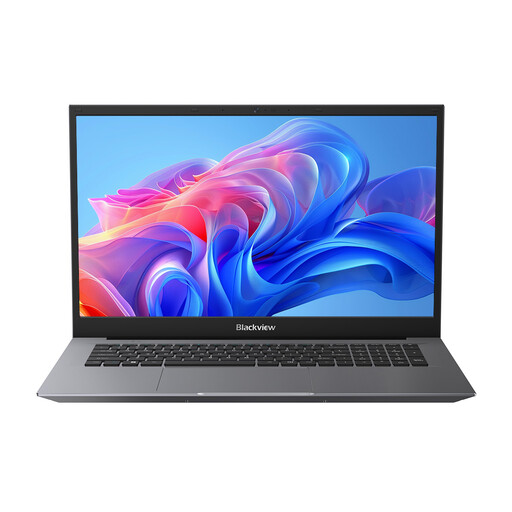
Blackview AceBook 10
This configuration lists three USB-A ports, worth comparing if you want to connect several USB-A devices directly.
Intel Pentium Silver N6000, 16 GB of DDR4 memory and a 512 GB SSD. The screen is 18.5 inches, Full HD, and the laptop runs Windows 11 Pro.
View at Joybuy
 No image available
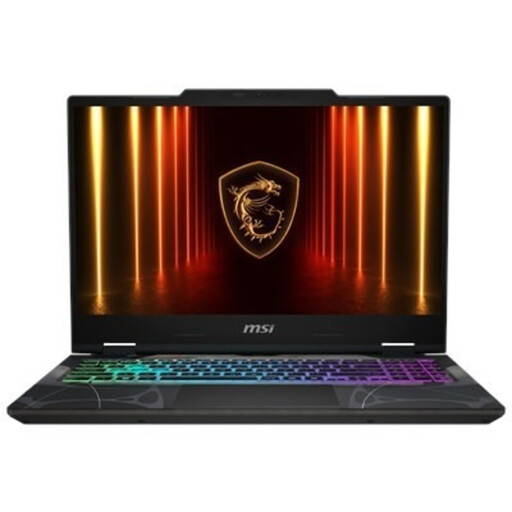
MSI Cyborg A15 AI B2HWGKG-248NL
A Windows laptop to compare if you use other applications as well as mixing. The listed configuration doesn’t prove how it will perform with a specific DAW session.
AMD Ryzen 9 270, 16 GB of DDR5 memory and a 512 GB SSD. The screen is 15.6 inches, Full HD, with a stated refresh rate of 144 Hz; the charger must be bought separately.
View at Joybuy
Frequently asked questions
Do you always need an external audio interface for an existing choir recording?
No, not just to open and edit local audio files. If you use an interface for monitoring or making new recordings, check the connection, operating system support and driver for the exact interface model. Ableton describes CoreAudio for Mac and ASIO for Windows.
How can you keep an editable project alongside the final mix?
Keep the source material, editable project and exported audio clearly identifiable as separate parts of your workflow. Audacity, for example, distinguishes between a project file and an export for playback, and advises against editing an active project directly on standard external USB or network storage.
Do your rights in the Netherlands end when the manufacturer’s warranty expires?
No. According to the Dutch government, there is no fixed statutory warranty period in the Netherlands: you’re entitled to expect a product to work properly, and the retailer is your point of contact if there’s a problem. A manufacturer’s warranty is in addition to this. What you can reasonably expect in terms of a product’s lifespan depends, among other things, on the product, its price and the information provided at the time of sale.
Can an organisation keep or share identifiable choir recordings online without further consideration?
Not without considering the circumstances. The Dutch Data Protection Authority treats audio recordings in which someone is identifiable as personal data. An organisation processing them needs an applicable legal basis under the GDPR; consent is one possible basis, but it isn’t automatically the only one. You must also check music rights before making copyright-protected music available to the public.


