
Minute-taker who edits a lot of text
You spend a long time writing up decisions and action points, so you want to type comfortably and read documents alongside your source material.


Start by choosing a laptop that works with your team’s document platform and software. A Windows laptop, MacBook or Chromebook is only a good fit if it suits your workplace. For taking minutes, comfortable typing and a clear screen matter more than automatically opting for the most powerful processor. If you’re handling personal data, access permissions and your approved document platform are just as important as the laptop itself.
You spend a long time writing up decisions and action points, so you want to type comfortably and read documents alongside your source material.
You take your laptop between meeting rooms and shared desks, weighing up its size, power supply and connections.
You work with others on documents that may contain personal data. In that case, access permissions and your approved document platform matter.
A good fit if: your organisation requires Windows software or a managed Windows workplace.
Keep in mind: check the keyboard layout, memory, screen and connections for the exact configuration. A product range name doesn’t tell you everything.
A good fit if: macOS meets your organisation’s management requirements and supports the document and meeting apps you need.
Keep in mind: Apple lists two Thunderbolt 4 ports for the 13-inch MacBook Air M5. Check that they’ll work with your peripherals.
A good fit if: your team mainly uses supported web apps and Google Docs, and your organisation is allowed to manage the device.
Keep in mind: Google explains how to use certain Drive files offline, but this doesn’t automatically apply to every app.
| What to consider | What to look for | Who should pay particular attention? |
|---|---|---|
| Typing and proofreading | Try the keyboard layout on the exact configuration. Compare screen size and resolution; the Dutch Consumers’ Association suggests a 14-inch Full HD IPS screen as a useful guide for light office work. | When I’m writing up lengthy minutes, I want to type comfortably and check decisions alongside my notes. Around 36% of consumers put comfortable typing and reading at the top of their list of concerns when buying. |
| Moving between workspaces | Compare the weight and dimensions of the specific configuration on offer. Check that its ports are compatible with the screens and other equipment at your workplace. | If I often move between meeting rooms and shared desks, size and suitable connections matter. For around 29% of consumers, being able to move easily between workspaces is a key consideration. |
| Sharing documents | Find out which document platform your team uses. Microsoft explains how to collaborate on Word documents in real time via OneDrive or SharePoint. Also check that any required apps work on your chosen operating system. | When we edit minutes together, I want my laptop to work with my team’s apps and accounts. Around 21% of consumers say that working together in their existing document platform is their main priority. |
| Access to minutes | Discuss who needs access and which document platform is approved. The Dutch Data Protection Authority stresses that organisations must prevent unauthorised access to personal data. | If minutes may contain personal data, I want to know who can open and share them. For around 14% of consumers, controlling access to potentially confidential minutes is their main concern. |
The Dutch Consumers’ Association says that 8 GB of RAM is suitable for light office work, and points to 16 GB as an option that gives you more headroom when several programmes are open at once. You don’t automatically need a more powerful processor just to take minutes.
Start with the apps you actually use, then compare the keyboard, screen and memory with the demands of your work.
The ThinkPad E14 Gen 7 configuration 21SXCTO1WWNL5 described by Lenovo has an English (EU) keyboard. Other configurations may have different specifications.
Before buying, check the full model number, keyboard layout, ports and included power supply.
Google explains how to use certain Drive files offline, but this doesn’t apply to every app. For real-time editing of Word documents, Microsoft recommends OneDrive or SharePoint.
Test the documents, accounts and apps your team actually uses, especially if you need offline access.
The ThinkPad E14 Gen 7 is a business 14-inch Windows laptop range worth comparing for writing and working on the move.
The Dell Pro 14 ranges are business Windows laptops. Compare the exact Pro 7 or Pro 5 configuration with your workplace equipment and management requirements.
The ProBook 4 G1ah is a business 14-inch Windows option, while the EliteBook X Flip G1i has a convertible design for anyone who’ll use that feature.
The 13-inch MacBook Air M5 is a macOS option if your organisation supports the apps you need and device management on macOS.
This selection focuses on 14-inch Windows laptops for taking minutes and working on documents across different workspaces.
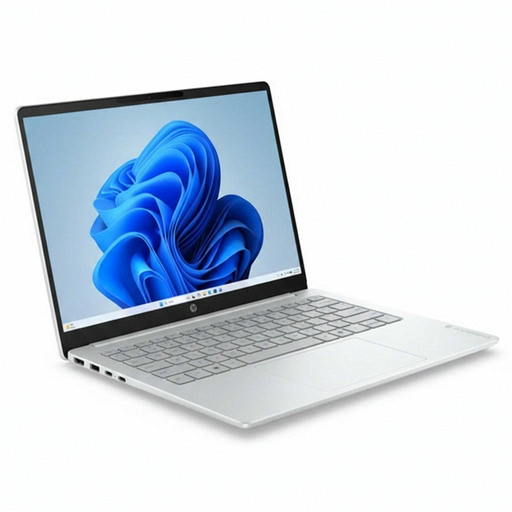 Image unavailable
The listed 14-inch screen and full-size QWERTY keyboard suit text-based work. Check that the keyboard layout works for you.
Intel Core 3 304; 8 GB RAM; 512 GB SSD; Windows 11 Home.
1920 × 1200 IPS screen with a 16:10 aspect ratio.
 Image unavailable
The 14-inch screen with a 16:10 aspect ratio gives you extra vertical space for documents. According to the product description, this configuration weighs around 1.42 kg.
AMD Ryzen 5 7520U; 8 GB RAM; 512 GB SSD; Windows 11 Home.
1920 × 1200 IPS screen. The charger isn’t included and must be purchased separately.
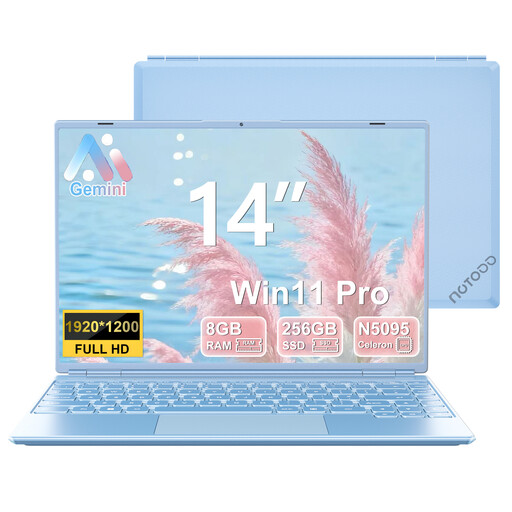 Image unavailable
The listed 14-inch screen resolution can help you compare the space available for documents. Also check that the keyboard layout and required apps are suitable.
Intel Celeron N5095; 8 GB RAM; 256 GB SSD; Windows 11.
1920 × 1200 screen resolution.
 Image unavailable
The description lists a weight of 1.4 kg and a 180-degree hinge for sharing the screen. Check that these features suit your workplace.
Intel Core 7 150U; 16 GB DDR4; 512 GB SSD; Windows 11 Home.
14-inch Full HD IPS-level anti-glare screen and backlit keyboard.
 Image unavailable
This 14-inch MacBook has a QWERTY keyboard. Check beforehand that macOS works with your team’s document platform.
24 GB memory; 1 TB SSD; QWERTY keyboard.
The Dutch Consumers’ Association says that 8 GB of RAM is suitable for light office work; 16 GB gives you more headroom when you use several programmes at once. Also check whether the memory in your chosen configuration can be upgraded later.
Microsoft explains how to edit documents together in real time via OneDrive or SharePoint. Save the document there and set the appropriate editing permissions before sharing it.
Compare the connections and charging options on the exact configuration with the equipment available. Don’t assume a stated battery life is the same as meeting time: Apple lists wireless web browsing as a separate test activity.
No, offline access depends on the app and the file. Google explains how to access certain Drive files offline and warns that some apps won’t work offline. Check which apps your team needs.
Not without carefully assessing access and how the data will be handled. The Dutch Data Protection Authority stresses that organisations must prevent unauthorised access to personal data. Discuss who is allowed to open the minutes and which document platform is approved.