What should you consider when choosing?
For a small desk, don’t look at screen size alone. Document display, your working set-up, approved school software and connections can all affect your choice.
| What to consider |
What should you check? |
Who is this most important for? |
| Reading space |
Compare the resolution, screen aspect ratio and scaling setting with your own documents. |
I want to read feedback and assignments without the laptop taking over my whole desk. Around 30% of consumers prioritise reading space on a small desk. |
| Working set-up |
Measure whether there is room for the laptop, mouse and, if needed, a separate keyboard or external monitor. |
If I spend a long time marking, I want to position the screen and input devices comfortably and still have room to work. Around 30% of consumers prioritise a working set-up that remains comfortable over long periods. |
| School software and data |
Ask which applications, operating systems and devices the school approves. |
If I handle pupil data, I want to know in advance whether the school approves the software and device. Around 20% of consumers prioritise checking this first. |
| Connections |
Check that the ports match the plugs on your monitor and peripherals. |
I want to use my existing monitor and peripherals without unexpected connection problems. Around 10% of consumers let their existing connections determine their choice. |
| Working in multiple locations |
Check the dimensions, the power supply included and which peripherals you need at each location. |
If I move between workstations, I want to know what I need to take with me and whether I can mark work comfortably there. Around 10% of consumers prioritise mobile use. |
Joybuy products
These laptops, at around 14 inches, are suited to marking work on a small desk. Check the screen configuration, required school software and the connections you need for each model.
 No image available
HP OmniBook 3 14-hy0058ndx
A 14-inch configuration for anyone looking for a compact Windows laptop; check that the school applications you need work on Windows 11 Home.
AMD Ryzen 5 7520U, 8 GB RAM and 512 GB SSD.
Supplied without a charger; a suitable 45 W USB-C Power Delivery charger is required.
View at Joybuy
 No image available
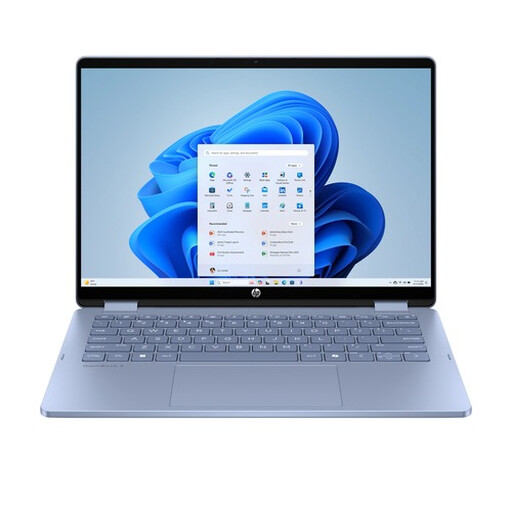
HP OmniBook 5 Flip 14-fp0251ndx
This 2-in-1 configuration is an option if you specifically want a laptop with a touchscreen; check that it works with your school software first.
14-inch touchscreen, Intel Core 5 120U, 8 GB RAM, 512 GB SSD and Windows 11 Home.
A USB-C charger and stylus are not included; a suitable USB-C Power Delivery charger is required.
View at Joybuy
 No image available
Apple MacBook Pro 14-inch M5 Pro
A 14-inch macOS laptop to consider if the school applications you need work on macOS.
M5 Pro, 24 GB and 1 TB; QWERTY keyboard.
Check that your school software and the peripherals you want to connect are compatible before you buy.
View at Joybuy
 No image available
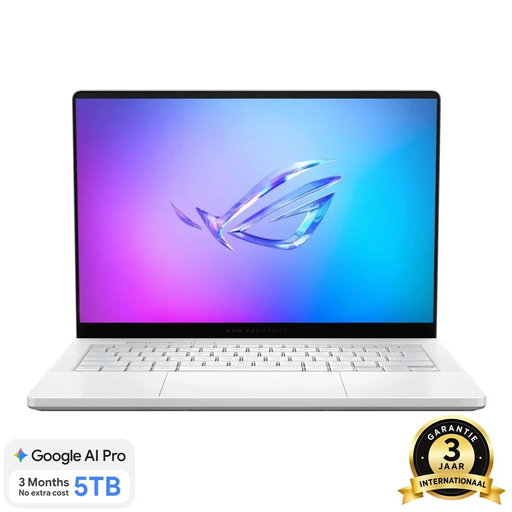
ASUS ROG Zephyrus G14 GA403UM-QS024W
A 14-inch laptop to compare if the exact configuration suits your school software and peripherals.
Ryzen 9 270, RTX 5060, 16 GB RAM, 1 TB SSD and QWERTY keyboard.
Check the ports on this configuration against the devices you use at your desk.
View at Joybuy
 No image available
ASUS Zenbook A14 UX3407QA-QD479W
This 14-inch configuration is designed for anyone who wants to take a compact laptop with them; check particularly carefully that older or specialist software will work.
Snapdragon X, 16 GB RAM, 512 GB SSD, WUXGA OLED and Dutch QWERTY keyboard.
A suitable 65 W USB-C Power Delivery charger and cable are required and are not included. Compatibility may vary for older software, specialist applications and certain drivers on Windows on Snapdragon.
View at Joybuy
Frequently asked questions
Is a small laptop without separate input devices suitable if I mark work for long periods?
Not as the only consideration for every workstation. Arboportaal states that, for employees who work at a screen for more than 2 hours a day, the screen and keyboard must not be attached to each other. Consider how you can position your screen, keyboard and mouse, and discuss the workstation set-up with your employer if necessary.
Can I mark pupils’ work on a personal laptop?
Ask your school first; there is no general yes or no that applies to every school situation. Kennisnet describes answers and test results as personal data, while the Autoriteit Persoonsgegevens says that schools must be able to show what measures they take to protect pupil data. Check which devices, storage and applications are approved.
Am I automatically entitled to just two years of statutory warranty on a laptop in the Netherlands?
No. According to the Rijksoverheid, there is no fixed statutory guarantee period in the Netherlands; what you can expect from a product depends on the circumstances and the product. If a product is faulty, the seller is your point of contact. This answer applies to a consumer purchase; check the terms separately if a school or business is buying.
Can I always return a laptop bought online within 14 days?
Not always. According to the Rijksoverheid, consumers buying at a distance are often entitled to a 14-day cooling-off period, but there are exceptions. Before ordering, check who the seller is and which terms apply to your purchase.


