Start by checking the finish and brightness of the exact screen configuration, and see whether you can angle the screen away from the window or block out some of the light. Choose a larger screen if you want to see your map and legend at the same time, or a more compact model if you often take your laptop with you. Also check that the required mapping software works with the operating system. A stated brightness in nits is not, by itself, a guarantee against distracting reflections.
Who is this choice relevant to?
Reading a map by a bright window
If you regularly read small street names and symbols while daylight falls on or around your screen, pay attention to reflections and how your workspace is set up. Arboportaal lists suitable blinds and positioning your workspace in relation to windows as ways to control the amount of light coming in.
Viewing the map and legend side by side
If you rarely move between workspaces and want to see the map, legend and notes at the same time, weigh up the screen space available against the space the laptop will take up.
Working with desktop mapping software
If you need to open or edit GIS projects rather than just view a map in your browser, first check the software requirements and supported operating system. QGIS documents desktop installations for Windows, macOS and Linux, among other systems.
What should you look for when buying?
First compare the screen finish and your workspace by the window, then decide how much room you need to view the map and legend. Check the software requirements before choosing an operating system.
| Concern |
What to look for when buying |
Who is this important to? |
| Readability in bright light |
Compare the brightness and finish of the exact screen configuration. Also check whether you can turn the screen away from the window or use blinds. |
If I’m reading small street names by a bright window, I want to minimise reflections rather than rely on a brightness figure alone. Around 36% of consumers prioritise readability in bright light. |
| Seeing the map and legend on screen |
Compare the screen size and resolution with the map view you usually use, and weigh the larger workspace against how easy the laptop is to carry. |
If I want to view the legend and map side by side, usable screen space matters more than having the most compact device possible. Around 29% of consumers prioritise the map and legend. |
| Required mapping software |
Check which programme and operating system your course or project requires. The QGIS installation guide lists Windows, macOS and Linux. |
If I need to open or edit a local GIS project, I’ll choose based on the required software first. Around 21% of consumers prioritise compatibility with mapping software. |
| Portability and power |
Compare the weight and size, and check which charging accessories are included. Consider any battery-life claims in light of the stated test conditions. |
If I’m carrying my laptop between study spaces, I want to balance portability with the screen space I need. Around 14% of consumers prioritise portability. |
Buying pitfalls
-
Comparing nits alone
A brightness figure on its own doesn’t tell you how much light the screen reflects. As a result, the screen may be harder or easier to read by your window than you’d expect from that figure alone.
Also check the finish of the exact screen option and see whether you can angle the screen away from direct light.
-
Choosing a Chromebook before checking the software requirements
Viewing a map in your browser is different from opening or editing a local GIS project. QGIS lists desktop installations for Windows, macOS and Linux, among other systems, but doesn’t offer a standard desktop installer for ChromeOS.
First find out which application and project files you’ll actually need to use. If you need desktop software for this, you may need a different device.
-
Assuming the screen option and power accessories are the same for every configuration
Configurations of the same model may differ in their screen specifications and the accessories included.
Before buying, check the full part number, the selected screen option and the contents of the box. Dell notes that configuration changes can affect the specifications.
A suitable charger that isn’t included could mean extra costs.
Brands to consider
Dell
The Dell Pro 14 Essential PV14255 is a compact Windows laptop. One screen option we looked at is described as suitable for use in bright conditions.
- For the selected option, Dell lists an anti-glare finish, a resolution of 1920 × 1200 and 400 nits.
- These details apply to that screen option. Check the configuration you select again when ordering; a brightness figure doesn’t guarantee a reflection-free image.
Acer
According to Acer, the Aspire 17 A17-51M-53T4 has a large screen for viewing a map and legend at a fixed workspace.
- Acer specifies a matte 17.3-inch IPS screen for this part number.
- A matte finish doesn’t guarantee that the screen will be easy to read by every window.
Lenovo
The ThinkPad T16 Gen 4 21QN001FMH is a larger Windows model with an anti-glare screen.
- Lenovo lists a 16-inch screen with a resolution of 1920 × 1200 and 400 nits for this part number.
- The specifications and service information apply to this part number and not automatically to other ThinkPad configurations.
Apple
The 13-inch MacBook Air M5 is a compact macOS option, provided the mapping software you need works with it.
- Apple lists a screen size of 13.6 inches, a resolution of 2560 × 1664 and a brightness of 500 nits.
- The specifications we consulted don’t confirm an anti-glare finish. Assess reflections and check which power accessories are included with the configuration you choose.
ASUS
The Chromebook CM14 Flip offers a ChromeOS option for map work using compatible browser or ChromeOS applications.
- The ASUS specification for the CM1402FM2A product family lists a 14-inch touchscreen.
- This family specification doesn’t confirm every feature of the Dutch CM1402FM2A-EC0215. Also check that the software you need works with ChromeOS.
Joybuy product picks
These Joybuy laptops are suited to studying maps and run Windows. Product information lists a range of screen sizes and finishes. Check the anti-reflection treatment, software compatibility and included accessories for each configuration.
 No image available
ASUS ROG Zephyrus G16 GU605CM-QR026W
The 16-inch screen could suit you if you want a larger workspace for viewing your map and legend. Check that the software you need is available for Windows.
Product information lists an OLED screen with an anti-glare, low-reflection finish, Windows 11, an Ultra9-285H processor, RTX 5060, 16 GB RAM and a 1 TB SSD.
The screen finish doesn’t replace the need to check for reflections in your own workspace.
View product at Joybuy
 No image available
HP OmniBook 3 14-hy0058ndx
This more compact screen size could suit you if you’re looking for a Windows laptop to take with you and want to view map details.
Product information lists a 14-inch IPS screen with an anti-glare finish, a resolution of 1920 × 1200 and 300 nits, plus Windows 11 Home, an AMD Ryzen 5 7520U, 8 GB RAM and a 512 GB SSD.
Compare the screen finish and brightness with your own window and workspace setup.
View product at Joybuy
 No image available
ASUS Vivobook S16 S3607QA-SH109W
The 16-inch screen could suit you if you want more room to view the map and legend. Check beforehand that the programme you need works with Windows.
Product information lists a 1920 × 1200 WUXGA OLED screen with an anti-glare finish, a Snapdragon X processor, 16 GB LPDDR5X, a 512 GB SSD and Windows 11 Home.
The stated screen finish doesn’t remove the need to assess reflections in your own workspace.
View product at Joybuy
 No image available
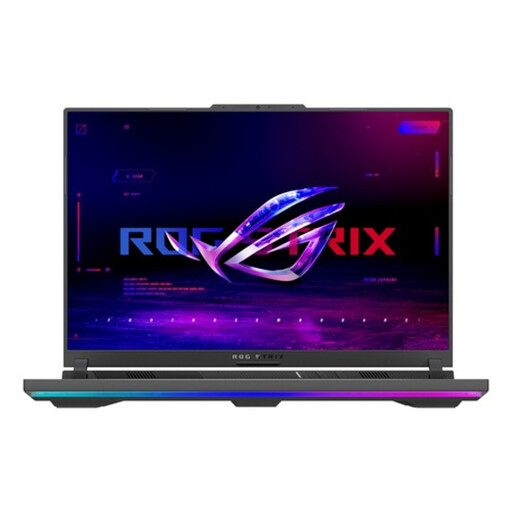
ASUS ROG Strix G16 G614PP-S5032W
This 16-inch model could suit you if you want more screen space to view the map and legend and need Windows software.
The product specifications list an anti-glare IPS-level screen with a resolution of 2560 × 1600 and 500 nits, plus Windows 11.
The brightness figure alone won’t tell you how much reflection you’ll notice by a bright window.
View product at Joybuy
 No image available
ASUS ProArt P16 H7607BA-SE030X
The 16-inch screen could suit you if you want to view the map and legend at the same time and need Windows 11 Pro. Assess reflections separately.
Product information lists a 4K OLED touchscreen with a resolution of 3840 × 2400, 64 GB RAM, a 1 TB SSD and a QWERTY keyboard.
View product at Joybuy
Frequently asked questions
Is a 500-nit screen automatically easier to read by my window than a 400-nit screen?
No. The brightness figure alone doesn’t tell you how much light the screen reflects. Also compare the screen finish, and try positioning the laptop in relation to the window or using blinds.
Do I need to choose Windows for a neighbourhood map?
Not if you’re only viewing the map in a browser. If you need to install QGIS, the official installation guide lists Windows, macOS and Linux. For any other required software, check its platform requirements separately.
How can I reduce distracting light while working at a screen?
Turn your workspace or use suitable blinds, and adjust the screen position to suit the light. Arboportaal’s guidance on setting up screen workstations concerns employers’ obligations under the stated conditions; it doesn’t automatically mean there’s a legal requirement for every student buying a laptop for home use.
What warranty and cooling-off period apply to an online purchase in the Netherlands?
When you buy as a consumer, the seller must provide a product that is fit for purpose. According to the Dutch government, there’s no fixed statutory warranty period in the Netherlands. For an eligible distance purchase, you’ll generally have 14 days to change your mind. A manufacturer’s or service warranty is separate from these statutory rights.
Does every laptop come with a charger?
This varies by configuration and offer. Check the contents of the box and the charging power required by the exact model before ordering.


