
Creative working with limited desk space
You lay out pages on a small work surface and want to work out how much screen space and laptop footprint you can accommodate.


Start with the space available on your desk and the layout software you use. A 13-inch laptop takes up less desk space, while a 14-inch model gives you more screen space built in. Apple Netherlands lists a 13.6-inch display for the MacBook Air M5; the ASUS and Lenovo configurations we looked at have 14-inch displays. For print, colour management and coordinating with your printer matter more than a stated colour gamut alone.
You lay out pages on a small work surface and want to work out how much screen space and laptop footprint you can accommodate.
You supply magazine pages for print and need to consider colour profiles, colour separations and, if necessary, a physical proof as well as your screen.
You regularly take your laptop with you and weigh up its size and weight against the workspace and connections you need.
A good fit if: you share your desk with other things or move your laptop around often.
The trade-off: with a smaller built-in screen, you may need to zoom in more often or rearrange panels when working on spreads.
A good fit if: you want a little more screen space on the same desk and are looking for a Windows laptop.
The trade-off: check the exact display, memory configuration and any reflections from a glossy screen for each version.
A good fit if: your desk has room for a separate monitor and you often work with spreads and tool panels.
The trade-off: the monitor and any adapters take up extra space. Check that the exact model supports an external display.
| Consideration | What should you check? | Who should pay particular attention? |
|---|---|---|
| Screen space on a small desk | Measure the available space and compare screen size, resolution and laptop dimensions. Also check support for an external display. | If I want to see a spread and tool panels at the same time without my laptop taking over the whole work surface, I look at usable screen space. Around 33% of consumers say screen space is their main concern. |
| Colour for a printed magazine | Check the display version and match colour profiles and output settings to the print workflow. If needed, ask for a physical proof. | When I supply pages for print, I want to be able to match colour settings and check the output rather than relying on the laptop screen alone. Around 27% of consumers prioritise colour checking for print. |
| Memory and software | Compare the requirements of your own software version with the operating system, processor architecture and memory. For InDesign 21.3 and later, Adobe specifies a minimum of 8 GB RAM for Windows and recommends 16 GB. | If I use my layout software alongside other creative applications, I want the configuration I choose to suit my software and way of working. Around 20% of consumers focus mainly on software and memory. |
| Portability and connections | Compare the weight, ports and keyboard layout, and check what’s included in the box. Find out whether you’ll need an adapter or external display. | If I take my laptop with me and want to connect my peripherals too, how complete and practical my own setup is matters to me. Around 20% of consumers prioritise portability, connections and the accessories they need. |
A screen specification doesn’t automatically tell you how colours will look on paper. Adobe describes colour management as part of the print workflow and points out that an on-screen preview doesn’t show every detail of colour separations and ink coverage.
Match profiles and output settings to the print workflow, and discuss a physical proof with your printer.
On a small desk, the laptop’s dimensions, screen resolution, available connections and room for controls all matter too.
Measure your workspace and compare the exact configurations, including the space your external display setup will take up, if you plan to use one.
Box contents and available ports can vary by configuration, so you may need an extra accessory for your setup.
Check the product information for the full model number and compare your peripherals with the listed connections.
The Zenbook 14 OLED UX3405 is a 14-inch Windows option. For one configuration we looked at, ASUS eShop Netherlands lists 32 GB of memory, a WUXGA OLED display and a weight of 1,22 kg.
The Yoga Slim 7i Gen 11 Aura Edition is a 14-inch Windows option. The configuration we looked at has 16 GB of on-chip memory, a 512 GB SSD and a WUXGA OLED display.
The HP OmniBook 5 family includes 14-inch configurations, among others, for those looking to compare Windows laptops.
This selection includes compact laptops for layout work on a small desk, from 13-inch models to 14-inch alternatives.
 No image available
The 13-inch version suits a setup where a smaller laptop footprint is a priority. The title lists 16 GB of memory and 512 GB of storage.
Check that the ports and any accessories are suitable for the peripherals you use.
 No image available
This 14-inch option suits anyone looking for more built-in screen space than a 13-inch laptop offers. The title lists 24 GB of memory and 1 TB of storage.
At your regular layout workspace, check that the configuration supports the external displays and peripherals you want to use.
 No image available
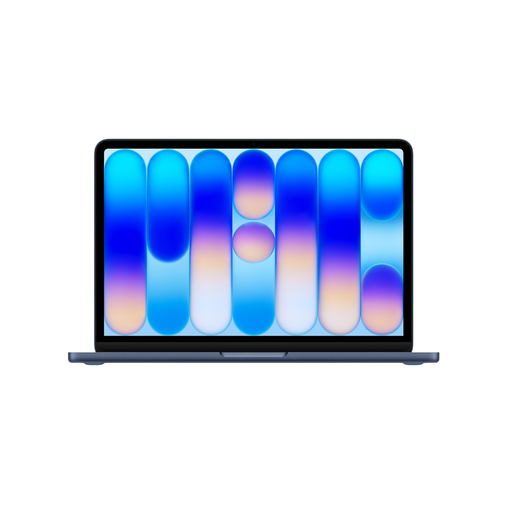
The 13-inch size suits a compact workspace. The title lists 8 GB of memory and 256 GB of storage; check that configuration against the requirements of your own layout software.
A mains adapter isn’t included; the product information states that a USB-C adapter of at least 20 W is required.
 No image available
This 14-inch laptop suits anyone looking for more built-in screen space and needing a Dutch QWERTY keyboard. The title lists 16 GB RAM and a 512 GB SSD.
The mains adapter isn’t included; the product information states that a compatible 65W USB-C Power Delivery charger is required. Also check that the glossy screen version suits your workspace.
 No image available
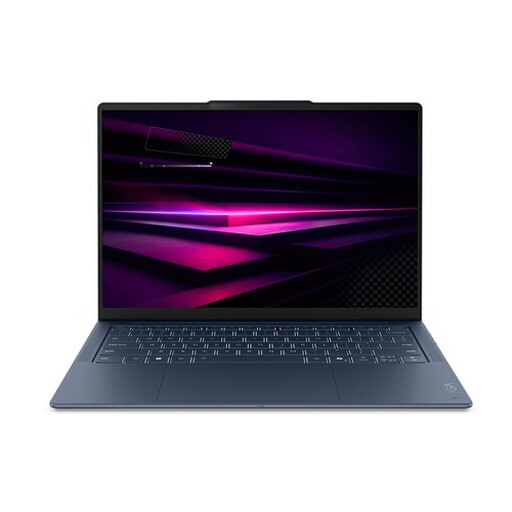
The 14-inch version is an alternative for anyone looking for more built-in screen space on a compact desk. Check that the exact configuration and keyboard suit the way you work.
For print, arrange colour management and the final checks with your printer separately.
16 GB isn’t a general requirement for every layout program. For InDesign 21.3 and later on Windows, Adobe specifies a minimum of 8 GB RAM and recommends 16 GB. Check the requirements for your own programme and version before choosing a configuration.
Match colour profiles and output settings to the print workflow you’ve chosen. Adobe describes a separations preview, but notes that an on-screen preview can’t show everything. If necessary, confirm important details with a physical proof from your printer.
Check what’s included with the exact configuration and whether you’ll need an adapter for your peripherals. For example, the Joybuy product information for the MacBook Air version we looked at didn’t list a charger; that doesn’t automatically apply to other models.
For an online consumer purchase, you generally have up to 14 days after delivery to change your mind, subject to legal exceptions. This is separate from your statutory guarantee: if a product used normally doesn’t meet what you could reasonably expect, the seller is responsible. Check the applicable terms if you’re buying for business use.