Who is this guide for?

Designer working at a hot desk

You spend long periods working on pages and move between desks. Check whether you can easily connect to the shared monitor and peripherals. Arboportaal describes additional requirements for employees who work at a screen for more than 2 hours a day, including being able to use a separate screen or keyboard.

Print image editor

You assess images alongside page layouts and want to distinguish how they look on screen from checking the final print file. Adobe describes preflight and PDF settings, among other things, as part of that check.

Designer without a regular monitor

You don’t always have an external monitor available, so you’re weighing up built-in workspace against the space taken up by a larger laptop. Apple lists a built-in 15.3-inch display for the MacBook Air 15-inch M5.

What should you look for?

Compact model with a shared external monitor

A good fit if: you can usually use a suitable monitor and input devices at your hot desk, and you often take your laptop with you.

The trade-off: without an external monitor, you have less built-in screen space; also check whether you’ll need an adapter or dock. Apple lists two Thunderbolt 4 ports and no built-in HDMI connection for the MacBook Air 15-inch M5.

Larger Windows creative laptop

A good fit if: you often work on pages and layout panels without an external monitor, and use a Windows workflow.

The trade-off: a larger built-in screen takes up more space on a shared desk. Check the screen option, memory and connections for each configuration; specifications can vary within a product range.

Mobile workstation

A good fit if: magazine layout is part of demonstrably demanding professional work and you need a workstation configuration.

The trade-off: page layout alone doesn’t automatically make a workstation necessary. Assess any extra requirements based on your software and the exact model.

What to consider What should you check? Who is this important for?
Workspace for pages and panels Check the screen size and resolution of the exact configuration, and see whether there’s a suitable external monitor at your hot desk. If I want to view spreads and layout panels at the same time, I put available screen space first; around 25% of consumers give workspace their top priority.
Colour assessment and print file Discuss the colour workflow with the printer, check the screen option, and use preflight and the agreed PDF settings. If image assessment and print preparation are central to my work, I want to know what the screen can and can’t show; around 20% of consumers put colour checking first.
Memory and storage Check your software requirements and the exact RAM and SSD configuration. For InDesign 21.3 and later on supported Windows systems, Adobe lists 8 GB RAM as the minimum and 16 GB as the recommendation. The Consumentenbond recommends 512 GB or more for working with lots of large photo or video files. If I use layout software and files at the same time, I want to match memory and storage to my work; around 20% of consumers prioritise that configuration.
Connecting at a hot desk Check the laptop’s connections and those of the monitor, dock, power supply and keyboard at your workspace. For employees who work at a screen for more than 2 hours a day, Arboportaal describes the option of using a separate screen or keyboard with a laptop. If I work at a different desk each time, I want to connect the monitor and input devices without unnecessary setup; around 20% of consumers put connections at the top of their list.
Moving between workspaces Compare the weight and size of the exact configuration, and consider where power is available. Don’t treat a quoted battery life as a measure of how long your layout work will run. If I move my laptop often, I weigh portability against built-in screen space; around 15% of consumers make portability their top priority.

Common mistakes

  • Assuming a wide colour gamut means your print proof is approved

    A screen specification and checking a print file answer different questions. The screen alone can’t tell you whether the agreed output settings and files are correct.

    Check the printer’s requirements and run preflight before handing over your files. Adobe explains that preflight can flag missing fonts, modified links, overset text and low-resolution images, among other things.

  • Looking only at the laptop and forgetting about the shared desk

    A monitor is only useful if the connections are compatible. For employees who work at a screen for more than 2 hours a day, Arboportaal describes requirements around being able to use a separate screen or keyboard with a laptop.

    Before buying, check the connections on the exact laptop and find out which monitor, cables, dock and input devices are available at your workspace.

  • Treating minimum memory or a workstation label as a universal benchmark

    Software requirements vary, and memory configurations aren’t the same for every model. A workstation label alone doesn’t prove that you need that configuration for page layout.

    Start with your own software and files. For InDesign 21.3 and later on supported Windows systems, Adobe lists 8 GB RAM as the minimum and 16 GB as the recommendation; also check the configuration of the exact model.

Brands to compare

Apple

The MacBook Air 15-inch M5 is a macOS option with a built-in 15.3-inch screen. According to Apple, it’s worth considering if you regularly move between workspaces.

  • Apple lists 16 GB memory as standard, a 512 GB SSD and two Thunderbolt 4 ports.
  • Check whether the monitor at your shared workspace needs an adapter or dock. Apple’s claimed battery life isn’t an independent measure of layout work.

Lenovo

The Yoga Pro 9 is a Windows creative range to consider if you’re weighing up the built-in screen and connections.

  • Lenovo lists HDMI, USB-C and Thunderbolt 4 among the connections on the Yoga Pro 9 16IMH9.
  • Memory and graphics configurations vary. Check the generation and configuration; the specifications for the 16IMH9 don’t automatically apply to other Yoga Pro 9i models.

ASUS

ASUS positions the ProArt P16 (H7606) for creative work; the range may be worth considering if you’re looking for a larger built-in screen.

  • ASUS describes configurations with a 16-inch OLED screen and discrete graphics.
  • These features don’t necessarily apply to every P16 configuration. Discrete graphics aren’t needed just because you work on magazine layouts.

HP

HP lists graphic design as one of the uses for its mobile workstations.

  • A ZBook may be relevant if page layout is part of demonstrably demanding professional work.
  • The configuration determines what it can do; its workstation positioning doesn’t prove an advantage for page layout alone.

Dell

The Precision 5680 is a 16-inch workstation option for those looking for Windows and configurable professional hardware.

  • Dell lists an optional 4K OLED touchscreen and several graphics options for this model.
  • Check the screen and graphics card in the configuration on offer; this model information doesn’t apply to all Precision laptops.

Joybuy laptops for this workspace

These laptops may suit magazine layout work at a shared desk; compare the exact screen option and configuration with your software and the connections available at your workspace.
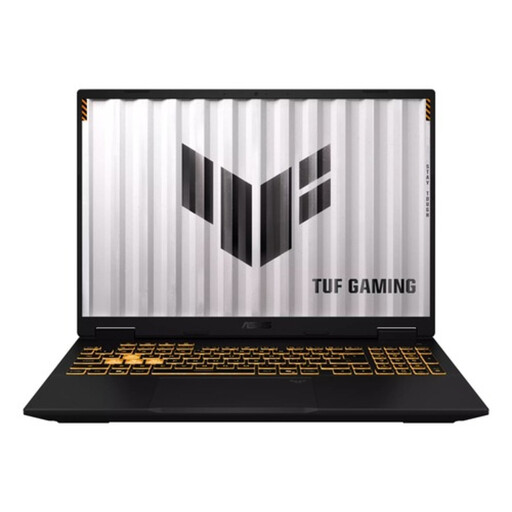
ASUS TUF Gaming 16 FX610JM-TU005W laptop

ASUS TUF Gaming 16 FX610JM-TU005W — Core i7-14650HX, RTX 5060, 16 GB RAM, 1 TB SSD, QWERTY

A 16-inch model may suit you if you want to view pages and panels on the built-in screen; check the screen option if colour assessment is important.

The product name lists a Core i7-14650HX, RTX 5060, 16 GB RAM, 1 TB SSD and a QWERTY keyboard.

View on Joybuy
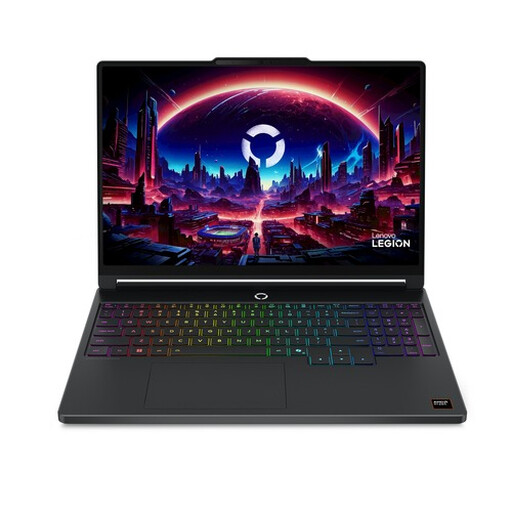
Lenovo Legion 5 15AHP11 laptop

Lenovo Legion 5 15AHP11 — 15.3-inch WQXGA OLED, Ryzen 7 250, 16 GB DDR5, 512 GB SSD, RTX 5060

The listed 15.3-inch screen size may be useful if you often work without an external monitor; check the exact screen option for your colour workflow.

The product name lists WQXGA OLED, 165 Hz, AMD Ryzen 7 250, 16 GB DDR5, 512 GB SSD, GeForce RTX 5060 and Windows 11 Home.

View on Joybuy
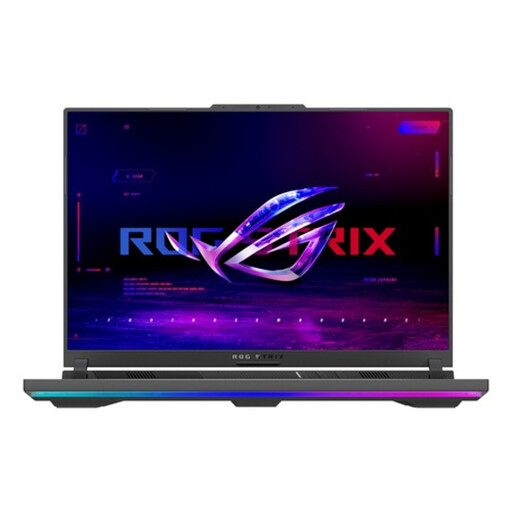
ASUS ROG Strix G16 G614PP-S5032W laptop

ASUS ROG Strix G16 G614PP-S5032W

Check that the exact configuration works with the monitor and peripherals at your shared workspace and meets your layout software requirements.

View on Joybuy

MSI Stealth 16 AI+ B3WF-011NL Copilot+ PC

MSI Stealth 16 AI+ B3WF-011NL Copilot+ PC — QHD+ OLED, Core Ultra 9 386H, 32 GB DDR5, 1 TB SSD

The product name lists a 16-inch QHD+ OLED screen; compare this configuration with your need for built-in workspace and the monitor at your hot desk.

The product name also lists 240 Hz, Intel Core Ultra 9 386H, GeForce RTX 5060, 32 GB DDR5, 1 TB SSD and Windows 11 Home.

View on Joybuy

ASUS Zenbook A16 laptop with WUXGA screen

ASUS Zenbook A16 — 16-inch WUXGA, 16 GB, 512 GB SSD, W11H

The listed 16-inch screen size may suit working on pages without a regular external monitor; check whether the screen option is right for your colour workflow.

The product name lists WUXGA, 16 GB memory, a 512 GB SSD and W11H.

View on Joybuy

Frequently asked questions

Does a laptop for magazine layout need a dedicated graphics card?

Not just because you’re laying out pages. Check your software requirements and any additional tasks; for optimal GPU performance in InDesign on Windows, Adobe lists specific conditions, not a general requirement for every user.

How do you hand over an InDesign project to a colleague or printer?

Use preflight to check for missing fonts and modified links, among other things. Adobe also describes the Package feature, which brings together the InDesign file, linked images, fonts and a report. Agree the final PDF settings with the recipient.

Is a separate keyboard or screen required at a shared workspace?

For employees who work at a screen for more than 2 hours a day, Arboportaal says that the screen and keyboard must not be attached to each other; when using a laptop, it must be possible to use a separate screen or keyboard. This is a conditional workplace requirement, not a general laptop specification for every buyer.

In the Netherlands, do you lose all your rights after two years if your laptop breaks?

No. The Dutch government says there is no fixed statutory guarantee period in the Netherlands; what you can expect from a product depends on the circumstances. If a consumer product is faulty, the retailer is your point of contact. A manufacturer’s guarantee or extended warranty is separate; check the applicable terms if you’re buying for business use.

Can you always return a laptop bought online within 14 days?

For a standard online purchase made by a consumer from a business, you generally have a 14-day cooling-off period. The Dutch government lists exceptions and distinguishes these purchases from those made from private sellers, so check the type of purchase and the applicable terms.
