Choose a laptop that lets you use text enlargement and your portal comfortably alongside other work windows. A larger screen does not automatically make the portal page itself accessible. If you work with lots of local photos and scans, memory and storage matter more than they would for mainly text-based work, while a smaller model may be more convenient for research on the go. Check the exact configuration, ports and service terms before you choose.
Who is this laptop guide for?
Portal developer who prefers larger text
If you build or manage a portal for long periods, you’ll want to read enlarged text without making your editing and preview windows impractical to use. Microsoft Support explains text size and screen magnification in Windows; the W3C also covers how web content should behave when enlarged.
Image archive manager
If you work with lots of historical photos or scans, you’ll need to weigh up local storage, memory and ports. The Consumers’ Association recommends 512 GB or more as a guide if you frequently work with large photo or video files; the right capacity depends on what you store locally.
Researcher working on location
If you take your laptop to archives or interviews, you’ll need to balance portability against the screen space left over after enlarging text. Apple Support explains how to enlarge text on a Mac and notes in its settings that behaviour can vary between apps.
What should you look for when choosing?
Start with the screen space you need at your usual magnification. Then consider whether you mainly edit files locally or often take your laptop with you.
| What to consider |
What should you check? |
Who is this important for? |
| Readability and workspace |
Try your own page and editing system on the exact screen configuration, using the magnification you need. |
If I’m building the portal for long periods, I want to use enlarged text and my editing window at the same time. Around 36% of consumers are most concerned about readability and workspace when enlarging text. |
| Photos, scans and applications |
Estimate how many large files you’ll keep locally, and check the memory, SSD capacity and upgrade options for the configuration. |
When working with lots of historical images, I want to process files locally without losing sight of my other applications. Around 29% of consumers prioritise image files and multitasking. |
| Portability |
Compare the size and weight with how much content remains visible after enlargement; decide whether you’ll need an external monitor on location. |
When I often take my laptop to an archive, ease of transport matters to me alongside readability. For around 21% of consumers, working on location comes first. |
| Ports and service |
Compare the ports with your scanner, storage devices and any monitor; check exactly what service is included. |
If I need to connect my existing equipment to the laptop, I want to know which ports and service terms apply to the configuration I choose. Around 14% of consumers put ports and service first. |
Common buying mistakes
-
Assuming a larger screen makes a portal accessible
Your laptop may enlarge text, while the portal page itself could lose content or functionality when enlarged.
Test your own pages at the magnification you use and check that the text, features and layout remain usable.
-
Confusing range specifications with those of a specific configuration
Screen type, memory, ports and service can vary between models.
Compare the full model or product code with the specifications of the configuration you’re considering.
-
Buying extra cover without comparing what it includes
A manufacturer’s warranty or service package is not the same as your statutory right to a product that conforms to the contract. The Government of the Netherlands states that there is no fixed statutory warranty period in the Netherlands.
Check what an additional package actually includes and who is responsible if the product does not conform to the contract.
-
Not checking whether a power supply is included
One Dell Pro 16 configuration we reviewed is listed as not including a charger; this does not necessarily apply to other configurations.
Check what’s in the box and the power requirements of the exact configuration before you order.
Brands to compare
Lenovo
The IdeaPad Slim 5 16IMH10 is a Windows option to compare for documents and image files.
- Lenovo PSREF lists a matte 16-inch 1920 × 1200 IPS screen, 16 GB memory, 512 GB SSD and a microSD reader for variant 83V70079LK.
- These specifications apply to the variant named; check the full model code of the configuration you’re looking at.
HP
The ProBook 4 G1i is a Windows option to compare if you’re looking for a spacious workspace and stated business support.
- For model A23QQEA#ABH, HP lists a 16-inch 1920 × 1200 touchscreen, 16 GB RAM, 512 GB SSD and three years of on-site support.
- The screen and service details apply to this configuration and shouldn’t be assumed to apply to other ProBooks without checking.
ASUS
The Vivobook 16 OLED range is worth comparing if you’re looking for a large screen and a choice of ports.
- ASUS describes the range as having a 16-inch 1920 × 1200 OLED screen and ports such as USB-A, USB-C and HDMI.
- The range’s maximum memory and storage figures are not necessarily the specifications of every retailer’s configuration.
Apple
The MacBook Air is a macOS option if you want to use your editing apps on a Mac.
- Apple Support explains how to enlarge text and symbols on a Mac.
- Settings can vary between apps. Also check whether the workspace and ports on your chosen 13- or 15-inch configuration will suit you.
Dell
The Dell Pro 16 PC16250 is an option to compare if you’re looking for a large Windows screen and business configurations.
- Dell lists a 16-inch 1920 × 1200 IPS screen, 16 GB RAM and 512 GB SSD for one configuration.
- The configuration we reviewed is listed as not including a charger; check what’s in the box for the model you choose.
Joybuy laptops for a spacious workspace
This Joybuy selection focuses on laptops with a spacious built-in screen for enlarged text, editing and working with image files.
 No image available
ASUS Vivobook S16 S3607QA-SH109W, 16-inch WUXGA OLED
Worth a look if you want a spacious screen for enlarged text and multiple work windows.
16-inch WUXGA OLED screen, Snapdragon X processor, 16 GB LPDDR5X memory and 512 GB SSD.
Joybuy
 No image available
MSI Stealth 16 AI+ B3WF-011NL, 16-inch QHD+ OLED
A spacious Windows laptop to compare if you work with local image files and multiple applications.
16-inch QHD+ OLED screen with 240 Hz, Intel Core Ultra 9 386H, 16 GB DDR5 memory and 1 TB SSD.
Joybuy
 No image available
HP OmniBook Ultra Next Gen AI 16-bk0004nd, 3K OLED touchscreen
Consider this configuration if you’re looking for a large touchscreen and plenty of storage for working with local image collections.
16-inch 3K OLED touchscreen, 128 GB RAM and 2 TB SSD; Windows 11 Pro.
Joybuy
 No image available
MSI Venture 16 AI A2HMG-068NL, 16-inch
Worth considering if you want to use enlarged text and multiple work windows on a spacious screen.
16-inch 1920 × 1200 screen, Intel Core Ultra 7 255H, 32 GB DDR5 memory and 512 GB SSD. A power adapter is not listed for this configuration.
Joybuy
 No image available
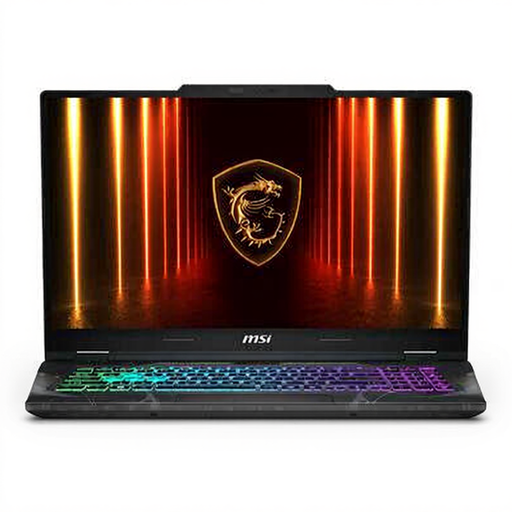
MSI Cyborg 17 B2RWEKG-023NL, 17.3-inch Full HD
The larger screen could be a good fit if you mainly work at a fixed desk and don’t take your laptop out very often.
17.3-inch Full HD IPS screen, 16 GB DDR5 memory and 512 GB SSD. The listed weight is 2.4 kg, and the power adapter must be purchased separately.
Joybuy
Frequently asked questions
Does a laptop with screen magnification automatically make my portal accessible?
No. System magnification and how a web page adapts are two different things. The W3C describes text enlargement up to 200% without loss of content or functionality; you should also test that your own pages remain usable when enlarged.
How do you make text larger while working?
In Windows, you can use text size, display scaling or Magnifier. On a Mac, you can enlarge text and symbols, but Apple Support notes that settings can vary between apps. Test your browser and editing system separately too.
Do you always need a large internal SSD for historical scans?
No, it depends on how many large files you store and edit locally. The Consumers’ Association recommends 512 GB or more as a guide if you frequently work with large photo or video files; external or online storage can change how much internal space you need.
What do warranty and the cooling-off period mean when buying online in the Netherlands?
When you buy as a consumer, you have statutory rights to a product that conforms to the contract, in addition to any manufacturer’s warranty. The Government of the Netherlands states that there is no fixed statutory warranty period in the Netherlands. Many distance purchases come with a 14-day cooling-off period. Check the terms and any exceptions that apply to your specific purchase.
Does a local history portal have to meet accessibility requirements by law?
That depends on who provides the portal and what service it offers. DigiToegankelijk explains the obligations for government bodies covered by the Government Digital Accessibility Decree. The Government of the Netherlands also lists accessibility rules for certain private products and services, which came into force on 28 June 2025. First check whether, and which, rules apply to the portal.
Can I upload archive photos and personal data to the portal without checking first?
First check the rights to the photos and the rules on personal data. The Government of the Netherlands states that using copyright-protected photos generally requires the creator’s permission. The Dutch Data Protection Authority says organisations may only process personal data if they have a valid legal basis; what’s required depends on the material and how it will be published.


