
Volunteer coordinator
Shares event plans, registration details and presentations with others. The files and programmes you use are a sensible place to start.


Start by considering the programmes and files your team uses: Windows, ChromeOS and macOS won’t necessarily fit the same way of working. Next, check that the laptop can connect to the library’s display and that essential files are available without Wi-Fi. Microsoft explains how to access Microsoft 365 on a Chromebook via the web, while Google notes that some apps don’t work offline. If your organisation handles attendee data, include access controls and security in your preparations too.
Shares event plans, registration details and presentations with others. The files and programmes you use are a sensible place to start.
Wants to show materials on a screen and needs to know in advance which connection the library uses.
Works in different locations and considers size, power options and access to files when a reliable connection isn’t available.
Start with your team’s software and files. Then compare how the laptop connects to the display, how it handles limited Wi-Fi or power, and how any attendee data will be protected.
A good fit if: your team uses Windows programmes or wants to work with a range of office files and peripherals.
Worth noting: check the memory and connections on the specific configuration; the memory in the Lenovo configuration mentioned is soldered on.
A good fit if: your team mainly works in a browser with shared files, or the web versions of Microsoft 365 are all you need.
Worth noting: test forms and files in advance; Google notes that some apps don’t work offline.
A good fit if: your team’s way of working is compatible with macOS and you’d like a compact laptop.
Worth noting: Apple says the 13-inch MacBook Air with M5 has two Thunderbolt 4 ports and no built-in HDMI port; check whether you’ll need an adapter.
The percentages below show, for each row, the proportion of consumers in this situation who rank that need as their top priority.
| Consideration | What to look for | Who is this important for? |
|---|---|---|
| Software and files | Make a note of the programmes, file formats and shared accounts you use, then test them on your chosen operating system. The Consumentenbond says 8 GB of RAM is enough for light tasks and recommends 16 GB where possible. | I want to share and open event plans and registration details without hassle. Around 29% of consumers put collaboration and software first. |
| Connecting to a presentation display | Ask which input the screen or projector has and check the video output on the exact laptop configuration. Test the cable and any adapter in advance. | When I’m presenting on site, I want to know in advance whether the laptop will connect to the library’s display. Around 24% of consumers prioritise presentation connections. |
| Portability and working offline | Compare screen size, weight and charging options with your journey to the venue. Test whether essential files open offline. | I move the laptop between locations and want to keep working even when power or Wi-Fi is limited. This is a top priority for around 18% of consumers. |
| Attendee data | Decide whether you’ll be processing personal data and how access, storage and security will be managed. Keep track of available device and programme updates. | When I use an attendee list, I want to know who can access it and how it’s protected. Around 18% of consumers make data protection their top priority. |
| Essential extras | Make a list in advance of the connections, charger and peripherals you need, and check which are included with the exact configuration. | I want to see the full set-up in advance so I don’t overlook anything essential. Around 11% of consumers start by considering the extras they need. |
The laptop’s connection needs to match the screen or projector at the library. Apple says the 13-inch MacBook Air with M5 has no built-in HDMI port.
Ask which connection is available at the venue and test the laptop, cable and any adapter together before the event.
Depending on the set-up, you may need a suitable video adapter or hub.
Google notes that some apps don’t work offline. You may need to make files available offline in advance.
Test essential files and your entire workflow without an internet connection before the day of the event.
The ASUS Vivobook 14 X1404 range includes configurations with different processors. The memory in the Lenovo IdeaPad Slim 3 configuration mentioned is soldered on.
Check the full model code, memory, ports and box contents of the exact configuration you’re considering.
The IdeaPad Slim 3 82XN008RMH is a specific Windows example in a 14-inch size, suited to office work.
The Chromebook Plus 514 CB514-4HT, product code NX.KV1EH.002, is a ChromeOS example for browser-based work.
The 13-inch MacBook Air with M5 is a macOS option if it suits the way your team works.
The Vivobook 14 X1404 range offers another Windows option in a compact size.
The Inspiron 14 2-in-1 7440 is a Windows option if you’re also considering a convertible device.
These laptops are suited to working with event files and, depending on the configuration, connecting to an external presentation display. Check that the software, ports and included accessories for each model are right for the library’s set-up.
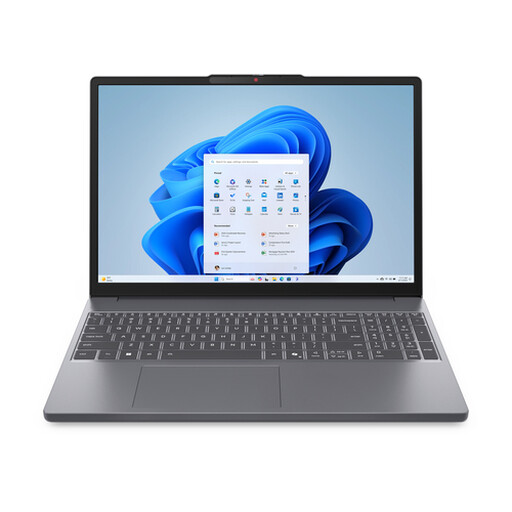 No image available
A Windows option for managing shared event files and presenting on an external display.
Ryzen 7 8840HS, 16 GB of memory, 512 GB SSD and Windows 11 Home. The description lists HDMI, USB-C with DisplayPort, USB-A and an SD card reader. The power adapter must be purchased separately.
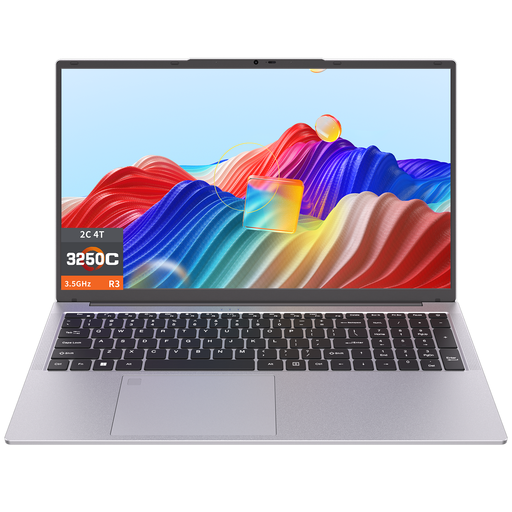 No image available
The listed connections could be useful with peripherals or an external display; check the library’s set-up in advance.
3250C processor, 8 GB DDR4 memory and 512 GB SSD. The description lists USB-C, USB-A, an HDTV port and Wi-Fi 6.
 No image available
A Windows configuration for shared event files and connecting peripherals or a presentation display.
Ryzen 7 8840HS, 16 GB of memory, 1 TB PCIe SSD and Windows 11 Home. The description lists HDMI, USB-C with DisplayPort and an SD card reader.
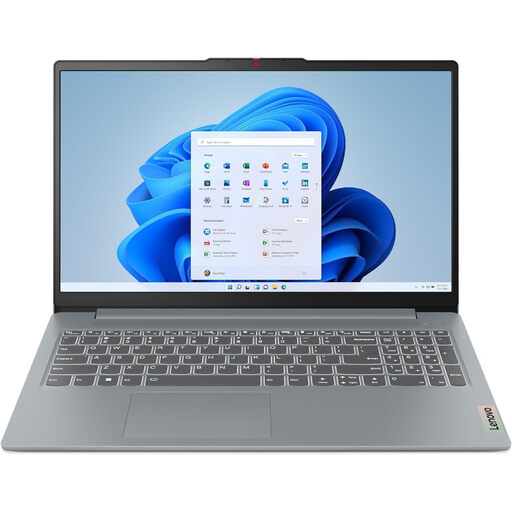 No image available
A Windows laptop with connections that may suit a presentation set-up; check the cable and power requirements in advance.
Ryzen 7 8840HS, 16 GB DDR5 memory, 512 GB PCIe 4.0 SSD and Windows 11 Home. The description lists HDMI, USB-C with DisplayPort, USB-A and an SD card reader. A USB-C power adapter must be purchased separately.
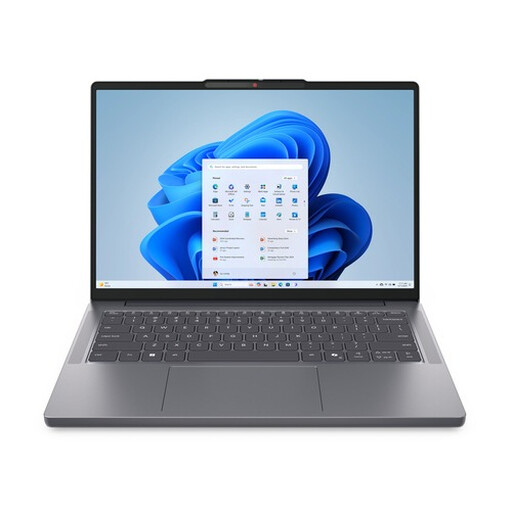 No image available
A 14-inch Windows laptop for event plans, office files and connecting an external display.
16 GB of memory, 512 GB SSD and Windows 11 Home. The description lists HDMI, USB-C with Power Delivery and an SD card reader.
Yes, if the web apps and files work for the way your team operates. Microsoft explains how to access Microsoft 365 apps on a Chromebook via the web. Google says some Drive files can be used offline once you’ve made them available, but some apps don’t work offline. Test your event plan and any forms in advance.
Ask which input the screen or projector has, then test the laptop, cable and any adapter together. Apple says the 13-inch MacBook Air with M5 has Thunderbolt 4 ports but no built-in HDMI port. Don’t assume the connection will be right based on the brand name alone.
Make sure essential files are accessible at the venue, check your charging options and install any available updates. The Consumentenbond says updates often fix security vulnerabilities.
No. According to the Dutch government, the Netherlands has no fixed statutory warranty period. If a product is faulty, your rights depend on what you could reasonably expect and the circumstances. This applies to consumer purchases; business agreements need to be considered separately.
Agree with the organisation responsible who will have access to the list, where it will be stored and how the data will be protected. The Dutch Data Protection Authority says organisations must protect personal data properly; choosing a particular laptop brand does not in itself mean this has been taken care of.