Who is this choice for?

Teacher using school software

You create lesson worksheets using a school account, a required programme or a set printing process. Lenovo Netherlands describes lesson planning and managing digital learning environments as common ways teachers use a laptop. Check that your specific software works on the system you choose.

Teacher at a hot-desk

You regularly connect a monitor, keyboard or other equipment provided, and want to move easily between workspaces. Make a note beforehand of the connections used by the shared desk and your equipment.

Teacher moving between classrooms

You prepare materials in different places, so you’ll need to weigh up a laptop that’s easy to carry against having enough screen space to view documents. Lenovo Netherlands describes lesson planning as a common laptop task for teachers.

What should you look for?

What to consider What should you check? Who is this important for?
Software and printing Check your school account, the document features you need and the printing process. Microsoft Support says that you can’t install the Windows and Mac desktop versions of Microsoft 365 on a Chromebook. If my school requires specific programmes or a particular printing process, I want to make sure I can edit and print lesson worksheets before I buy. Around 29% of consumers put software and printing first.
Connections at the desk Make a note of the connections for the monitor, printer and any dock, then compare them with the specifications of the exact laptop configuration. If I want to keep using a monitor or other equipment that’s already there, it needs to connect to my laptop. Around 23% of consumers give desk connections top priority.
Portability and screen space Compare the screen size and keyboard of the exact model, and check whether an external screen is available at the desk. If I move between classrooms, I need to balance ease of carrying with having enough room to view documents. Around 18% of consumers put portability first.
Workspace and data Check which separate input devices and screens are available. For pupil data, follow your school’s procedures; the Dutch Data Protection Authority outlines its responsibility for technical and organisational safeguards. If I work at a shared desk for long periods or handle pupil data, I want to know what facilities and school rules apply. Around 18% of consumers prioritise their workspace or data protection.
Total cost Compare the exact model and any connection accessories you may need, and check what any service terms include. When choosing a laptop for my workspace, I want to factor in any necessary connection accessories and extra services. Around 12% of consumers say total cost is their main consideration.

Common buying mistakes

  • Choosing a Chromebook without checking the Word features you need

    Microsoft Support says that you can access Word on a Chromebook via the web, but you can’t install the Windows and Mac desktop versions of Microsoft 365 on it.

    Before buying, open a typical school document using the web-based workflow you plan to use, and check that you can edit and print it.

  • Looking only at the laptop’s ports

    Your monitor and other equipment need to connect to the ports on the exact laptop model. Otherwise, you may need a suitable adapter or dock.

    Make a note of the connectors at the shared desk and compare them with the specifications of the model you’re considering.

  • Relying on the laptop screen alone for long periods of work

    Arboportaal sets out workplace requirements for employees who work at a screen for more than two hours a day. When using a laptop, you must be able to use a separate monitor or keyboard.

    Check which separate and adjustable equipment is available at the desk, and set up your workspace properly when you sit down.

  • Confusing an extended warranty with your statutory rights

    The Dutch government distinguishes between an extended warranty and your right to a product that works properly. If there’s a fault, the seller must provide a solution.

    Check what a service package actually includes and which terms apply to your purchase.

Brands to compare

HP

The ProBook 4 G1iR is an example of a Windows business laptop for desk-based use.

  • HP lists three years of on-site support for the offer reviewed.
  • This service term applies to that specific offer and isn’t a feature of all HP laptops. Check the exact model and terms.

Dell

The Latitude 5455 is a 14-inch Windows option available in several configurations.

  • Dell lists an anti-glare 1920 × 1200-pixel screen for the display option shown.
  • The Latitude 5455 uses a Snapdragon processor. Check that your required software and peripherals work with this specific Windows on Arm configuration.

Lenovo

The ThinkPad E14 Gen 7 is a 14-inch Windows business laptop range. The configuration determines details such as the screen, memory, keyboard layout and connections.

  • Lenovo lists 16 GB of memory and an anti-glare screen for configuration 21T9001TMH.
  • Check the details of the exact model you’re considering, as configurations can vary.

ASUS

The Chromebook Plus CX34 may suit creating lesson worksheets using a supported browser-based workflow.

  • ASUS lists USB-C with video output and power delivery, USB-A and HDMI for the CX3402 variants reviewed.
  • Variants may differ in processor and memory. Microsoft Support says that you can’t install the Windows and Mac desktop versions of Microsoft 365 on ChromeOS.

Apple

The 13-inch MacBook Air M5 is a compact macOS option if it’s compatible with your school software and existing equipment.

  • Apple specifies a 13.6-inch screen and two Thunderbolt 4 ports for this model.
  • You may need a suitable adapter for equipment with different connectors. Check that the available connections are compatible with the shared desk.

Joybuy laptops for lesson worksheets

The Joybuy options below are laptops for creating lesson worksheets. For each model, focus on the software you need and the connections available at the shared desk.

HP OmniBook 7 AeroNGAI 13-bg1051nd NL Copilot+ 13.3-inch

HP OmniBook 7 AeroNGAI 13-bg1051nd NL Copilot+ 13.3 inch

This option may suit you if you move between workspaces and the software you need works on the exact model.

The product name lists a 13.3-inch screen and an AMD Ryzen AI 5 processor.

View at Joybuy

HP OmniBook 5 Flip 14-fp0075nd C5VM5EA#ABH

HP OmniBook 5 Flip 14-fp0075nd C5VM5EA#ABH

This model may suit you if you’ve checked that the Windows software you need and the connections at the shared desk are compatible.

According to the product description, the charger isn’t included; you’ll need a compatible USB-C charger.

View at Joybuy
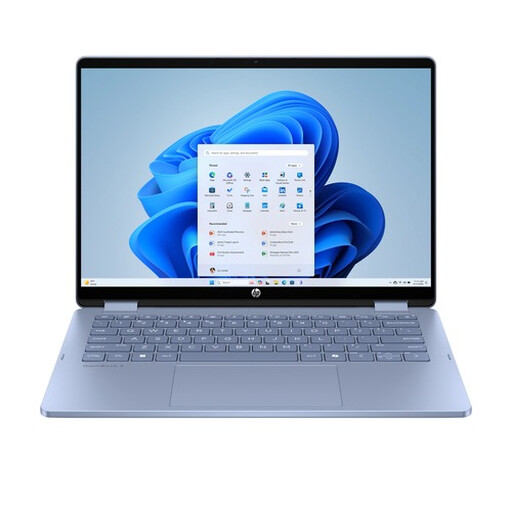
HP OmniBook 5 Flip 14-fp0251ndx 2-in-1, Intel Core 5 120U, 8 GB, 512 GB SSD, 14-inch touchscreen

HP OmniBook 5 Flip 14-fp0251ndx 2-in-1

This model may suit you if you need Windows software and its connections are compatible with the shared workspace.

The product name lists an Intel Core 5 120U, 8 GB RAM, a 512 GB SSD and a 14-inch touchscreen. According to the product description, the USB-C charger and stylus aren’t included.

View at Joybuy

ASUS V16 FX3607VP-RP061W, 16 inch, Intel Core 7 240H, 16 GB DDR5, 1 TB SSD

ASUS V16 FX3607VP-RP061W, 16 inch

The 16-inch size may suit you if you want more screen space at your desk. Check that the model and its connections work with your workspace.

The product name lists Windows 11 Home, a 144 Hz WUXGA screen, 16 GB DDR5 and a 1 TB SSD.

View at Joybuy

Auusda T161N laptop, Intel Core i3-1000NG4, 16 GB DDR4, 1 TB SSD

Auusda T161N laptop

This model may suit you if the listed memory and storage meet your needs. Check that its ports are compatible with the shared desk before buying.

The product name lists an Intel Core i3-1000NG4, 16 GB DDR4 memory and a 1 TB SSD.

View at Joybuy

Frequently asked questions

Can I use Word for a lesson worksheet on a Chromebook?

Yes. Microsoft Support says that you can access Word on a Chromebook via the web to create and edit documents. You can’t install the Windows and Mac desktop versions of Microsoft 365 on it, so check that the web version supports the features your school needs.

What should I check when setting up a shared desk?

Check the connections for the monitor, keyboard and any other equipment you need, and set up your workspace appropriately. If you work at a screen for more than two hours a day, Arboportaal sets out specific requirements, including the option to use a separate monitor or keyboard when working on a laptop.

How should I handle pupil data on this laptop?

If the school processes pupil data, the Dutch Data Protection Authority says it must be able to demonstrate that it has technical and organisational safeguards in place. Follow your school’s policies on devices, accounts and files; a laptop’s specifications alone don’t prove that data processing complies with the GDPR.

What are my rights when buying a laptop online?

According to the Dutch government, when you buy online from a business, you’ll often have 14 days to change your mind. As a consumer, you’re also entitled to a product that works properly; if there’s a fault, the seller must provide a solution. If you’re buying for work or school, check who the buyer is and which terms apply to the purchase.

How do I check how much support a Chromebook has left?

Look up the automatic update date for the exact Chromebook model. Google describes a general policy of ten years of automatic updates, but the end date that matters for your choice depends on the specific device.
