What should you look for when choosing?
First, check that your laptop, cable and monitor support the video signal you want. Then choose a configuration to suit your editing project and how often you take your laptop with you.
| Consideration |
What should you check? |
Who is this important for? |
| Connection for a second screen |
Compare the video output on the exact configuration with your monitor connection and the resolution you want. Lenovo PSREF lists a maximum of 4K at 60 Hz via HDMI and USB-C for the IdeaPad Slim 5 16IAH10. |
If I want to keep notes on an external screen alongside my editing, I check the video connection first. Around 36% of consumers give this connection the highest priority. |
| Performance for your project |
Check the requirements of your editing software, operating system and source material. For Premiere on Windows, Adobe recommends 16 GB RAM for HD and 32 GB or more for 4K and above; the Consumers’ Association recommends 512 GB or more as a guide for regularly working with large photo and video files. |
For larger projects, I want the memory and storage to suit my software and files. Around 29% of consumers prioritise editing performance suited to their projects. |
| Mobile use |
Compare screen size and ports with how often you work without a monitor. Apple offers the MacBook Air M5 in 13- and 15-inch versions and lists two Thunderbolt 4 ports. |
If I move between locations, I want to work comfortably without an external screen and be able to connect my equipment. Around 21% of consumers give portability the highest priority. |
| Purchase and aftercare |
Check which cable or adapter you need and what’s included with the configuration you choose. A manufacturer’s warranty is not the same as your statutory rights against the seller. |
I don’t want to buy unnecessary extras, and I want to know in advance who to contact if something goes wrong. Around 14% of consumers prioritise purchase and aftercare. |
Joybuy laptops for editing lesson videos
This selection features Windows laptops for editing lessons and working with an external screen. Check that the connections and configuration of each version suit your monitor and editing software.
 Image unavailable
HP OmniBook 3 14-hy0058ndx, 14-inch, Ryzen 5 7520U
Suited to a Windows work set-up where you want to connect an external screen via HDMI; check that 8 GB RAM is enough for your editing software and project.
Specifications: 8 GB RAM, 512 GB SSD, Windows 11 Home and HDMI 2.1.
This version has a 14-inch screen and weighs around 1.42 kg. The power adapter is not included as standard.
View product at Joybuy
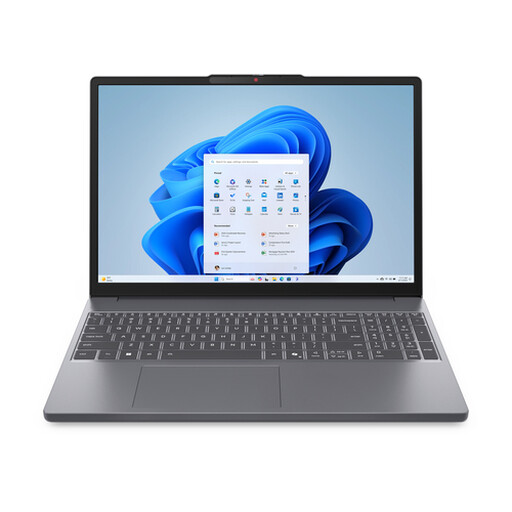 Image unavailable
Lenovo IdeaPad Slim 3 15AHP10, Ryzen 7 8840HS, 16 GB RAM, 512 GB SSD
An option if you want to view lesson materials and documents on a larger built-in screen and connect a second screen via HDMI or USB-C with DisplayPort.
Specifications: Ryzen 7 8840HS, 16 GB RAM, 512 GB SSD and a 15.3-inch screen. This version lists HDMI 1.4 and USB-C with DisplayPort Alt Mode.
The power adapter is not included as standard.
View product at Joybuy
 Image unavailable
ASUS Vivobook S16 S3607QA-SH109W, Snapdragon X, 16 GB RAM, 512 GB SSD
The 16-inch version may suit you if you want to view lesson materials and editing files on the built-in screen. Before buying, check that your software and external monitor are compatible with this version.
Specifications: Snapdragon X processor, 16 GB LPDDR5X, 512 GB SSD, 16-inch WUXGA OLED screen and Windows 11 Home.
View product at Joybuy
 Image unavailable
Lenovo IdeaPad Slim 3 14AHP10, Ryzen 7 8840HS, 16 GB RAM, 1 TB SSD
Suited to anyone who wants to combine lesson materials and locally stored media files with a more compact built-in screen. Check this version’s video output for compatibility with your monitor.
Specifications: Ryzen 7 8840HS, Radeon 780M, 16 GB RAM and 1 TB SSD. The 14-inch WUXGA screen has a 16:10 aspect ratio; the model weighs 1.39 kg.
View product at Joybuy
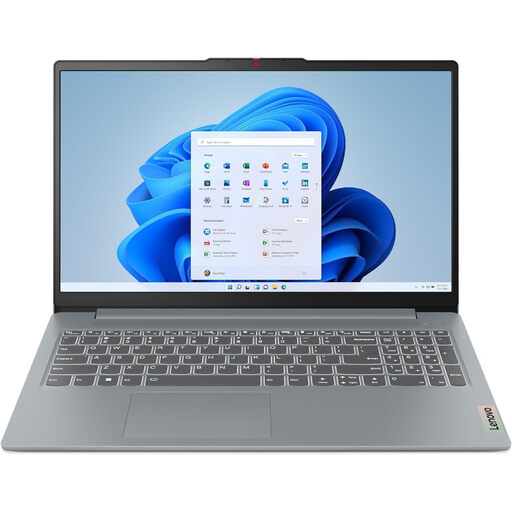 Image unavailable
Lenovo IdeaPad Slim 3 15AHP10, Ryzen 5 8640HS, 16 GB RAM, 512 GB SSD
A Windows option for editing lesson videos and working with an external screen; this version lists HDMI and USB-C with DisplayPort video output.
Specifications: Ryzen 5 8640HS, 16 GB DDR5, 512 GB PCIe 4.0 SSD and a 15.3-inch WUXGA screen with an anti-glare finish.
View product at Joybuy
Frequently asked questions
Does every USB-C port send video to a monitor?
No. Check whether the USB-C port on the exact laptop configuration supports video and whether it’s compatible with your monitor connection. Apple lists DisplayPort via Thunderbolt 4 for the MacBook Air M5; Lenovo lists HDMI and USB-C for external screens on the IdeaPad Slim 5 16IAH10.
Do you need 32 GB RAM for every lesson video?
No. In its Premiere requirements dated 7 October 2026, Adobe recommends 16 GB RAM for HD and 32 GB or more for 4K and above on Windows. If you use different editing software, or your project is mainly text and slides, check the requirements for that software and your own workflow.
How do you set up a second screen on a Windows laptop?
First, connect a suitable video cable and check that Windows recognises the screen. Microsoft Support explains that you can adjust each screen separately in Display settings. Choose the extended display layout if you want to spread windows across both screens.
What can you do if a laptop develops a fault too soon after purchase?
Contact the seller. According to ACM ConsuWijzer, the seller is responsible under statutory warranty if the product doesn’t perform as you could reasonably expect with normal use. A manufacturer’s warranty is a separate right. Online purchases generally also come with a 14-day cooling-off period, which is separate from your warranty rights.
What product marking should you check on a laptop sold in the Netherlands?
The Dutch government states that electronic devices placed on the market in the EU must carry a CE marking. Check the marking and the origin of the product actually being offered. A Dutch-language website alone doesn’t prove where the seller is based.


