What should you consider when choosing?
Start by looking at the screen finish and window position, then check that the software and connections suit your lessons.
Windows laptop
A good fit if: you use the school’s desktop version of PowerPoint or need specific desktop features.
Keep in mind: screen finish and brightness vary by configuration; check the exact model and its connections.
Chromebook
A good fit if: you mainly use Google Slides or PowerPoint’s browser features are enough for you.
Keep in mind: PowerPoint on a Chromebook runs in the browser and doesn’t offer all the desktop features; test your school files first.
MacBook
A good fit if: you want to use macOS and can edit your presentation software and school files on it.
Keep in mind: check the connections in your classroom, and don’t assume the screen is anti-glare without checking the exact configuration.
| What to consider |
What should you check? |
Who is this important for? |
| Screen in daylight |
Check the screen finish and stated brightness of the exact configuration. Where possible, position your viewing direction parallel to the window and assess the screen in similar lighting. |
I want to read lesson slides at a bright workstation without reflections getting in the way. Around 33% of consumers say readability beside a window is their main buying concern. |
| Presentation software |
Find out which software and features your school uses. Test a representative file, for example one that includes the slide master, media and the formatting you need. |
If I need to edit existing presentations in full, I want to know in advance whether the features I rely on are available. Around 27% of consumers give compatibility with presentation software top priority. |
| Connections and working offline |
Compare the ports on the exact laptop with the classroom screen. Set up offline access in advance if you’re relying on it, and test your presentation in the classroom. |
I want to be able to present in the classroom even if the connection drops, without any surprises when plugging in. Around 20% of consumers name connections and offline access as their main concern. |
| Size and portability |
Compare the screen size with your bag, workspace and the way you edit slides; don’t choose based on screen diagonal alone. |
I take my laptop with me, but also want enough room to work on slides. Around 20% of consumers weigh portability against workspace above all. |
Joybuy laptop picks for lesson slides
This selection features Windows laptops for lesson slides, with a range of screen sizes, finishes and connections. Check the features and connections of the configuration you choose.
 No image available
HP OmniBook X Flip NG AI PC 16-as0050nd D75LQEA#ABH
An option to compare if you use Windows and want a larger screen for working on slides.
16-inch touchscreen, stated brightness of 400 nits and Thunderbolt 4 with DisplayPort support. This configuration doesn’t have an HDMI port.
View at Joybuy
 No image available
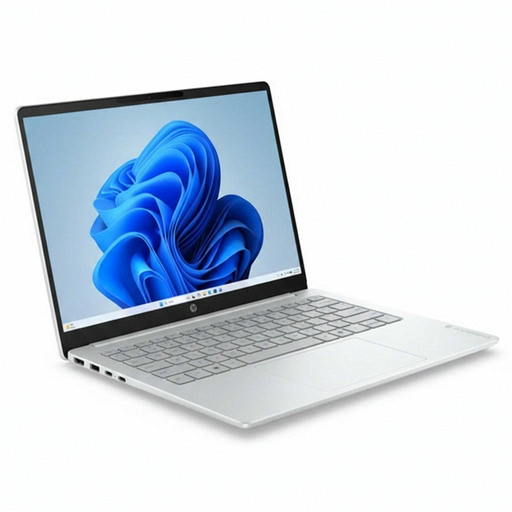
HP OmniBook 3 AI PC 14-ht0013nd
A 14-inch Windows option to compare if you need an HDMI connection for your classroom screen.
14-inch IPS screen, 1920 × 1200 resolution, stated brightness of 300 nits and HDMI. Windows 11 Home.
View at Joybuy
 No image available
ASUS Vivobook S16 S3607QA-SH109W
A Windows configuration to compare if an anti-glare screen and more screen space are important to you.
16-inch WUXGA OLED screen with anti-glare, according to the product description. The title lists Windows 11 Home.
View at Joybuy
 No image available
Lenovo V15 G5 IRL
A Windows laptop to compare if you’re looking for an anti-glare screen and a connection to an external display.
15.6-inch Full HD screen with anti-glare and a stated brightness of 250 nits. Windows 11 Pro; USB-C with DisplayPort support.
View at Joybuy
 No image available
MSI Modern 14 F1MG-867NL
A 14-inch Windows option to compare if you want an anti-glare screen and HDMI.
14-inch Full HD IPS-level screen with anti-glare, HDMI and a stated weight of 1.40 kg. Windows 11 Home.
View at Joybuy
Frequently asked questions
Should you choose a laptop with the highest brightness for use beside a window?
No. A high stated brightness alone won’t prevent reflections. For screen-based work, Arboportaal recommends positioning your viewing direction parallel to the window. Also check the finish of the exact laptop screen and see whether blinds or a different setup are possible.
Can you edit existing PowerPoint slides on a Chromebook in the same way?
Not necessarily. Microsoft describes PowerPoint on a Chromebook as browser-based; the web version lacks certain desktop features, including editing the slide master. So test a representative presentation in advance, using the features you need.
How do you prepare Google Slides for a lesson without internet access?
Set up offline access while you’re connected and use a supported browser. Open the slides you need in advance and check that they’re available offline before your lesson.
Who can help if your laptop is faulty, and do you have a cooling-off period when buying online?
For a consumer purchase, the retailer is your point of contact if a product is faulty; the manufacturer’s warranty doesn’t replace your statutory protection, according to the Dutch Government. In many cases, distance purchases come with a 14-day cooling-off period. Check the terms and whether you’re buying as a consumer or on behalf of a school.
Is USB-C charging compulsory for every laptop?
Not without considering the conditions that apply. According to the European Commission, EU rules on the common charging port have also applied to laptops covered by those rules since 28 April 2026, where they are placed on the EU market from the relevant date. Check which charging connection and accessories apply to the configuration you choose.


