
Creating slides with limited desk space
If you edit lesson slides alongside other materials, you’ll need to weigh up how much room the laptop takes up against how much screen space you need to work comfortably.


Start with the presentation software you need and the screen connection available in your classroom. Then choose a laptop size that lets you edit slides comfortably without taking up too much of your small desk. A compact Windows laptop or Mac may suit you if you need desktop software, while a Chromebook is only suitable if the features you need are available in the web version or Google Slides. Check the ports, software compatibility and any adapters required for each specific configuration.
If you edit lesson slides alongside other materials, you’ll need to weigh up how much room the laptop takes up against how much screen space you need to work comfortably.
If you rely on existing PowerPoint files or specific features, it’s worth checking the platform and the available version of the software first.
If you regularly use different screens or projectors, it helps to check in advance which video connection and any adapter you’ll need.
First, check that the laptop supports your presentation app and the features you need. Then check the connection available in your classroom, and only then compare the laptop’s dimensions with the desk space you have.
| What to consider | What should you check? | Who is this most relevant to? |
|---|---|---|
| Workspace and size | Compare the width and depth of the casing, screen size and weight of the exact configuration. Think about how much space you need to edit slides comfortably. | If you edit slides at a small desk, you’ll want to leave some room while still having a screen that isn’t too cramped; around 31% of consumers put this trade-off first. |
| Software and features | Open a representative lesson file in the app you plan to use and check that the features you rely on work there. Microsoft says PowerPoint for the web doesn’t have all the features of the desktop version, and that the Windows and Mac desktop versions of Office can’t be installed on a Chromebook. | If you need to edit existing lesson files using specific features, you’ll want to be sure your software can handle them; around 25% of consumers make software compatibility their first consideration. |
| Connecting to a screen | Check the input on the projector or classroom screen and the video output on the exact laptop configuration. Allow for a suitable cable, adapter or dock if the connections don’t match. | If you present in different classrooms, you’ll want to avoid any surprises when connecting to the screen; around 25% of consumers prioritise this connection. |
| Extras you may need | Check what software access you already have, what’s included and whether you need an adapter or dock for your screen. Compare any additional warranty with your statutory rights. | If you want your laptop ready for use in your lessons, you’ll want to know in advance which extras you actually need; around 19% of consumers focus mainly on the total purchase and running costs. |
PowerPoint for the web doesn’t have all the features of the desktop version. The Windows and Mac desktop versions of Office can’t be installed on a Chromebook.
Test a representative lesson file in the web environment you plan to use and check that the features you need work there.
At a small desk, the width and depth of the casing also determine how much workspace you have left. The screen size alone doesn’t tell you how much room the laptop takes up.
Compare the stated dimensions of the exact models with the space available to you.
The ThinkPad E14 Gen 7 configuration reviewed lists HDMI. The MacBook Air reviewed has Thunderbolt 4 with DisplayPort support; you may need a suitable adapter to connect it to an HDMI screen.
Check the input on the classroom screen and the video outputs on the exact laptop before choosing a cable or adapter.
An additional warranty comes on top of your statutory rights when buying as a consumer. According to the Dutch Government, there is no fixed statutory warranty period in the Netherlands; if a product is faulty, the retailer is your point of contact.
Read what additional cover is being offered and what extra rights it provides, while keeping your statutory rights in mind.
The ThinkPad E14 Gen 7 (AMD) is a 14-inch Windows option worth considering if built-in connections are important to you.
The 13-inch MacBook Air with M5 is a compact macOS option for anyone who can work with that platform and the software they need.
The Chromebook 314 CBOA314-1H-C5F7 is a specific model to compare if you can use suitable web apps for your presentations.
According to HP Netherlands, the HP OmniBook 5 range includes a 14-inch laptop and a 14-inch Flip configuration to compare by size and design.
These Joybuy products are Windows laptops for editing and presenting lesson slides, with screen sizes from 13.8 to 15.3 inches. Compare the size, connections and included accessories for each configuration.
 Image unavailable
A 14-inch Windows laptop with a touchscreen and 360° hinge, for anyone who wants to edit slides at a small desk and use different modes.
Listed: Windows 11 Home, HDMI 2.1 and USB-C with DisplayPort output. A compatible USB-C charger and stylus are not included.
 Image unavailable
A 14-inch Windows laptop for anyone who wants to edit slides and carry their laptop between classrooms; the description lists a weight of around 1.42 kg.
Listed: Windows 11 Home, a 16:10 screen with 1920 × 1200 pixels and HDMI 2.1. No charger is included.
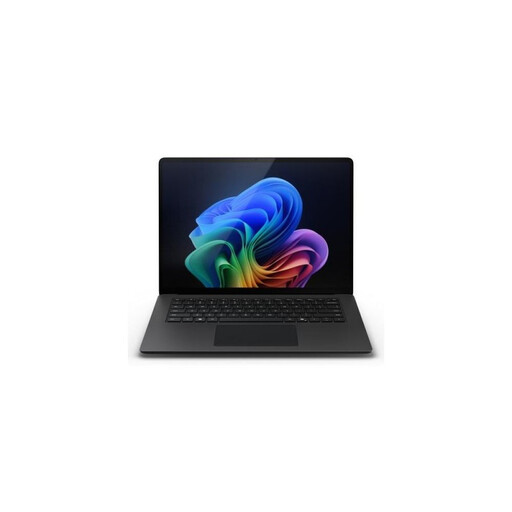 Image unavailable
The 13.8-inch configuration is a compact Windows option for anyone who takes screen size into account when editing slides; its stated weight is 1.34 kg.
Listed: Windows 11 Pro, touchscreen and USB4. Check the video output and connection required for your classroom screen on the exact configuration.
 Image unavailable
A 14-inch Windows laptop with a stated weight of around 0.98 kg, for anyone looking for a lightweight model to carry between classrooms.
Listed: WUXGA OLED screen, HDMI 2.1 and USB-C with DisplayPort output. A compatible 65W USB-C Power Delivery charger is required and isn’t included. The description notes that compatibility with older software and specific peripherals may vary on Windows on Snapdragon.
 Image unavailable
The 15.3-inch screen gives you a larger built-in workspace for slides, but takes up more room than a laptop with a smaller screen.
Listed: Windows 11 Home, a 16:10 WUXGA IPS screen and a weight of around 1.50 kg. A USB-C power adapter is not included.
Yes, you can create and edit documents using PowerPoint for the web. Microsoft says the Windows and Mac desktop versions of Office can’t be installed on a Chromebook, and that the web version doesn’t have all the desktop features. So, test a representative lesson file first.
Yes, if you’ve set up offline access in advance and made the files you need available offline. Google explains which settings you need; check them before working on your presentation without an internet connection.
Use presenter view, with your notes on your laptop and the slides on a second screen. Your device must support multiple screens and be connected to the second screen, as explained by Microsoft Support.
Not automatically: an additional warranty comes on top of your statutory rights. According to the Dutch Government, there is no fixed statutory warranty period in the Netherlands for consumer purchases; if a product is faulty, the retailer is your point of contact. Compare what extra cover the warranty on offer provides.
Yes. According to Arboportaal, if an employee works at a screen for more than 2 hours a day, the screen must not be attached to the keyboard. When using a laptop, the employee must therefore be able to use a separate screen or keyboard; this requirement isn’t a general product specification for every buyer.