Start with your school’s software and device requirements. Windows is a good fit if the required school software runs on it, a Chromebook if you mainly use supported web apps, and a MacBook if your school supports macOS. Then compare the keyboard, screen, battery life and offline access. A stated battery life or cloud service doesn’t guarantee you’ll be able to work through a whole session without a power socket or Wi-Fi.
Who is this laptop choice relevant for?
Teacher who needs specific school software
You create documents and presentations, but also need to take your school’s apps and device requirements into account. The criteria published by Liemers College show why it’s important to check that your school software is supported.
Teacher who moves between workspaces
You often work at a library desk, where a power socket may not always be available. Lenovo Netherlands describes lesson preparation and managing digital learning environments as part of teachers’ laptop use.
Teacher who mainly works in the cloud
You create teaching materials mainly in browser-based applications and want to be able to open important files without an internet connection too. Google describes offline access for certain Drive files on Chromebooks; check that it works with your files and apps.
What should you look for when preparing lessons in the library?
These points will help you compare laptops for preparing lessons in the library, taking your school software, workspace and storage preferences into account.
| What to consider |
What should you check? |
Who is this important for? |
| School software |
Check your school’s required apps, operating systems and device requirements. |
If I need to use school software, I want to know in advance that it will work on the laptop I choose. Around 29% of consumers put compatibility first. |
| Portability and battery life |
Compare screen size, weight, keyboard, charger and the test conditions used to measure battery life for each configuration. |
If I move between workspaces and can’t rely on a power socket, I look at the size and battery life for my own work session. Around 24% of consumers put portability and battery life first. |
| Offline access |
Make files available in advance and test whether the apps and documents you use will open without Wi-Fi. |
If the library’s internet connection drops out, I want to be able to open and edit my lesson plans. Around 18% of consumers put offline access first. |
| Pupil data |
Ask which account, storage location and security requirements your school specifies. |
If I use pupil data, I want to know where files are stored and which security rules apply. Around 17% of consumers put protecting pupil data first. |
| Configuration and essentials |
Check the exact configuration, included charger and any available software licences or services. |
If I mainly create documents and presentations, I only want to choose the hardware and tools my work requires. Around 12% of consumers want to avoid unnecessary hardware, licences or services. |
Common pitfalls when choosing
-
Choosing a laptop before finding out which school apps you need
Software that works on one operating system won’t necessarily run on another. Liemers College’s criteria are an example of requirements specific to one school and don’t automatically apply to others.
Before choosing a model, ask your school which applications you need, which operating systems it supports and what its rules are for personal devices.
-
Assuming cloud files will automatically be available offline
You may need to set up or sync files in advance for offline access. And not every app works without an internet connection.
Make your lesson files available offline in advance and test them with Wi-Fi switched off.
-
Relying only on the claimed battery life or what’s included in the box
Battery life figures may be measured under different types of use. The recommended adapter for the HP Chromebook configuration mentioned is sold separately.
Check the test conditions, box contents and any school software licences for the exact configuration.
Brands to compare
Lenovo
The ThinkPad E14 Gen 7 is a Windows option to consider if your school requires Windows software.
- For configuration 21T9001TMH, Lenovo lists Windows 11 Pro, 16 GB RAM, a 512 GB SSD and a matte 14-inch screen.
- Check the exact configuration; these features apply to the configuration listed.
Acer
The Chromebook Plus 514 is a ChromeOS option if your schoolwork mainly relies on supported web apps.
- For CB514-5H-53HQ, Acer lists a matte 14-inch screen, 16 GB RAM, a 512 GB SSD and HDMI.
- These specifications don’t confirm that specific school software will work; check the exact model number too.
Apple
The 13-inch MacBook Air with M5 is a macOS option if your school supports the required apps and management tools.
- Apple lists a 13.6-inch screen and two Thunderbolt 4 ports for this model.
- Battery life depends on the test conditions; check separately that your apps and any adapters are compatible.
HP
The Chromebook x360 14b-ce0686ndx is a ChromeOS touchscreen option to compare.
- For this configuration, HP lists ChromeOS, 8 GB RAM, 128 GB UFS storage and a 14-inch touchscreen.
- The recommended USB-C adapter is listed as sold separately; check the box contents for the configuration you choose.
Dell
The Dell 14 DC14255 is a configurable Windows option if you want to tailor the specification to your workload.
- The configuration page lists a choice of 8, 16 or 32 GB of memory.
- Choosing one component may change other specifications, so review the complete configuration.
Joybuy laptops for lesson preparation
This selection features Windows laptops for lesson preparation. Check that the school software and included accessories suit your needs for each configuration.
 No image available
HP OmniBook 7 AeroNGAI 13-bg1051nd NL Copilot+ 13.3" AMD Ryzen AI 5
A 13.3-inch Windows laptop for taking your teaching materials between workspaces. Check in advance that your school apps work on the configuration you choose.
The product name lists an AMD Ryzen AI 5 processor.
View at Joybuy
 No image available
HP OmniBook 5 Flip 14-fp0075nd C5VM5EA#ABH
A Flip model to consider if you want to prepare lesson plans on a 14-inch device and prefer touchscreen controls.
Check that the configuration you choose offers the touchscreen functionality you want and supports your school software.
View at Joybuy
 No image available
HP OmniBook 3 14-hy0058ndx, Ryzen 5 7520U, 8 GB RAM, 512 GB SSD, Windows 11 Home
A 14-inch Windows laptop for light lesson-preparation work. Check that the configuration suits the programmes you use at the same time.
The product name lists an AMD Ryzen 5 7520U, 8 GB RAM and a 512 GB SSD. The charger is not included.
View at Joybuy
 No image available
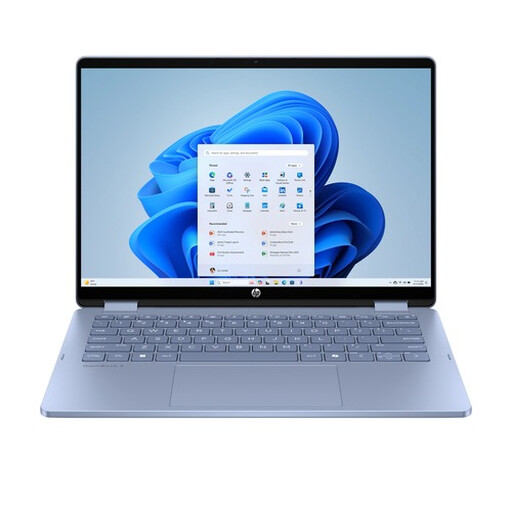
HP OmniBook 5 Flip 14-fp0251ndx 2-in-1, Intel Core 5 120U, 8 GB RAM, 512 GB SSD
This 14-inch Windows 2-in-1 is designed for anyone who wants touchscreen controls and different ways to use their device, as well as a traditional laptop setup.
The product name lists an Intel Core 5 120U, 8 GB RAM and a 512 GB SSD. The USB-C charger and stylus are not included.
View at Joybuy
 No image available
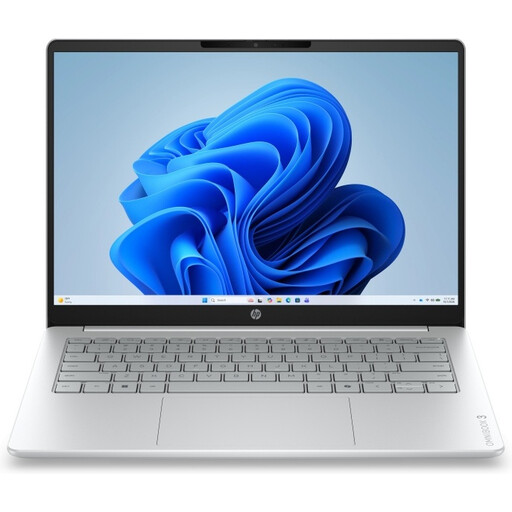
HP OmniBook 3 14-HY0005NDX, Ryzen 5 130, 12 GB RAM, 512 GB SSD, Windows 11 Home
A 14-inch Windows laptop to compare if you want to view lesson plans and presentations on a 2K IPS screen.
The product name lists an AMD Ryzen 5 130, 12 GB RAM, a 512 GB SSD and Windows 11 Home. The charger is not included.
View at Joybuy
Frequently asked questions
Do I need to buy a Windows laptop for lesson preparation?
Not necessarily: start by checking the programmes and device requirements of your own school. Liemers College’s criteria mention software that doesn’t run on every alternative, but this is an example, not a nationwide school requirement.
How can I prepare for a work session without reliable library Wi-Fi?
Make the files you need available offline in advance and test them without Wi-Fi. Google describes offline access for supported Drive files on Chromebooks; Microsoft explains how to select folders for OneDrive syncing on Windows and macOS.
Do I need 16 GB of memory for lesson plans?
Not necessarily. The Consumentenbond says 8 GB is enough for light use and recommends 16 GB if you use several programmes at once. Choose based on the applications you use.
Who can help if my privately purchased laptop is faulty?
For a consumer purchase in the Netherlands, the retailer is your point of contact for a solution. The Dutch government states that the Netherlands has no fixed statutory warranty period; a manufacturer’s warranty or additional warranty is separate. If your school buys the laptop, ask which purchasing terms apply.
Can I store pupil data on my own laptop or personal cloud storage?
Don’t assume this is allowed under your school’s policies without checking first. Ask which accounts, storage locations and security measures are permitted; the Dutch Data Protection Authority highlights schools’ responsibility to protect personal data.


