Start with the applications and file formats your school requires: a Chromebook is best suited to work you can do in a browser, while with Windows or macOS you’ll need to check that the required school software works on the platform. Then compare the exact configuration for its screen, ports, portability and charging. A quoted battery life doesn’t guarantee how long you’ll be able to plan lessons without a socket. If you handle pupil data, make sure you also follow your school’s security policy.
Who is this buying guide for?
Teacher who needs school-specific software
Before choosing a size or brand, you want to know whether the laptop will work with your school’s applications, accounts and documents. For example, Microsoft Support explains how to access Microsoft 365 on a Chromebook via the web; the Dutch Data Protection Authority explains schools’ responsibility for protecting pupil data.
Teacher who often works on the move
You plan lessons in different places, balancing portability and ports against workspace and access to charging. Check the specifications for the exact configuration with the manufacturer.
Teacher who spends a long time writing teaching materials
You work with text, sources and presentations for extended periods and want to factor in the screen and your workspace when choosing. Arboportaal describes a specific requirement for employees who spend more than two hours a day working with display screens.
What should you look for when buying?
Windows laptop
A good fit if: your school requires Windows applications, or you’re looking for a configuration with the built-in ports you need. Check the exact configuration, school settings and software licences.
Bear in mind: ports and configurations vary by model; don’t assume another version has the same features.
MacBook with macOS
A good fit if: the required school applications work on macOS and the configuration you choose suits the way you work.
Bear in mind: the 13-inch MacBook Air M5 reviewed has two Thunderbolt 4 ports; check whether you’ll need adapters and what power supply is included. Apple quotes battery life based on its own test conditions, not as a guaranteed amount of time for lesson planning.
Chromebook with ChromeOS
A good fit if: your school allows browser access and you mainly use the web versions of Google Workspace or Microsoft 365. Google explains that certain Drive files can be made available offline.
Bear in mind: web access isn’t the same as having Office applications installed locally. Also check which apps work offline and the update period for the exact configuration.
First check your school’s software and document requirements; then weigh up portability, charging and how you’ll set up your workspace.
| What to consider |
What to look for when buying |
Who should pay particular attention? |
| School software and files |
Ask about required applications, file formats, licences and device management. If possible, test a representative teaching file. |
If I want to be sure my school applications and documents will work before I choose, compatibility comes first; around 31% of consumers feel the same way. |
| Portability and charging |
Compare the weight and ports of the exact configuration; check whether the required charger is included. Treat battery-life figures as manufacturer claims based on specific test conditions. |
If I work in different places and can’t always count on finding a socket, I pay particular attention to portability and charging; around 25% of consumers put this need first. |
| Comfort when reading and writing |
Check the screen size, anti-glare finish and keyboard layout of the exact version. Allow for the space needed for separate input devices. |
For longer sessions working on teaching materials, I want to read and type comfortably and set up my workspace properly; around 19% of consumers prioritise this need. |
| Protecting pupil data |
Ask which devices, accounts, storage locations and connections your school allows, and which security measures you need to use. |
If I handle pupil data outside school, I want to know which working practices and connections my school allows; around 13% of consumers put data protection first. |
| Total costs and support |
Check which power supply, adapters and licences are included or required. For a Chromebook, also check the update information for the exact configuration. |
If I want to know in advance what extras and support I’ll need, I compare the complete configuration; around 12% of consumers say this is their main concern when buying. |
Common pitfalls
-
Assuming every laptop with a school account can run all school software
Microsoft explains how to access Microsoft 365 on a Chromebook via the web. That doesn’t confirm that every school-specific application will work on it.
Before you buy, ask your school which applications, management settings and document workflows are required. That way, you can avoid needing a different laptop or way of working later.
-
Assuming quoted battery life is guaranteed working time
Apple distinguishes between test scenarios such as video streaming and wireless web browsing; these don’t guarantee how long a lesson-planning session will last.
Check the test conditions, charging port and what’s included with the exact configuration. Make sure the charger you need is included.
-
Treating configurations with the same product family name as identical
Acer configurations with different part numbers list different storage capacities. The Lenovo configuration reviewed, 21U2007DGX, has a Russian keyboard and no pre-installed operating system.
Compare the full part or model number with the specifications on offer, including storage, keyboard layout and operating system.
-
Choosing extra cover without comparing what it includes
A manufacturer’s or retailer’s guarantee is separate from your statutory rights. You don’t automatically need extra cover to have those rights.
Read what additional cover includes, who is responsible if something goes wrong and what it adds.
Brands to compare
Compare the product ranges below only on the configurations and terms specified. A brand name alone doesn’t tell you which configuration or software will suit your school.
ASUS
The Vivobook 14 M1407 is a Windows range worth considering if you’re looking for a 14-inch screen and built-in ports.
- For the M1407KA and M1407GA configurations reviewed, ASUS lists Windows 11 Home and a 14-inch anti-glare screen.
- Processors and configurations vary; these specifications aren’t an independent assessment of battery life or typing experience.
Apple
The 13-inch MacBook Air M5 with macOS is an option if the school applications you need work on it.
- For the base configuration reviewed, Apple specifies 16 GB of memory, a 512 GB SSD and two Thunderbolt 4 ports.
- Apple’s quoted battery life is based on its own test scenarios, not a guaranteed amount of time for lesson planning. You may need an adapter for HDMI or USB-A.
Acer
The Chromebook Plus 514 with ChromeOS suits a browser-based workflow; always check the part number.
- For CB514-4HT-36BJ, part number NX.J06EH.001, Acer lists a 14-inch anti-glare screen, 8 GB of memory and 128 GB of storage, among other specifications.
- A different configuration, NX.KV1EH.002, lists 512 GB of storage. The product family name alone doesn’t confirm that configurations are identical.
Dell
The Dell Pro 14 PC14250 is a business range worth comparing if you’re considering configuration options and support.
- On its Dutch website, Dell describes configurable features and separate support services for the Pro 14.
- Don’t assume every PC14250 configuration has the same specifications or service options; check what’s included with the one you choose.
Lenovo
The ThinkPad E14 Gen 7 is a business Windows range worth comparing if you’re checking ports and configurations carefully.
- The PSREF configuration reviewed, 21U2007DGX, lists HDMI and Ethernet, among other features.
- This configuration has a Russian keyboard and no pre-installed operating system. Check for a suitable Dutch part number and don’t assume features apply across the whole product range.
Joybuy product picks
This selection from Joybuy includes Windows laptops and MacBooks for lesson planning. Check that the school software and your workspace are compatible with each model.
 No image available
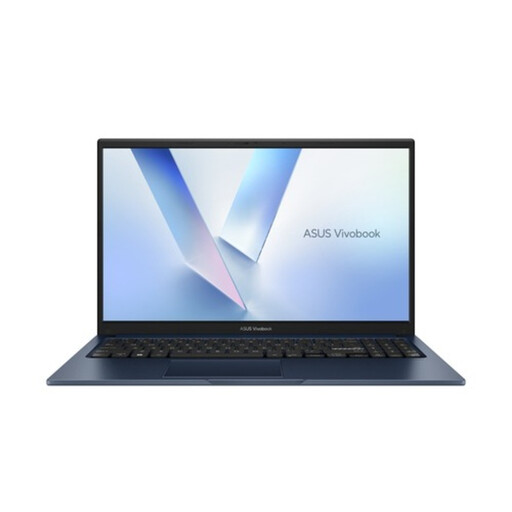
ASUS Vivobook 15 X1504MA-BQ534W, 15.6-inch, 8 GB RAM, 256 GB SSD, QWERTY
A Windows configuration to consider if your school’s required software supports Windows.
The product title lists a 15.6-inch Full HD screen, Core 5 320, 8 GB RAM and a 256 GB SSD. You’ll need to check with your school whether it’s compatible with specific school software.
Joybuy
 No image available
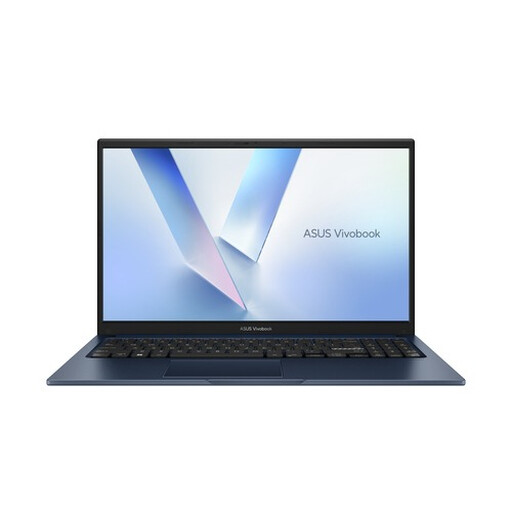
ASUS Vivobook 15 X1504MA-BQ588W, 15.6-inch, 8 GB RAM, 256 GB SSD, QWERTY
This Windows configuration is worth considering if your school’s applications support Windows.
The title lists a Core 3 304, 8 GB RAM and a 256 GB SSD; the description mentions a 15.6-inch Full HD anti-glare screen. Check that the exact configuration is compatible with your school software.
Joybuy
 No image available
ASUS Zenbook A16, 16-inch WUXGA, 16 GB, 512 GB SSD, Windows 11 Home
A Windows model to consider if the school software you need works on Windows and you’re looking for a larger screen.
The description lists a 16-inch WUXGA anti-glare screen, 16 GB of memory and a 512 GB SSD; the title specifies Windows 11 Home. Check your school’s specific software requirements.
Joybuy
 No image available
Apple MacBook Air 15-inch M5, 16 GB, 512 GB, Starlight, QWERTY
This MacBook is an option if the school applications you need work on macOS.
The product information lists a 15.3-inch screen, 16 GB of memory and 512 GB of storage. The description says the power adapter isn’t included; also check which ports your workspace requires.
Joybuy
 No image available
Apple MacBook Neo 13-inch A18 Pro, 8 GB, 256 GB, Citrus, QWERTY
This MacBook is worth considering if the school software you need works with macOS.
The title lists a 13-inch screen, 8 GB of memory and 256 GB of storage. The description says a USB-C power adapter is required separately; check software compatibility with your school.
Joybuy
Frequently asked questions
Can I use Microsoft 365 on a Chromebook if my school uses it?
Microsoft Support explains how to access Word, PowerPoint, Teams and OneDrive, among other apps, on a Chromebook via the web. Check with your school that this way of working and the features you need will be suitable; don’t assume you can use Windows or Mac apps installed locally.
Can I work on a lesson document in the library without Wi-Fi?
Yes. Google explains that you can access certain Drive files offline, including Docs, Sheets and Slides, once you’ve made them available. Not every app works offline, so test your school’s files and account settings before you set off.
What should I look for if I’ll be writing on a laptop for a long time?
Think about your setup and whether you can use separate input devices. Arboportaal states that employees who spend more than two hours a day working with display screens must use a separate screen and keyboard; this requirement doesn’t necessarily apply to everyone who occasionally visits a library.
How should I handle pupil data and public Wi-Fi in the library?
First, ask which device, storage and connection your school allows. The Dutch Data Protection Authority explains that schools are responsible for protecting pupil data with appropriate measures. Veilig Internetten recommends using a VPN or mobile hotspot on public Wi-Fi; you should also follow your school’s policy.
Do I need extra cover, and is there a cooling-off period when I buy online?
For a consumer purchase, statutory rights apply alongside any retailer’s or manufacturer’s guarantee. The Netherlands Authority for Consumers and Markets (ACM) says the product’s expected lifespan is taken into account and that there’s no single fixed time limit in the Netherlands. For distance purchases, the Dutch government says the cooling-off period is usually 14 days. Before buying, check what extra cover adds.


