
Teacher who needs specific school software
You prepare lesson plans at home and may need specific applications or a managed school account. Before choosing a model, ask your school which apps, operating systems and rules for personal devices apply.


Start with your school software, account access and device policies: these determine whether Windows, macOS or ChromeOS will work for you. Microsoft Support notes that you can’t install the Windows and Mac desktop versions of Microsoft 365 on a Chromebook, so choose ChromeOS only if the browser-based option and your school’s policy suit your needs. Then consider the screen, memory and ports, and make sure your workspace is suitable if you spend long periods working at a screen.
You prepare lesson plans at home and may need specific applications or a managed school account. Before choosing a model, ask your school which apps, operating systems and rules for personal devices apply.
You write and edit documents and presentations at a permanent home workspace. So think beyond the built-in screen and consider whether you can use a separate monitor or keyboard. Arboportaal outlines the requirements for employees who work at a screen for more than two hours a day.
You take the same laptop with you for teaching materials and online meetings. Consider its size, weight and the ports you need, and ask what access to school data is permitted on a personal device. Kennisnet explains why secure, managed devices matter when accessing school applications.
When choosing a laptop for planning lessons at home, first check what your school software and workspace require. You can then find a model that suits your documents, comfort and travel needs.
Choose this option: if your school requires Windows or you need a Windows desktop app.
Bear in mind: school software and personal devices may have additional requirements, so check the exact app and device policy.
Consider this option: if your school supports the apps and access you need on a Mac, and you’re looking for a compact laptop.
Bear in mind: check whether your existing monitors and other devices work with the available ports, or whether you’ll need an adapter.
Consider this option: if you can prepare lessons using supported browser-based services and your school allows the device.
Bear in mind: Microsoft Support notes that you can’t install the Windows and Mac desktop versions of Microsoft 365 on a Chromebook. Also check the update period for the exact model.
| What to consider | What should you look for? | Who is this most relevant to? |
|---|---|---|
| School software and access | Check the required apps, operating system, account licence and rules for personal devices. | I want to know in advance whether my school apps and account will work; a browser-based option isn’t always the same as a desktop app. Around 31% of consumers put compatibility with school software at the top of their buying priorities. |
| Documents and presentations | Compare the memory and storage of the exact configuration with your apps and the amount of material you keep locally. | I often work with several lesson plans, presentations and browser tabs open at once. Around 25% of consumers prioritise working smoothly with documents and presentations. |
| Comfort at your desk | Check the screen and make sure the ports work with the external monitor or keyboard you want to use. | I create teaching materials for extended periods and want to set up my workspace accordingly. Around 19% of consumers put comfort at work first. Arboportaal outlines the requirements for employees who work at a screen for more than two hours a day, including the use of a separate monitor or keyboard. |
| Portability and meetings | Consider the weight, screen size, camera, microphone and the ports you use at school. | I take my laptop between home and school and use it for online meetings. Around 13% of consumers prioritise portability and meeting features. |
| Accessories and support | Check what comes with the laptop and which software and support are available through your school account. | I want to know in advance which accessories and services I’ll need for work. Around 12% of consumers start by considering the total cost of ownership and support. |
Browser access doesn’t mean you can install the Windows or Mac desktop versions of Microsoft 365. That difference matters if you need a specific desktop app for schoolwork.
Before choosing an operating system, check with your school which app version, account access and device policies apply.
If an essential app doesn’t work through the approved browser option, you may need a different device.
The size of the built-in screen doesn’t tell you whether you can use your existing workspace with a separate monitor or keyboard. Arboportaal outlines the requirements for employees who work at a screen for more than two hours a day, including access to a separate monitor or keyboard.
Before deciding on your preferred setup, check the laptop’s ports and which peripherals you already own.
A separate setup may require additional equipment or connection accessories.
A product name doesn’t always make clear which accessories come with the exact configuration. A bundle may include extra items.
Check what’s in the box, and whether the exact configuration includes the power supply and adapters you need.
If an essential item isn’t included, you may need to source it separately.
The Dutch government describes the statutory guarantee as your right to a product that is fit for purpose. A manufacturer’s or retailer’s warranty is separate and has its own terms.
Read any additional warranty terms and contact the retailer if there’s a problem with a product.
The IdeaPad Slim 5 can be a useful comparison if documents, ports and a home workspace are important to you.
HP lists the OmniBook and ProBook among its options for education professionals. Compare the exact configuration with the software and workspace you need.
A MacBook Air with macOS is worth considering if your school supports the applications and access you need on a Mac.
Vivobook is another range to consider for everyday use.
This selection includes Windows laptops and a MacBook for lesson plans, documents and working at home. If you’re considering macOS, first check whether your school supports the applications you need.
 No image available
A Windows laptop to consider if your school software runs on Windows. Check that it’s compatible with your specific apps and school account.
16-inch WUXGA OLED screen, Snapdragon X processor, 16 GB LPDDR5X memory, 512 GB SSD and Windows 11 Home.
 No image available
A Windows configuration to consider if you store teaching materials locally and want to take your laptop with you. Check that it meets your school’s app and device policy requirements.
14-inch WUXGA IPS screen, 16 GB of memory, 1 TB SSD, Windows 11 Home and a weight of 1.39 kg.
The product information lists USB-C with Power Delivery, HDMI, a webcam with a privacy shutter and Wi-Fi 6.
 No image available
This macOS configuration is suitable only if your school supports the applications and access you need on a Mac.
13.6-inch Liquid Retina screen, 16 GB of memory, 512 GB SSD, two Thunderbolt 4 ports and a weight of 1.23 kg.
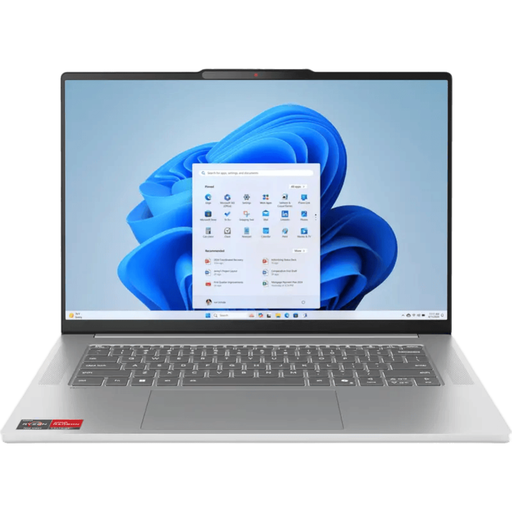 No image available
A Windows laptop to compare if you create documents at home and may want to connect an external monitor. Check that your school software and account will work with it.
15.3-inch IPS screen with 1920 × 1200 resolution, 16 GB of memory, 512 GB SSD and Windows 11 Home.
USB-C and HDMI are listed. A compatible charger isn’t included with this configuration and must be bought separately.
 No image available
A Windows configuration to compare for lesson plans and office documents. Check in advance that it supports the school apps and access you need.
Intel Core 7 150U, 16 GB of memory, 512 GB SSD and Windows 11 Home.
15.6-inch Full HD IPS anti-glare screen; the product information lists HDMI, USB-C, USB-A, a camera, microphone and numeric keypad.
First ask which operating system, app version and account access your school requires. Also check whether you’re allowed to use a personal device. General system requirements don’t automatically confirm that a specific school app or managed environment will work.
Yes. Microsoft Support describes how to access Microsoft 365 apps through a browser. You can’t install the Windows and Mac desktop versions on a Chromebook, so check which version you need for your schoolwork.
That depends on your workspace and the requirements that apply to your situation. Arboportaal says employees who work at a screen for more than two hours a day must be able to use a separate monitor or keyboard. So check that the laptop has the ports you need for your preferred setup.
Don’t assume you can do this without permission and clear rules from your school. The Dutch Data Protection Authority outlines schools’ obligations to protect pupils’ personal data, and Kennisnet covers device security and management. Ask which accounts, storage locations and devices you’re allowed to use for work.
For a consumer purchase in the Netherlands, the product must be fit for purpose. According to the Dutch government, the statutory guarantee has no fixed term, and the retailer is your point of contact if something goes wrong. The European Union’s Your Europe website says that a standard online consumer purchase usually comes with a 14-day cancellation period from delivery, subject to legal exceptions. Check the terms separately if you’re buying for business use.